
Complete handleiding voor het installeren van MX Player op Firestick (2026)

What Is MX Player and Why Install It on Firestick?
MX Player is one of the most popular and feature-rich media players available for Android-based devices. Originally designed for smartphones, it works exceptionally well on streaming devices like the Amazon Firestick, FireStick 4K, FireStick 4K Max, FireStick Lite, and Fire TV — making it a go-to choice for anyone who wants a powerful, flexible video player on their TV.
Unlike dedicated IPTV-spelers that connect to live TV services, MX Player is a general-purpose media player built to handle locally stored video and audio files, as well as online content. It supports hardware acceleration, multi-core decoding, gesture controls, and a wide range of media formats — features that set it apart from basic players.
One important thing to note: the MX Player app you may find on the Amazon App Store is an OTT streaming platform — it is not the same as the MX Player video player. The actual MX Player video player is only available via sideloading, which is exactly what this guide covers. If you’ve already sideloaded apps like IPTV Smarters Pro of XCIPTV-speler, this process will feel very familiar.
Key Features of MX Player
Before diving into the installation, here’s a quick look at what makes MX Player worth installing on your Firestick:
- Hardware acceleration: Offloads video decoding to your device’s GPU for smoother, buffer-free playback
- Multi-core decoding: Takes advantage of multi-core processors for faster, more efficient performance
- Gesture controls: Swipe to adjust volume, brightness, and seek position — intuitive and remote-friendly
- Wide format support: Plays virtually all major video, audio, and subtitle formats without needing additional codecs
- Kids Lock: Locks the app during playback so children can’t accidentally exit or change settings
- File transfer: Built-in file transfer feature for moving media between devices on the same network
- Background playback: Continues playing audio in the background while you multitask on your Firestick
Is MX Player Safe and Legal to Use?

Yes — MX Player is a 100% legal application. It is officially published on Google Play Store and other major app marketplaces. The fact that it requires sideloading on Firestick is simply because Amazon’s App Store carries a different app under the MX Player name (their OTT platform), not the video player.
The MX Player APK has been scanned on VirusTotal and comes back completely clean — no malware, no spyware. That said, it’s always good practice to use a VPN when sideloading or streaming content on your Firestick, as it encrypts your connection and keeps your activity private from your ISP and third parties.
Stap 1: Bereid uw Firestick voor - Downloader installeren & Onbekende bronnen inschakelen
Since MX Player is not available on the Amazon App Store, you’ll need to sideload it. The Downloader app is the easiest tool for this. If you’ve already set this up for another app — for example when following our guide on how to install IPTV Stream Player on Firestick —
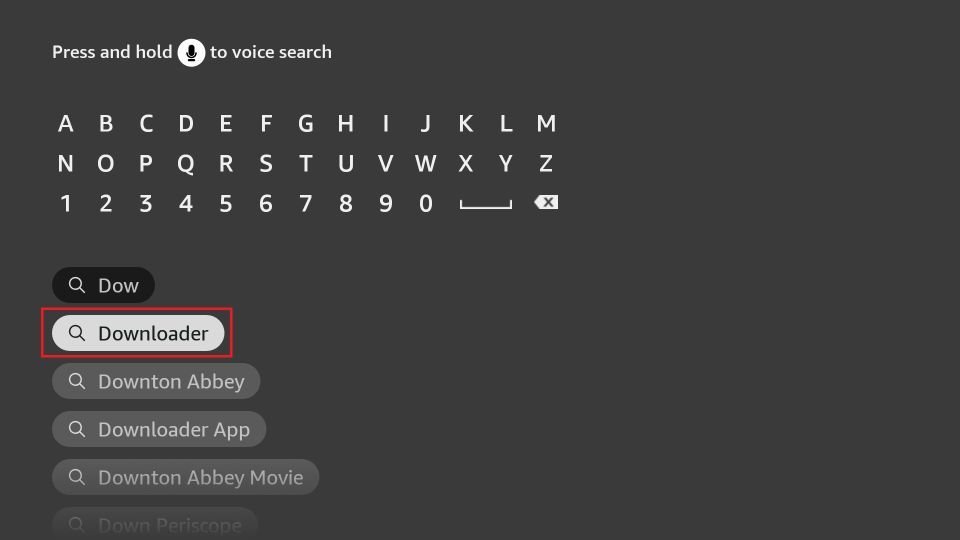
1. Go to Find > Search from the home screen of your FireStick. Search for Downloader. When you see it in the search suggestions, click it and then follow the onscreen instructions to install it.
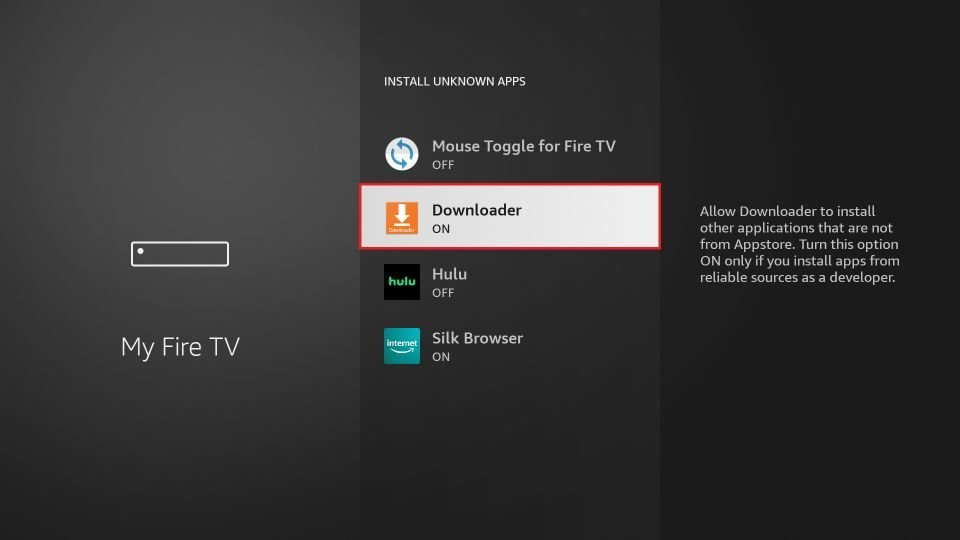
2. Go to the FireStick home screen and select Settings. Then, select My Fire TV. After that, click Developer Options. Then, select Install unknown apps (or click Apps from Unknown Sources). Lastly, turn OP Downloader.
Note: If you do not see Developer Options, go to Instellingen > Mijn Fire TV > Over.
Now, select Fire TV Stick en click it 7 times to enable Developer Options.
Installing MX Player on FireStick via Downloader
With the Downloader app set up and unknown sources enabled, you’re ready to sideload MX Player. For full details on compatible IPTV app setup and sideloading, you can also check our setup guide.
Please follow these steps:
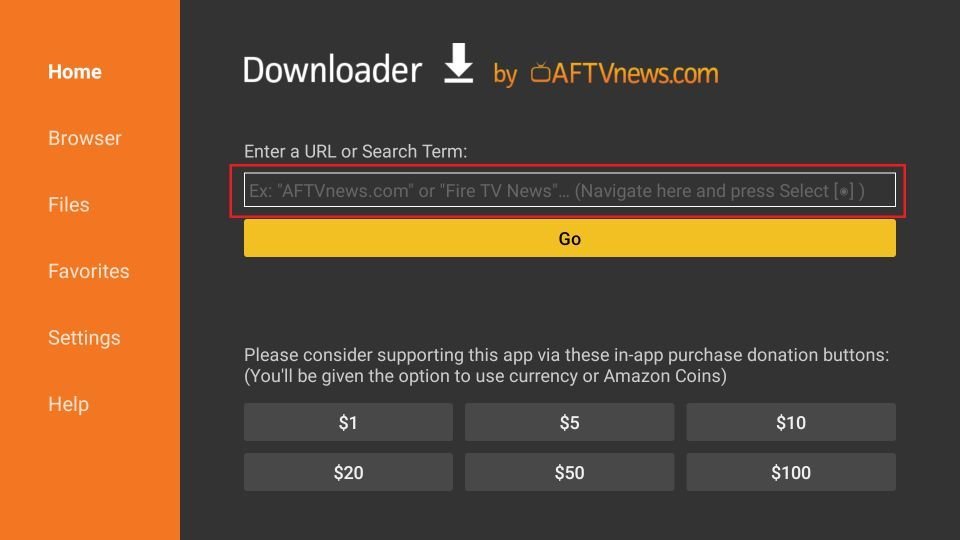
1. Open de Downloader app. You will find a URL field on the right part of the window. Select it.
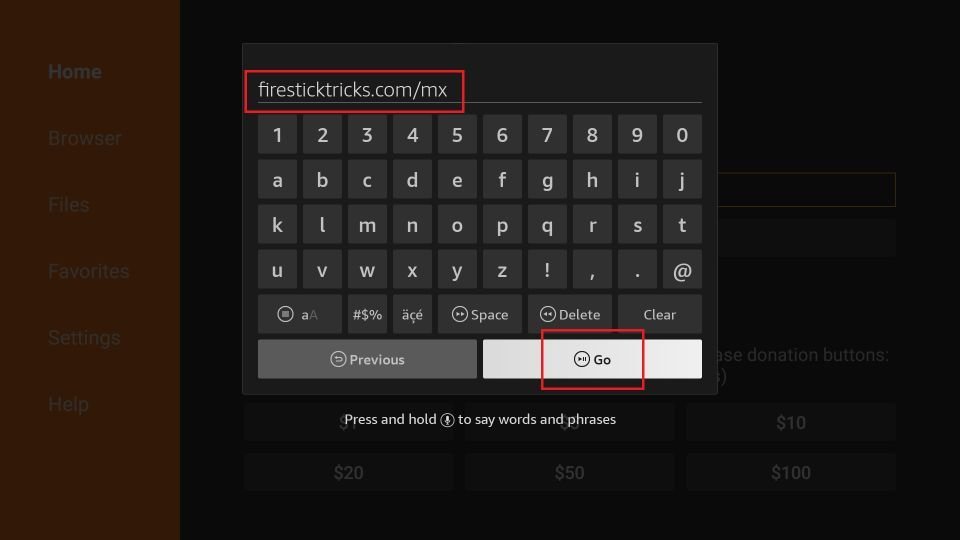
2. You’ll now see an onscreen keyboard. Go ahead and enter firesticktricks.com/mx and select Go.
Note: This URL points to an external source. We do not host any APK files.
3. Wait while the Downloader downloads MX Player file on your FireStick device.
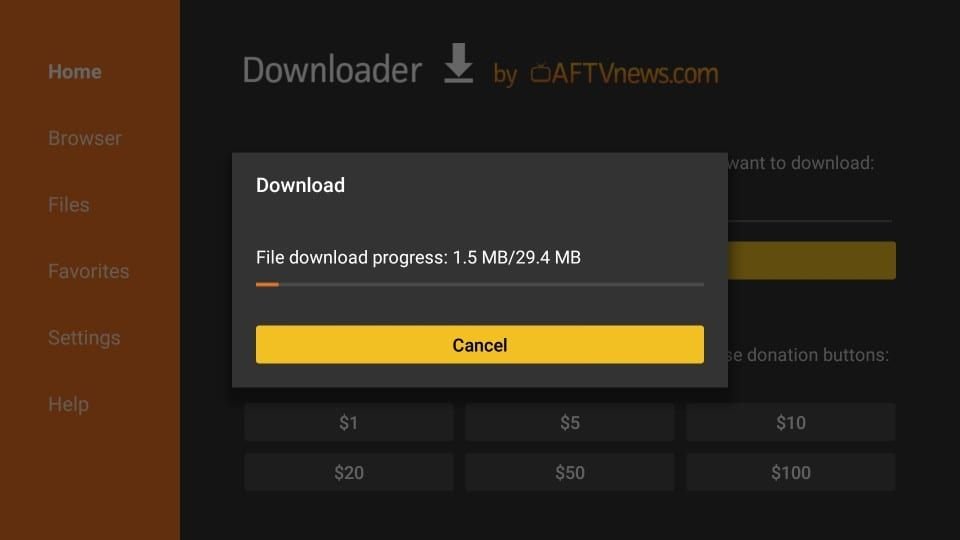
4. When the following screen is displayed, click Installeer in the bottom right.

5. The installation of the MX Player will start. It takes about a minute or a little more.
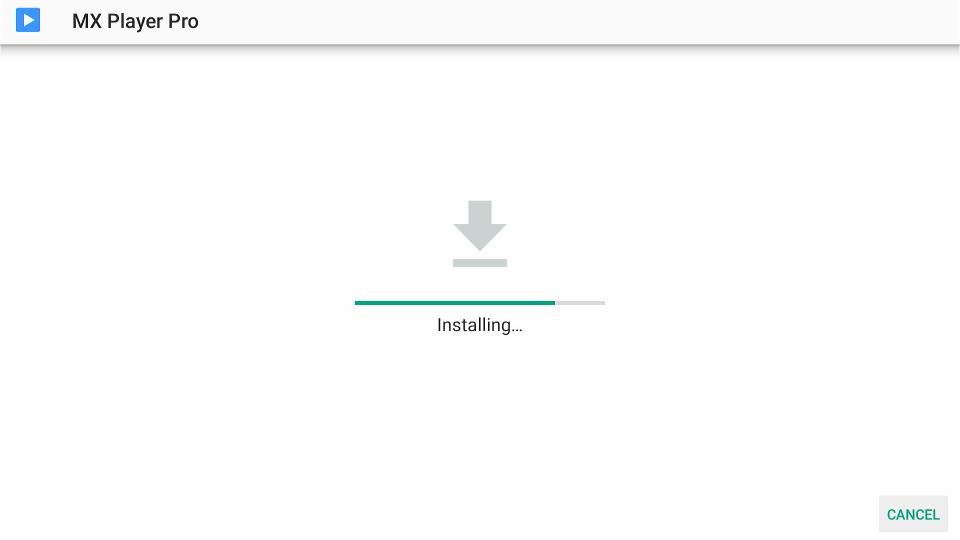
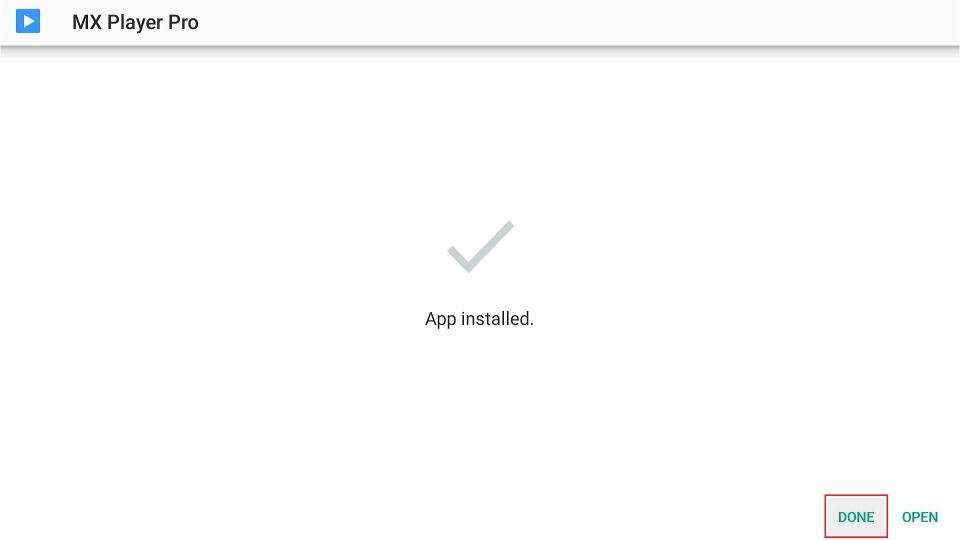
6. When you see the App installed confirmation, it means MX Player has been installed. Click Done.
7. Now we are back in the Downloader window. Once you have installed the app, it is best to delete the APK file. The file is no longer required, and it will occupy space unnecessarily on your limited FireStick storage. Select Delete.
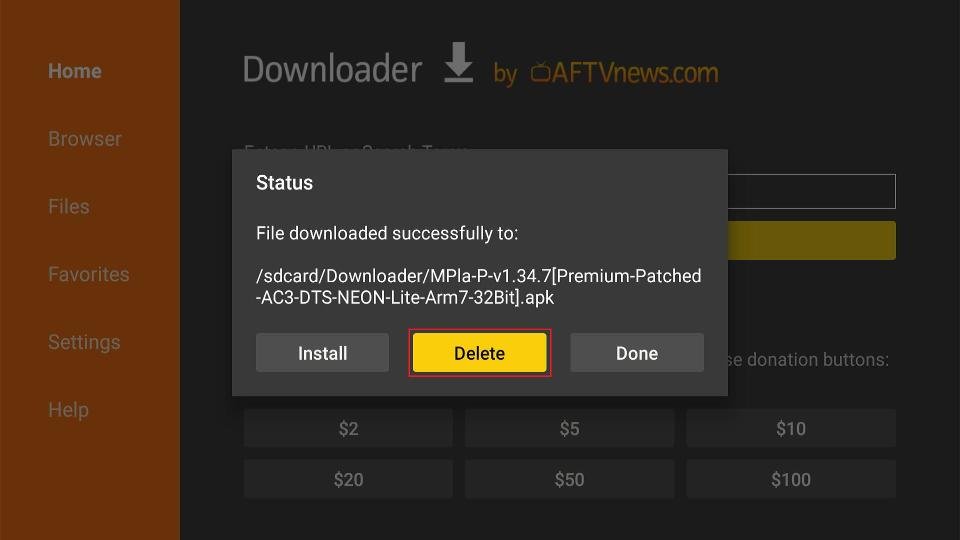
8. Choose Verwijder again to confirm your intent to delete the MX Player APK.
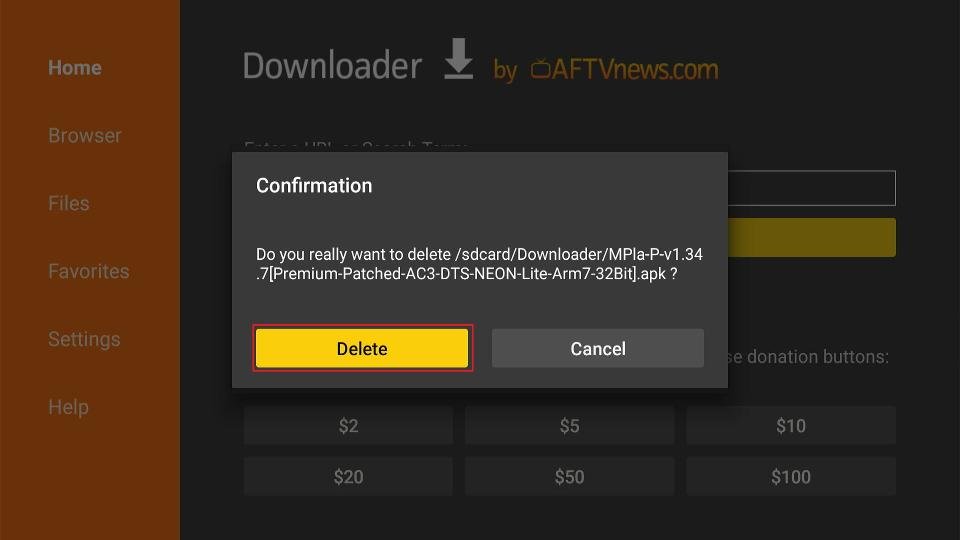
This is how you install MX Player on Firestick.
You’re now all set. A quick reminder: your internet provider and many websites/apps can see your IP address and some details about your connection. Using a VPN encrypts your traffic and masks your IP address, which helps protect your online privacy.
I recommend ExpressVPN. It’s a reputable VPN with strong encryption and fast connections, and it’s straightforward to install on Fire TV/FireStick and other devices.
Next, I’ll show you how to set up and use ExpressVPN on your Fire TV/Stick.
Step 1: Subscribe to ExpressVPN HERE. It comes with a 30-day money-back guarantee. Meaning you can use it for free for the first 30 days, and if you are not satisfied with the performance (which is highly unlikely), you can request a full refund.
Step 2: Power on your Fire TV Stick, then go to Find> Search.
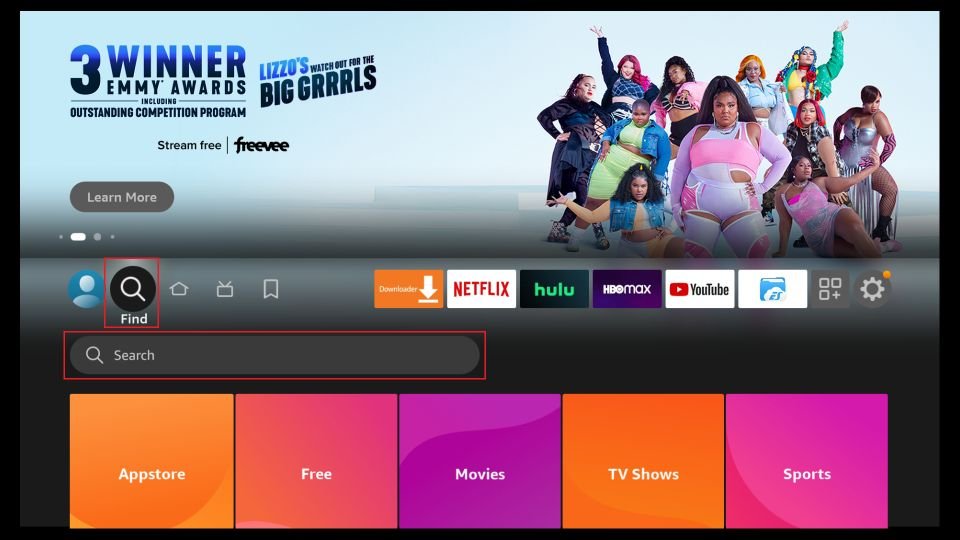
Step 3: Now type “Expressvpn” (without quotes) in the search bar and select ExpressVPN when it shows up in the search results.

Step 4: Klik op Downloaden to install the ExpressVPN app on Fire TV / Stick.

Step 5: Open the app and enter the login credentials you created when you bought the ExpressVPN subscription. Click Sign in.

Step 6: Click the Power icon to connect to a VPN server. That’s all. Your connection is now secure with the fastest and best VPN for FireStick.

How to Set Up and Use MX Player on Firestick
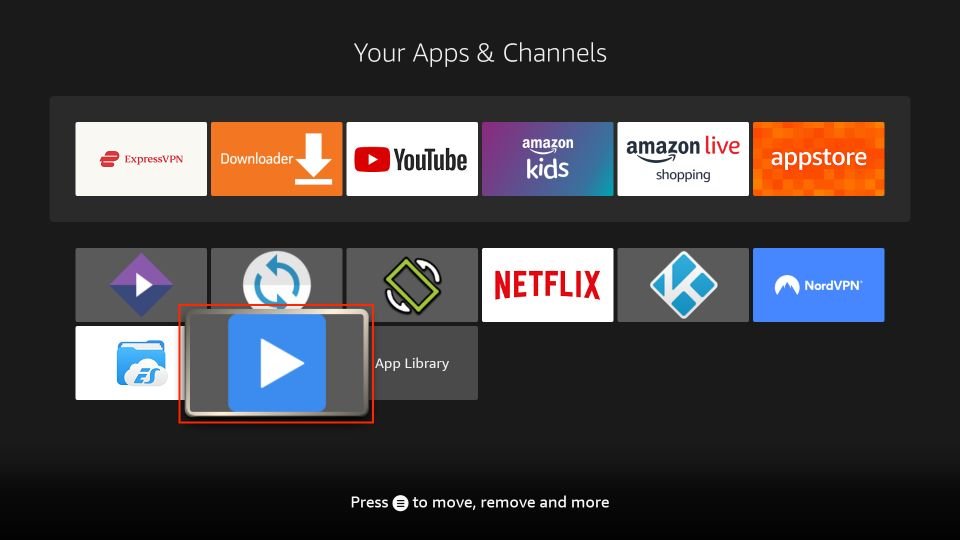
Launch MX Player from Your Apps & Channels screen.
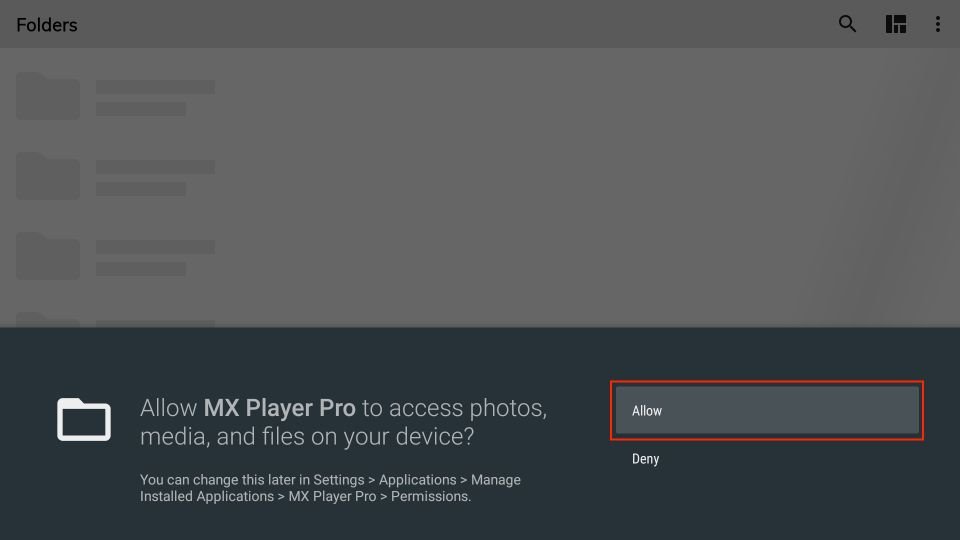
To let MX Player access your files, click Allow.
Welcome to the MX Player main screen! All your local videos will be available here.

Select the Three-Dots button on the top right side.
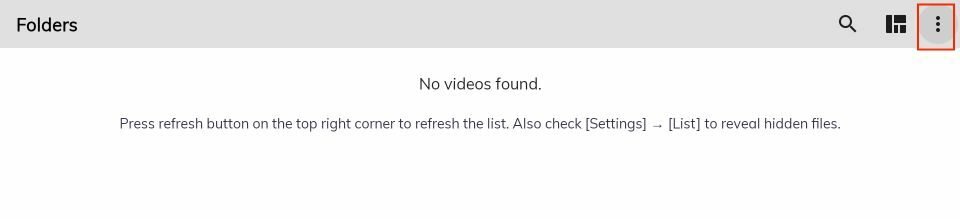
Here, you can see multiple options. Go inside Settings.

Here, you can see multiple options like List, Player, Audio, etc.
- When installation finishes, select Gedaan (do not tap Open yet — you’ll configure it in the next step).
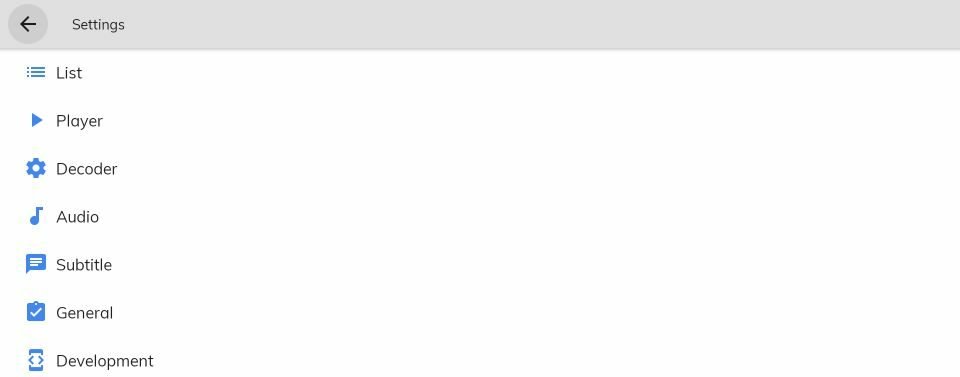
MX Player Settings & Features Overview
Player Settings
Under the Player settings tab, you can configure hardware acceleration mode, adjust screen orientation, enable or disable gesture controls, and set subtitle display preferences. For most Firestick users, enabling hardware acceleration delivers the smoothest playback with the least buffering.
Audio Settings
MX Player’s audio settings let you adjust audio delay (useful for out-of-sync audio), select audio output formats, and configure equalizer presets. This is particularly handy when playing video files with audio sync issues.
Kids Lock
The Kids Lock feature is one of MX Player’s most practical tools for families. Once enabled, it locks the player during playback — children cannot exit, change files, or adjust settings without your password.
Subtitle Support
MX Player supports a wide variety of subtitle formats including SRT, SSA, ASS, and more. Subtitles are automatically detected if stored in the same folder as the video file. You can customize font size, color, and positioning from the subtitle settings menu.
Troubleshooting Common MX Player Issues on Firestick
Video Not Playing or Crashing
- Switch between Hardware (HW) en Software (SW) decoding in Player settings — some file formats play better with software decoding
- Clear the app cache via Settings > Applications > Manage Installed Applications > MX Player > Clear Cache
- Reinstall the app if crashes persist after clearing cache
Audio Out of Sync
- Use the audio delay setting in MX Player to manually adjust sync — tap the speaker icon during playback to access it
- Try switching the audio output mode in Settings > Audio
Subtitles Not Showing
- Make sure the subtitle file (.srt or similar) is in the same folder as the video and has the same filename
- Enable subtitles from the subtitle icon during playback if they don’t load automatically
App installeert niet
- Double-check that Unknown Sources is toggled ON for Downloader in Developer Options
- Ensure your Firestick has at least 500MB of free storage — low storage can prevent APK installation
- Re-download the APK if the file appears to be corrupted
Veelgestelde vragen (FAQ's)
Yes, MX Player is completely free to download and use. There is a paid MX Player Pro version available that removes ads and adds a few additional features, but the free version is more than capable for most users.
MX Player can be used as an external player for some IPTV applications — for example, as an alternative playback engine within apps like XCIPTV-speler of IPTV Smarters Pro. However, MX Player is not a standalone IPTV player and does not connect to IPTV services on its own.
MX Player supports almost all major formats including MP4, MKV, AVI, MOV, FLV, WMV, 3GP, and more. It also handles a wide range of audio formats and subtitle files.
Since MX Player is sideloaded, it won't auto-update via the Amazon App Store. To update, simply repeat the sideloading process — download the latest APK using the Downloader app and install it over the existing version. Your settings will be preserved.
Both are excellent media players, but they serve slightly different use cases. MX Player is known for its gesture controls and multi-core decoding performance, while VLC is available directly on the Amazon App Store and supports a broader network streaming protocol range. For local media playback, both perform very well — it comes down to personal preference.
Yes, MX Player can be installed on as many devices as you like. If you're managing several Firestick devices or looking for a complete IPTV solution across multiple screens, check out our IPTV reseller plannen voor flexibele multi-aansluitmogelijkheden.
Laatste gedachten
MX Player is a solid, free media player that adds real value to your Firestick setup — especially if you regularly play locally stored video files or use it as an external player for other streaming apps. Its hardware acceleration, gesture controls, and broad format support make it one of the best sideloaded apps you can have on Fire TV.
Looking to get even more out of your Firestick? Browse our complete IPTV setup and app guides for tutorials covering all the top players and streaming apps. And if you’re ready to pair MX Player with a quality live IPTV service, we’ve got subscription plans designed to deliver stable, high-quality streams on every device.