
IBO Pro Player: Complete Setup & Installation Guide for All Devices
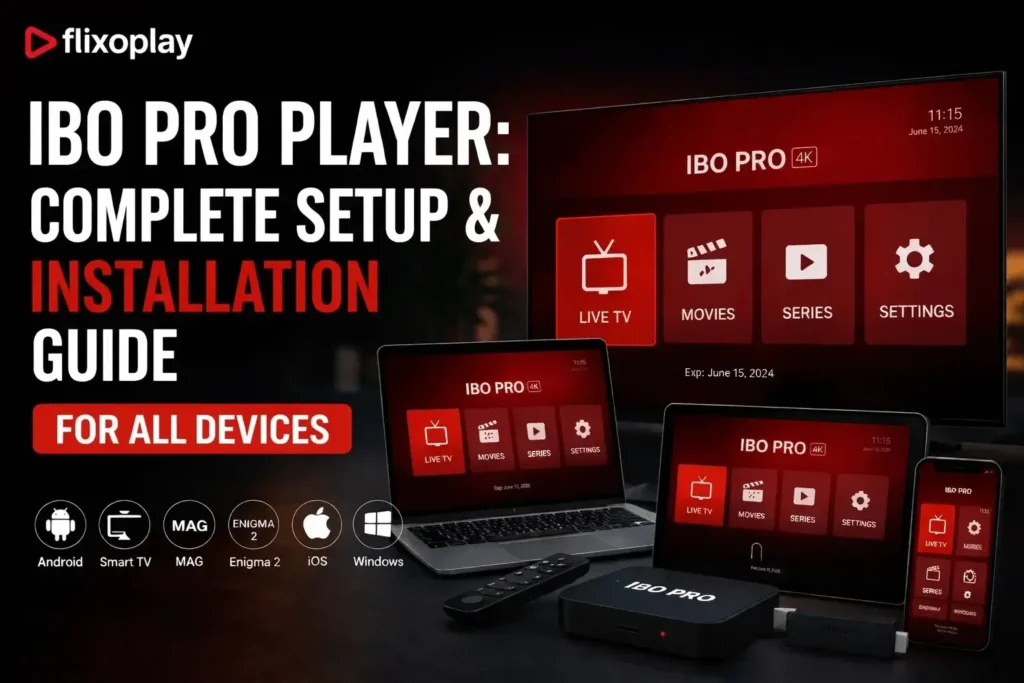
Whether you just downloaded IBO Pro Player or are setting it up for the first time, this guide covers everything — from installing the app on your smart TV or device, to adding your IPTV playlist and getting your channels live. Follow each step carefully and you will be streaming in minutes.
What Is IBO Pro Player?
IBO Pro Player (also known as IBO Player Pro or IBOPlayer) is a powerful IPTV media player that supports a wide range of audio and video codecs. It is designed to give users a seamless IPTV playback experience across multiple devices including smart TVs, Android TV boxes, Amazon Firestick, Windows PCs, iPhones, LG Smart TVs, and Roku. Its intuitive interface, playlist management, subtitle support, and Xtream Codes compatibility make it one of the most popular IPTV players available today.
How to Install IBO Pro Player on Any Device
Installation steps vary slightly depending on your device. Follow the section that matches yours below.
How to Set Up IBO Pro Player on Smart TV (Complete Walkthrough)
This is the most popular setup method. If you are using a Samsung, LG, or Android-based smart TV, here is exactly how to get IBO Player Pro installed and your playlist loaded.
Step 1: Install IBO Pro Player from Your Smart TV App Store
Turn on your smart TV and open the app store (Samsung Smart Hub, LG Content Store, or Google Play Store on Android TV). Search for IBO Pro Player and click Install. Once the download completes, open the app.
Step 2: Note Your MAC Address and Device ID
When you open IBO Pro Player for the first time, the home screen will display your unique MAC address and device ID. These are tied to your device and are required when activating or linking your IPTV subscription. Write them down or take a photo.

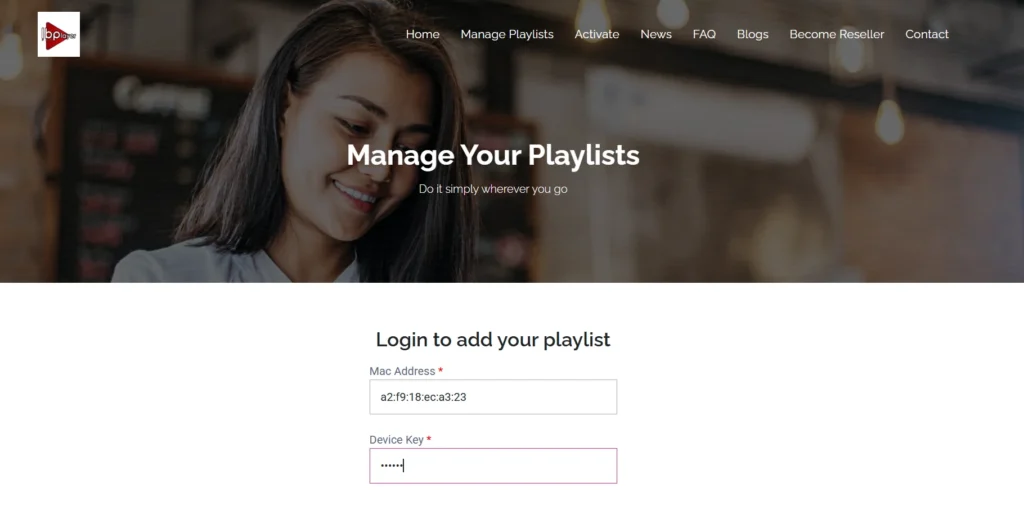
Step 3: Go to the IBO Pro Player Website and Open Manage Playlist
On your phone or computer, visit the IBO Pro Player website. Log in to your account and navigate to the Manage Playlist section. This is where you will link your IPTV subscription to the app on your TV.
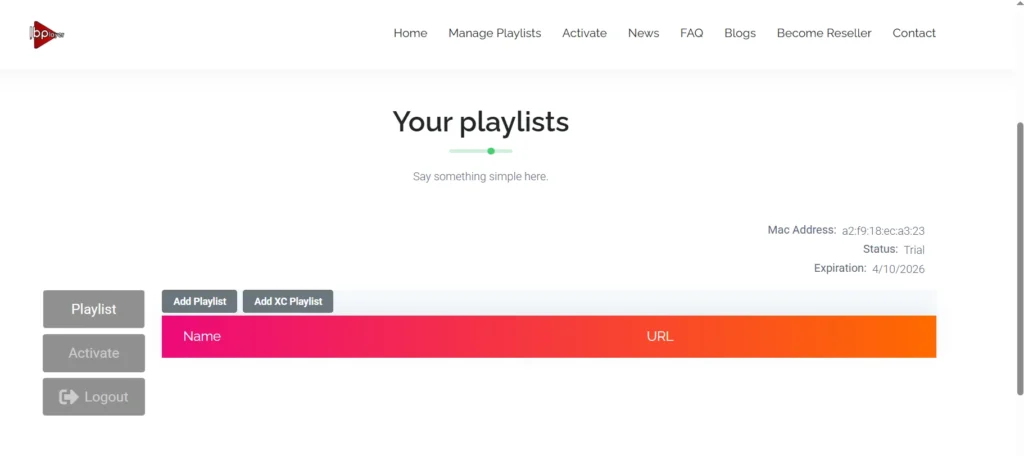
Step 4: Add Your Playlist
Click Add Playlist. You will see two options to connect your IPTV service:
Option A — M3U Link
If your IPTV provider gave you an M3U URL, select the M3U option and paste the link into the field provided. This URL contains your entire channel list and is ready to stream once saved.
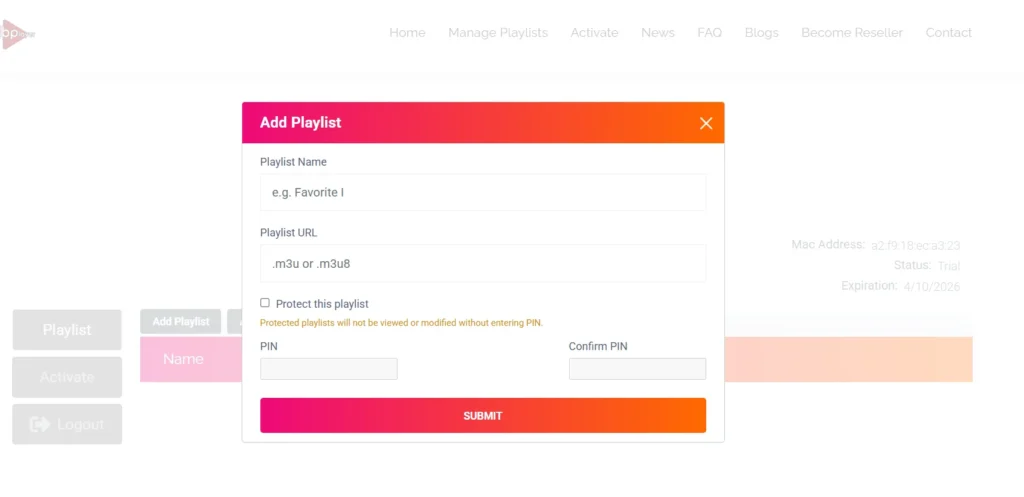
Option B — Xtream Codes
If your provider uses Xtream Codes, select that option and enter your server URL, username, and password as provided. Xtream Codes is the most stable connection method for IPTV and is recommended where available.

If you do not have an IPTV subscription yet, you can get one from FlixoPlay.com — they provide both M3U links and Xtream Codes login details that are fully compatible with IBO Pro Player.
Step 5: Open IBO Pro Player on Your TV — Your Playlist Is Live
Head back to your smart TV and open IBO Pro Player. Your playlist will load automatically and your channels will appear. You are now ready to watch live TV, VOD, and more through your IPTV service.
IBO Pro Player Installation on Windows
There are two ways to install IBO Player Pro on a Windows PC:
- Via the Microsoft Store: Open the Microsoft Store, search for IBO Pro Player, and click Get or Install. Follow the on-screen instructions.
• Using a .exe installer: If you have the .exe file from a trusted source, double-click it and follow the setup wizard. Always verify the file source before running it.
IBO Pro Player Installation on Android TV
IBO Player may not always appear directly in the Google Play Store on Android TV. If that is the case, use the Downloader app method:
- Install the Downloader app from the Google Play Store on your Android TV.
- Go to Settings > Security & Restrictions and enable Install Unknown Apps for Downloader.
- Open Downloader and enter the IBO Pro Player APK URL provided by your distributor.
- Download and install the APK, then open IBO Pro Player and follow the setup steps above.
IBO Pro Player Installation on iPhone
Installing IBO Player on iPhone is straightforward through the Apple App Store:
- Open the App Store on your iPhone.
- Search for IBO Pro Player.
- Tap Get to download and install. Authenticate with Face ID, Touch ID, or your Apple ID if prompted.
IBO Pro Player on Amazon Firestick
Installing IBO Player on Firestick requires sideloading via the Downloader app:
- Go to Settings > My Fire TV > Developer Options and turn on Apps from Unknown Sources.
- Search for and install the Downloader app on your Firestick.
- Open Downloader and enter the IBO Pro Player APK URL for Firestick.
11. Download the APK and follow the installation prompts.
IBO Pro Player on LG Smart TV
Open the LG Content Store, search for IBO Pro Player, and install it if available. If the app does not appear in the LG Content Store for your region, you can use screen mirroring from your phone or connect an Android TV stick to your TV’s HDMI port as an alternative.
IBO Pro Player on Roku TV
Open the Roku Channel Store from your home screen, go to Search Channels, and look for IBO Pro Player. If it appears as a channel, add it. If it is not available in your region’s Roku store, screen mirroring or an external streaming device is the best alternative.
Frequently Asked Questions About IBO Pro Player
The IBO Pro Player app itself is free to download. However, to watch IPTV content you need an active IPTV subscription that provides you with either an M3U link or Xtream Codes credentials.
Enabling Unknown Sources is safe when downloading from a verified IPTV provider or trusted source. Enable it only when needed, install the app, and then disable the setting again to keep your device secure.
Apps installed via official app stores (Microsoft Store, Apple App Store) update automatically when updates are available. Apps installed via APK sideloading require a manual update by repeating the download and install process with the latest APK version.
If IBO Pro Player is not listed in your device's official store, check the official IBO Pro Player website for alternative download options, or use the Downloader app method on Android TV and Firestick as described above.
Yes. Developers maintain separate versions of IBO Player Pro optimised for different platforms — Windows, Android, iOS, and smart TV operating systems. Always download the version specific to your device for the best performance.
Final Thoughts
IBO Pro Player is one of the most reliable and feature-rich IPTV players available, and setting it up takes just a few minutes once you have your IPTV subscription details ready. Follow the steps above for your device, add your M3U link or Xtream Codes, and you will have a full IPTV setup running in no time. If you need an IPTV service that works seamlessly with IBO Player, visit FlixoPlay.com to get started.
About Us
FlixoPlay brings you smooth, high-quality IPTV streaming — live TV, movies, and sports, all in one place. Stream anytime, on any device.