
How to Install IPTV Smarters Pro on Samsung Smart TV (2026)

Can You Install IPTV Smarters Pro on a Samsung Smart TV?
IPTV Smarters Pro is one of the most versatile IPTV players available — and yes, it can be installed on Samsung Smart TVs. However, unlike on iOS where it’s a straightforward App Store download, or on Firestick where the Downloader app handles everything, Samsung Smart TV requires a slightly different approach: sideloading the APK via a USB drive after enabling Developer Mode on your television.
Samsung’s Tizen OS — the operating system powering most Samsung Smart TVs — does not allow third-party app installations by default. To install IPTV Smarters Pro, you need to unlock this capability by activating Developer Mode, which is a built-in Samsung feature designed for app testing. Once enabled, sideloading becomes straightforward.
This guide walks you through every step in detail — from enabling Developer Mode to configuring your IPTV subscription within the app. The full process typically takes less than 15 minutes.
Compatibility Note: Samsung Smart TVs running Tizen OS (2016 and later models) support sideloading. Older Samsung TVs running different operating systems may not be compatible with this method. Check your TV model’s specifications before proceeding.
What You Need Before You Start
Before beginning the installation, make sure you have the following ready:
- A Samsung Smart TV (2016 or later, running Tizen OS)
- A USB drive formatted as FAT32 — used to transfer the APK file to your TV
- A Windows or Mac computer to download the APK file and copy it to the USB drive
- The IPTV Smarters Pro APK file downloaded from the official source
- A file manager app installed on your Samsung TV (available in the Samsung App Store)
- Your IPTV credentials — username, password, and server URL from your IPTV service provider
Tip: Always download the IPTV Smarters Pro APK from the official website at iptvsmarters.com. Avoid unverified third-party sources as these may contain modified or unsafe versions of the app.
Step 1: Enable Developer Mode on Your Samsung Smart TV
Before starting, make sure your TV is compatible with third-party apps. You’ll need:
Press Home on your Samsung remote and go to Apps.
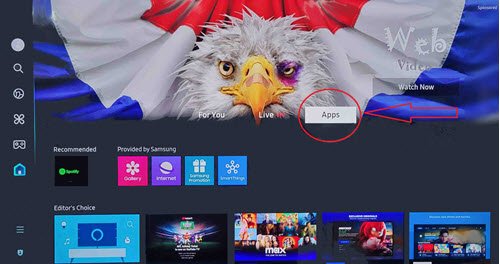
Scroll down and select the Settings (gear) icon.

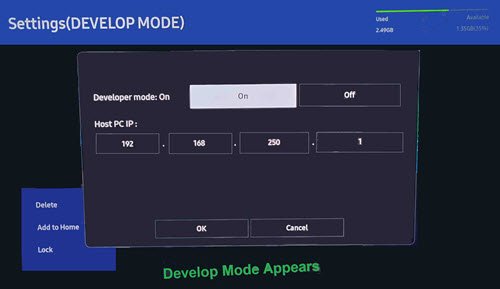
Enter 12345 using your remote or the on-screen keypad.

In the pop-up window, turn Developer Mode ON.
Step 2: Prepare the Apps You’ll Need
Search the Samsung App Store for StreamSmarters Pro. If it’s not there:
Download a file manager app.
Find a trusted source for the StreamSmarters Pro APK.
Get a USB drive to transfer the APK to your TV.
Step 3: Sideload StreamSmarters Pro on Your TV
With the APK on your USB drive and a file manager installed on your TV, you’re ready to sideload IPTV Smarters Pro. This is the same fundamental process used to install any third-party IPTV app on Samsung TV — similar in principle to how XCIPTV Player and IPTV Stream Player are sideloaded on Firestick.

Step 4: Set Up IPTV Smarters Pro on Samsung Smart TV
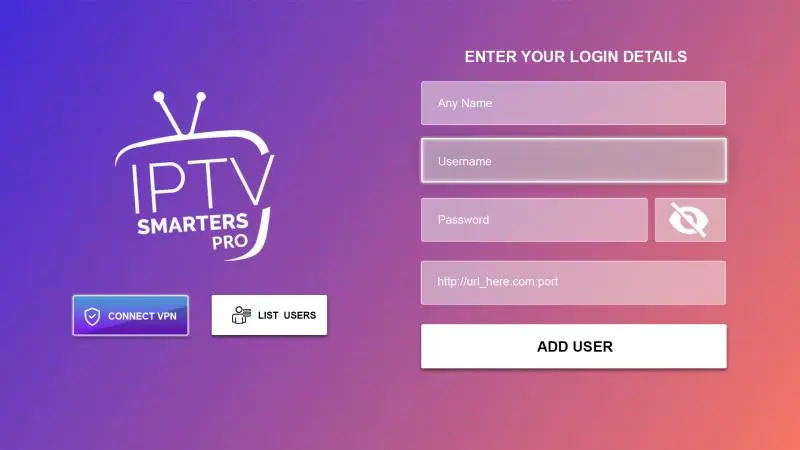
With the app installed, launch IPTV Smarters Pro from your Apps section and connect it to your IPTV service. The configuration process is identical to other platforms — you’ll use either Xtream Codes API or an M3U playlist URL. Full credential setup details are available on our IPTV setup page.
Adjust video settings to reduce buffering.
Enable <a href=”https://en.wikipedia.org/wiki/Electronic_program_guide” target=”_blank”>EPG</a> (TV guide) for easier channel browsing.
Customize the interface.
Step 5: Optimize IPTV Smarters Pro Settings on Samsung TV
Once connected, take a few minutes to configure the app settings for the best possible streaming experience on your Samsung TV:
- EPG (Electronic Program Guide): Enable EPG in settings to get a full TV guide showing current and upcoming programs across all channels
- Video Player Settings: If you experience buffering, lower the default stream quality or switch the video decoder mode
- Parental Controls: Set a PIN to restrict access to specific channels or content categories
- Favorites: Add your most-watched channels to Favorites for instant access from the home screen
- Interface Theme: Customize the app’s layout and color scheme from Settings > Interface to suit your preference
- Keep App Updated: Periodically re-download the latest APK and reinstall to keep the app updated with new features and fixes
Troubleshooting Common Issues on Samsung Smart TV
Developer Mode Not Showing After Entering 12345
- Make sure you’re in the Apps > Settings (gear icon) screen — the code only works from this specific location
- Try entering the code slowly using the remote — some Samsung remotes register rapid input incorrectly
- Confirm your Samsung TV model supports Developer Mode — models older than 2016 may not have this feature
APK Not Showing on USB Drive in File Manager
- Confirm the USB drive is formatted as FAT32 — NTFS and exFAT may not be readable
- Make sure the APK is in the root folder of the USB drive, not inside a subfolder
- Try a different USB drive or a different USB port on the TV
Installation Fails or App Won't Open
- Verify Developer Mode is still enabled — it resets after a factory reset or some firmware updates
- Re-download the APK from the official source in case the file was corrupted during transfer
- Restart your Samsung TV and try the installation again
Buffering or Poor Stream Quality
- Connect your Samsung TV to your router via Ethernet cable instead of Wi-Fi for the most stable connection
- Lower the stream quality in IPTV Smarters Pro video settings
- Contact your IPTV provider to check if an alternative server is available with better performance
Channels Not Loading After Login
- Double-check your username, password, and URL for typos or extra spaces
- Confirm your IPTV subscription is active with your provider
- Check whether your provider’s server is experiencing downtime
IPTV Smarters Pro on Samsung TV vs Other Devices
Installing IPTV Smarters Pro on a Samsung Smart TV is more involved than on other platforms, but the end result is a full living-room IPTV experience without needing any additional streaming device.
By comparison, on Firestick the installation uses the Downloader app to fetch the APK directly — no USB drive needed. On iPhone and iPad, it’s even simpler — a direct App Store download with no sideloading required at all.
If you’re managing IPTV across multiple devices or screens, our IPTV reseller plans offer flexible multi-connection subscriptions that work across Samsung TV, Firestick, iOS, Android TV, and more from a single account.
Frequently Asked Questions (FAQs)
In most regions, IPTV Smarters Pro is not available in the Samsung App Store. The version found there — if any — may be a different OTT streaming platform rather than the IPTV player. To get the genuine IPTV Smarters Pro video player, you need to sideload it using the method described in this guide.
Enabling Developer Mode and sideloading apps does not damage your TV or void your warranty under normal circumstances. The risk comes from the source of the APK file — always download IPTV Smarters Pro from the official iptvsmarters.com website to ensure you're installing a clean, unmodified version.
Yes — IPTV Smarters Pro can be installed on multiple Samsung TVs. Whether you can use them simultaneously depends on your IPTV provider's subscription plan. Most providers offer plans with 2, 3, or more simultaneous connections. For households with multiple TVs, explore our IPTV reseller plans for multi-device options.
Enabling Developer Mode and sideloading a legitimate app like IPTV Smarters Pro does not typically affect your Samsung TV warranty. Samsung's Developer Mode is an official built-in feature. However, if a sideloaded app causes system instability, Samsung's support team may ask you to remove it before providing warranty service.
Yes. IPTV Smarters Pro offers interface customization options including theme selection, layout adjustments, and color scheme changes. These settings are accessible from the app's main Settings menu and allow you to personalize the experience to your preference.
IPTV Smarters Pro is compatible with any IPTV service that provides Xtream Codes API credentials or an M3U playlist URL — which covers the vast majority of providers. The same credentials that work on Firestick or iOS will work on Samsung TV without any changes.
Since IPTV Smarters Pro is sideloaded, it won't update automatically. To update, download the latest APK file from the official website onto a USB drive and repeat the installation process. The new version will install over the existing one, preserving your login details and settings.
Final Thoughts
Installing IPTV Smarters Pro on a Samsung Smart TV takes a few more steps than on other platforms, but it’s absolutely achievable — and once it’s set up, you get a full-featured live IPTV streaming experience directly on your big screen without needing a separate streaming stick or box.
The four-step process — enabling Developer Mode, preparing the USB drive, sideloading the APK, and configuring your IPTV service — is a one-time setup that pays off with every use. For the full cross-device picture, visit our complete IPTV Smarters Firestick guide or our IPTV Smarters iOS guide to set up the same app across all your devices.
For more installation guides, app comparisons, and streaming tips, browse our full IPTV blog library.