
How to Install Sparkle TV IPTV Player on Firestick & Android TV (2026)
Sparkle TV is rapidly becoming one of the most popular IPTV players for Firestick, Fire TV, and Android TV users who want a clean, modern alternative to heavier players. With a TiviMate-inspired interface, a built-in EPG programme guide, DVR recording, multi-screen view, and VOD support, it covers every major feature most IPTV users need — and comes in both a free version and an affordable premium tier called Sparkle TV Plus.
This guide walks through every part of the setup: installing Sparkle TV on your Firestick or Android TV device via the Downloader app, connecting your IPTV subscription, purchasing and activating Sparkle Plus, syncing your premium account across devices, and a full breakdown of every feature the app offers.
IMPORTANT Sparkle TV is a media player only — it does not include any built-in live channels or content. To stream live TV, you need an active IPTV service with login credentials, an M3U URL, or Xtream Code details.
TIP A VPN is strongly recommended when using any IPTV subscription to keep your streaming activity private from your ISP.
What Is Sparkle TV?
Sparkle TV is a freemium IPTV media player designed for live TV streaming on Android-based devices. Its interface draws clear inspiration from TiviMate IPTV Player but adds its own unique features including multi-screen view, picture-in-picture, and a polished EPG. The free version provides solid core functionality while Sparkle TV Plus unlocks the full feature set including DVR, VOD, favourites, multi-playlist support, and more.
Because Sparkle TV is not available directly in the Amazon App Store, it must be sideloaded onto Firestick using the Downloader app — a quick, straightforward process covered in full below.
Sparkle TV Free vs Sparkle TV Plus: What’s the Difference?
Sparkle TV operates on a freemium model. The free version is fully functional for basic IPTV streaming, but most users will want to upgrade to Sparkle Plus to unlock the features that make it stand out from other players.
Feature | Free Version | Sparkle TV Plus |
Live IPTV Streaming | ✓ Yes | ✓ Yes |
EPG Programme Guide | Basic | ✓ Full + Logos |
Favourites | ✗ No | ✓ Yes |
DVR / Recording | ✗ No | ✓ Yes |
Video on Demand (VOD) | ✗ No | ✓ Yes |
Timeshift (Pause Live TV) | ✗ No | ✓ Yes |
Multiple Playlists | ✗ No | ✓ Yes |
Multi-Screen View | ✗ No | ✓ Yes |
Custom Categories | ✗ No | ✓ Yes |
Channel Logos in EPG | ✗ No | ✓ Yes |
Sparkle TV Plus Pricing
Monthly $1.49 / month Best for short-term use
Annual $7.49 / year Most popular — save 58% vs monthly
Lifetime $19.99 one-time payment Best value — pay once, use forever
PLUS To purchase Sparkle Plus, you must install the Sparkle app through the Google Play Store on an Android phone or tablet, or via BlueStacks on a Windows PC. Once purchased, you can then sync and activate Plus on your Firestick or Android TV device. Full instructions are in Step 3 of this guide.
Sparkle TV Key Features
- Electronic Programme Guide (EPG) — Full TV guide showing current and upcoming programmes with channel logos (Plus only)
- Built-in DVR — Record live IPTV channels directly within the app (Plus only)
- Timeshift — Pause, rewind, and resume live TV without losing your place (Plus only)
- Video on Demand (VOD) — Browse and watch catch-up and on-demand content from your IPTV provider (Plus only)
- Multi-Screen View — Watch multiple live channels simultaneously on one screen (Plus only)
- Picture-in-Picture — Keep a channel playing in a small window while browsing the EPG
- Favourites — Save preferred channels for instant one-click access (Plus only)
- Multiple Playlist Support — Connect more than one IPTV service in a single app (Plus only)
- Parental Controls — Lock channels or categories with a PIN
- Custom Categories — Organise channels into your own categories and groups (Plus only)
- Full Settings Panel — Controls for source management, player, display, and remote configuration
What You Need Before Installing Sparkle TV
- An Amazon Firestick, Fire TV, or Android TV / Google TV device
- An active IPTV subscription with M3U URL or Xtream Code credentials
- The Downloader app installed on your Firestick (covered in Step 1 below)
- An Android phone or tablet (only needed if purchasing Sparkle Plus)
How to Install Sparkle TV on Firestick — Step by Step
The steps below use a Fire TV Stick 4K Max but apply to all Firestick and Fire TV models including the Fire TV Stick, Fire TV Stick 4K, and Fire TV Cube. Android TV and Google TV users on NVIDIA SHIELD, MECOOL, or Chromecast with Google TV can follow the same process.
STEP 1 Install Downloader and Enable Unknown Sources
Sparkle TV is not listed in the Amazon App Store, so it must be sideloaded. The Downloader app handles this process. You also need to enable Unknown Sources for Downloader in Developer Options so Firestick allows the installation.
- Open the Amazon App Store on your Firestick. Search for Downloader and install the Downloader by AFTVnews app.
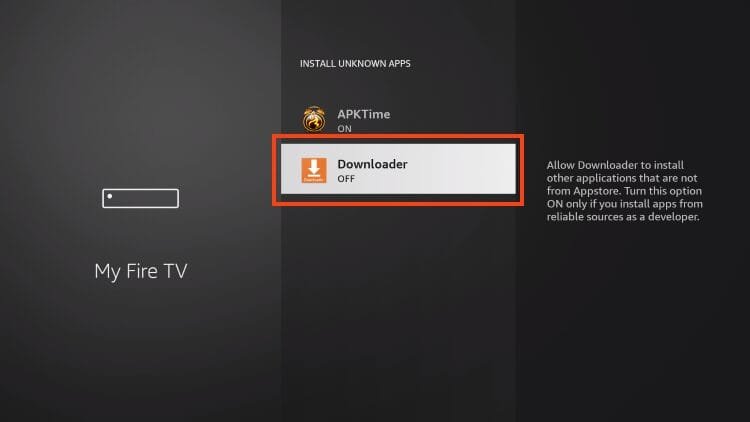
2. Open Downloader.

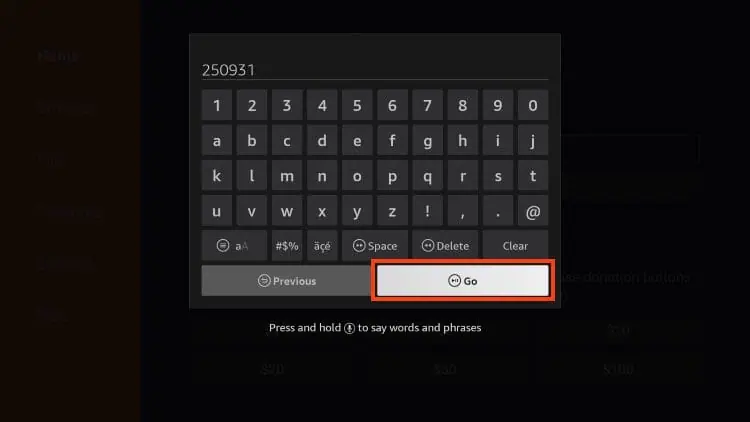
3. Hover over the URL bar and click the select button on your remote to open the keyboard.

4. We will now access the TROYPOINT Toolbox by inputting the Downloader Code – 250931.
5. You will then encounter a redirect page.
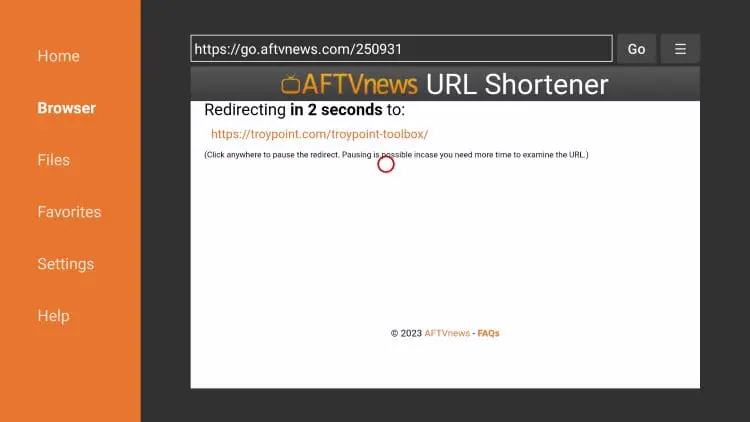
6. Once in the Toolbox, scroll down to find Sparkle TV and click Download.

7. Select Install.
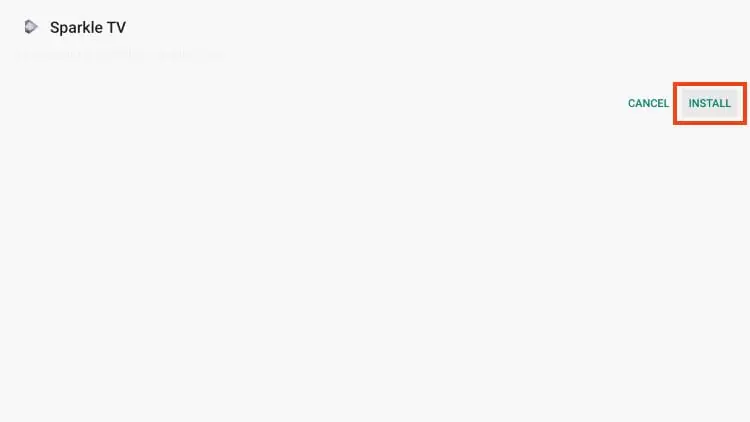
8. Choose Done.

9. Select Delete.

10. Delete again.
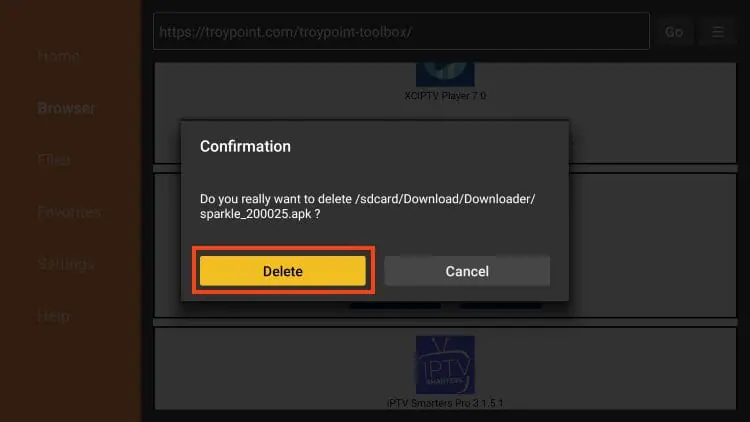
Installation is now complete! Continue reading for important details and setup instructions for the Sparkle TV App on your preferred device.
How to Purchase Sparkle TV Plus
Sparkle TV Plus must be purchased through the Google Play Store on an Android phone or tablet (or via BlueStacks on PC). Once purchased, you then sync the Plus account to your Firestick using the instructions in the next section.
1. Install Sparkle TV from the Google Play Store.
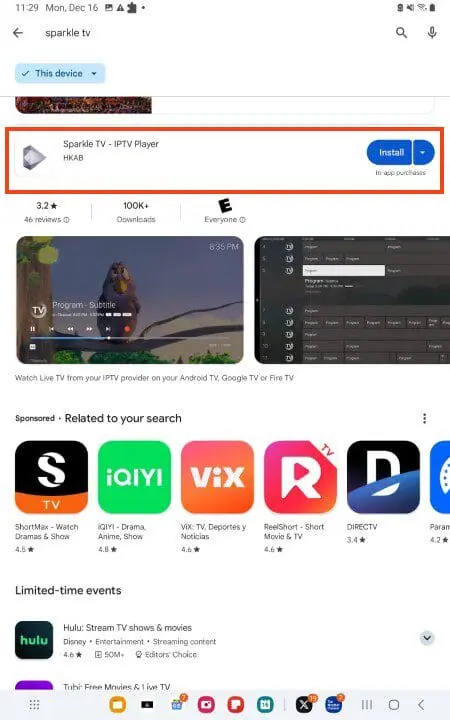
2. Launch the app and select Manage
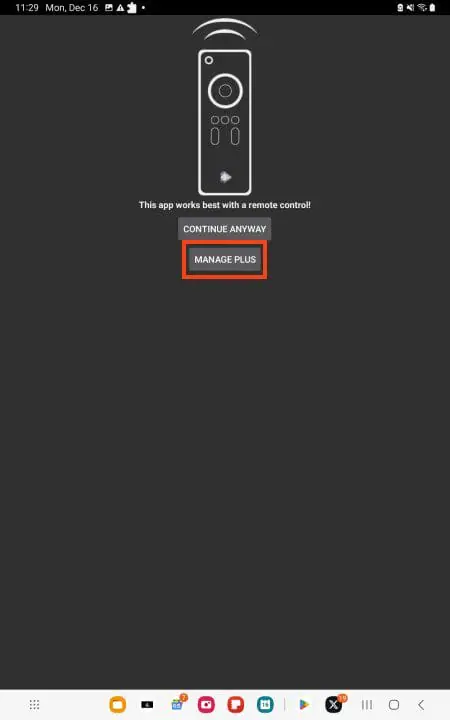
3. Choose Purchase Sparkle TV Plus.

4. Choose your Sparkle Plus Plan.
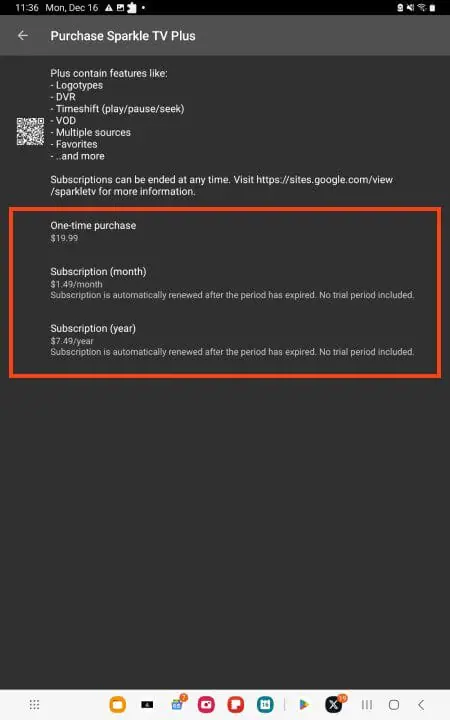
5. Input your payment method and you will now have access to all Sparkle Plus features.
How to Set Up Sparkle TV IPTV Player
If you purchased a premium subscription to Sparkle Plus, you can sync it to your streaming devices such as Amazon Firestick or other media boxes.
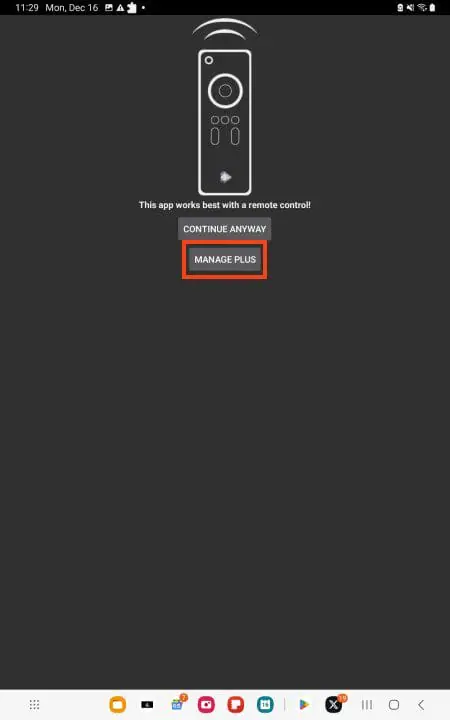
1. On your Android device, launch the Sparkle app and select Manage Plus.
2. Click Share Plus account.
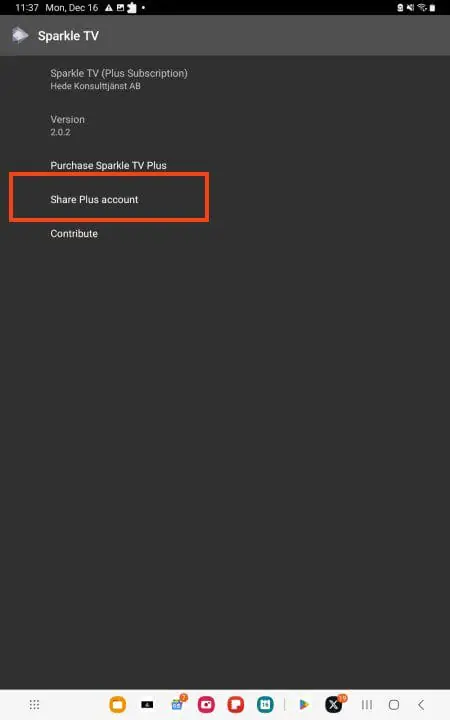
3. Input an email address and password for your account, then click Next.

4. Click Done.

5. Now, return to your streaming device and launch the Sparkle App.
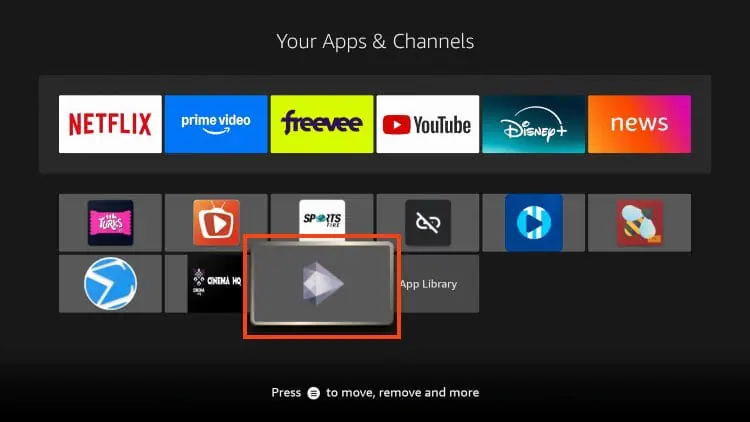
6. Click Settings.

7. Choose Connect shared Plus account.

8. Click Next.

9. Input the email address and password you previously used on the Android app and select Next.

10. You can now access all of the “Plus” features in your Sparkle TV App.

Sparkle TV Features Explored
EPG Electronic Programme Guide
Sparkle TV’s EPG shows current and upcoming programmes for all your live IPTV channels. The Plus version adds channel logos and programme artwork to the guide, making it much easier to browse what is on without needing to know channel numbers.

DVR Recording
The built-in DVR feature (Sparkle Plus only) lets you record any live IPTV channel directly within the app. Recordings are saved to your device’s storage and can be played back at any time — no separate recording software needed.

Multi-Screen and Picture-in-Picture
Sparkle Plus includes a multi-screen view that lets you watch up to four live channels simultaneously. Picture-in-Picture keeps one channel running in a floating window while you browse the EPG or channel list.
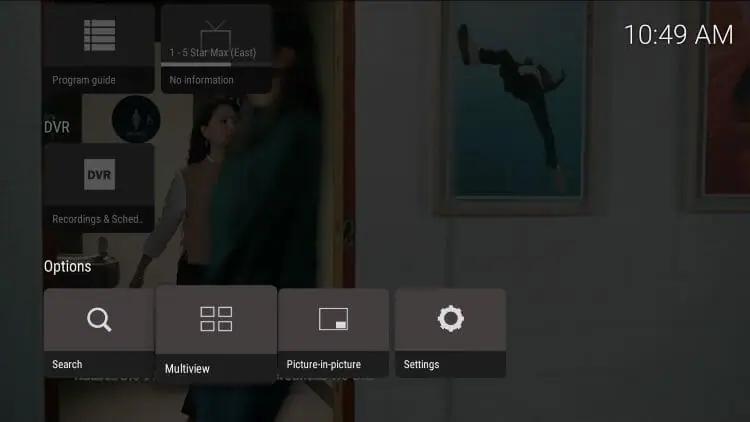
Settings Panel
Sparkle TV’s settings include controls for:
- Sources — manage all connected IPTV playlists
- Player — configure playback preferences and buffer settings
- Display — adjust EPG layout, aspect ratio, and visual preferences
- Remote control — customise button mapping for Firestick remote
- Parental Controls — PIN-lock specific channels or categories

Sparkle TV vs Other IPTV Players: How It Compares
Feature | Sparkle TV | TiviMate | IPTV Smarters | Perfect Player | GSE Smart IPTV |
Free Version | ✓ Yes | ✓ Yes | ✓ Yes | ✓ Yes | ✓ Yes |
Premium Tier | $1.49/mo | $4.99/yr | ✗ No | ✗ No | Yes |
M3U Support | ✓ Yes | ✓ Yes | ✓ Yes | ✓ Yes | ✓ Yes |
Xtream Codes | ✓ Yes | ✓ Yes | ✓ Yes | ✓ Yes | ✓ Yes |
EPG Guide | ✓ Yes | ✓ Yes | ✓ Yes | ✓ Yes | ✓ Yes |
Built-in DVR | Plus only | Premium | ✗ No | ✗ No | ✗ No |
VOD Support | Plus only | ✓ Yes | ✓ Yes | ✓ Yes | ✓ Yes |
Multi-Screen | Plus only | ✗ No | ✗ No | ✗ No | ✗ No |
Timeshift | Plus only | Premium | ✗ No | ✗ No | ✗ No |
Firestick | Sideload | Sideload | Sideload | Sideload | Sideload |
Sparkle TV’s multi-screen view is a feature no other major IPTV player currently offers for free, making it genuinely unique. Its closest competitor in terms of interface and features is TiviMate IPTV Player, which has a more established user base but lacks multi-screen. IPTV Smarters on Firestick remains a strong free alternative with full Xtream Code support, while Perfect Player and GSE Smart IPTV are worth considering if you prefer a simpler, navigation-first experience. More player comparisons and setup guides are available on the FlixoPlay blog.
Troubleshooting Sparkle TV: Common Issues and Fixes
Channels Not Loading After Playlist Is Added
- Double-check your M3U URL or Xtream Code credentials. A single typo will prevent channels from loading.
- Confirm your IPTV subscription is active and has not expired.
- Try removing the source and re-adding it from Settings > Sources.
Sparkle TV Plus Not Activating on Firestick
- Ensure you used the exact same email and password on Firestick as you set on your Android device during the share process.
- Check that Sparkle TV on your Firestick is updated to the latest version.
- Try the sync process again: Settings > Connect shared Plus account.
Buffering or Freezing During Live TV Playback
- Check your internet connection speed — a minimum of 10 Mbps for HD and 25 Mbps for 4K is required.
- Switch from Wi-Fi to a wired ethernet connection for more stable IPTV streaming.
- Contact your IPTV provider — buffering is sometimes caused by server load on the provider’s end.
Developer Options Not Visible on Firestick
- Go to Settings > My Fire TV > About. Hover over Fire TV Stick and press the OK button 7 times. Press back and Developer Options will now appear in My Fire TV.
Frequently Asked Questions:
Sparkle TV is a freemium IPTV media player for Firestick, Android TV, and Google TV. It supports M3U playlists, Xtream Codes, EPG, DVR, VOD, and multi-screen viewing. It does not contain any built-in content — it works with any IPTV service that provides an M3U URL or Xtream Code.
Yes. Sparkle TV has a free version with core live TV streaming functionality. The premium Sparkle TV Plus tier starts at $1.49/month and unlocks DVR, VOD, favourites, multi-screen view, and more.
Sparkle TV Plus is available at three price points: $1.49/month, $7.49/year, or $19.99 for lifetime access. The lifetime option is the best value for long-term users.
Yes. Sparkle TV works on all Amazon Firestick and Fire TV models. It is not available in the Amazon App Store and must be sideloaded via the Downloader app as described in this guide.
Yes. Sparkle TV supports both M3U URL playlists and Xtream Code credentials. When adding a new source, simply select the Xtream Codes option and enter your server URL, username, and password from your IPTV provider. For guidance on what details you need, visit the setup details page.
Yes. Once purchased on Android, you can sync Sparkle Plus to multiple streaming devices including your Firestick using the Share Plus account feature described in this guide.
Yes — Sparkle TV is widely described as a TiviMate alternative with a very similar EPG-first interface. Sparkle TV's multi-screen view and more affordable pricing give it an edge in certain areas, while TiviMate has a longer track record and a more established community.
Final Thoughts
Sparkle TV is one of the most compelling IPTV players to emerge in recent years. Its free version is genuinely capable, and the Plus upgrade is one of the most affordable premium IPTV player options available — especially at the $19.99 lifetime price. Multi-screen view, built-in DVR, timeshift, and VOD support at that price point is genuinely impressive.
If you are looking for a modern, feature-rich IPTV player that works seamlessly with your existing IPTV subscription, Sparkle TV is well worth trying. Start with the free version to test compatibility, and upgrade to Plus when you are ready for the full experience. For more IPTV player setup guides, browse the FlixoPlay blog covering players like IPTV Smarters, STBEmu Pro, MX Player, and XCIPTV Player.