
How to Install Perfect Player IPTV on Firestick & Android TV (2026)
Perfect Player is one of the most capable and lightweight IPTV players available for Firestick, Fire TV, and Android TV. It supports both M3U playlists and Xtream Codes, includes a built-in EPG electronic programme guide, and delivers a clean, fast interface that is noticeably quicker to navigate than heavier players. If you have an active IPTV subscription and are looking for a reliable Firestick IPTV player, Perfect Player is one of the best options available.
This guide walks you through the complete setup from scratch: preparing your Firestick for sideloading, installing Perfect Player via the Downloader app, connecting your M3U playlist or Xtream Code, adding your EPG URL, managing channel favourites, and fixing common issues. Every step is covered below.
TIP Perfect Player requires your M3U URL and EPG URL from your IPTV provider to stream channels. You can also use an Xtream Code URL. If you do not yet have these details, visit FlixoPlay.com and check the setup details page for guidance on what you need.
What Is Perfect Player IPTV?
Perfect Player is a free Android-based IPTV media player designed specifically for live TV streaming via M3U playlists and Xtream Codes. Unlike Kodi — which requires additional plugins and configuration — Perfect Player is purpose-built for IPTV and works straight out of the box once your playlist URL is entered. It is not available in the Amazon App Store, so it must be sideloaded onto Firestick using the Downloader app, which is covered in full below.
Perfect Player Features
Feature | Details |
Price | Free to download and use |
Playlist Support | M3U URL, Xtream Codes, XMTLV, JTV |
EPG Support | Yes — full electronic programme guide with XMTLV and JTV format support |
Favourites | Mark channels as favourites for fast access and quick channel surfing |
Channel Lock | Lock specific channels with a PIN for parental control |
Language Support | English, Greek, Portuguese, Russian, Spanish, Ukrainian |
Device Compatibility | Amazon Firestick, Fire TV, Android TV, Google TV, NVIDIA SHIELD, MECOOL |
Kodi Alternative | Purpose-built for IPTV — no plugins or add-ons required |
What You Need Before You Start
- An Amazon Firestick, Fire TV, or Android TV / Google TV device
- An active IPTV subscription with an M3U URL or Xtream Code credentials
- An EPG URL from your IPTV provider for the programme guide (optional but recommended)
- The Downloader app installed from the Amazon App Store (covered in Step 1)
TIP If your IPTV provider has not given you an M3U URL or EPG URL yet, contact their support team or check your welcome email. For a compatible IPTV service that provides all setup details, visit FlixoPlay.com.
Step 1 – Prepare Your Device for Installation
1. Launch the search bar from your home screen.

2. Type Downloader.

3. Choose the Downloader App.
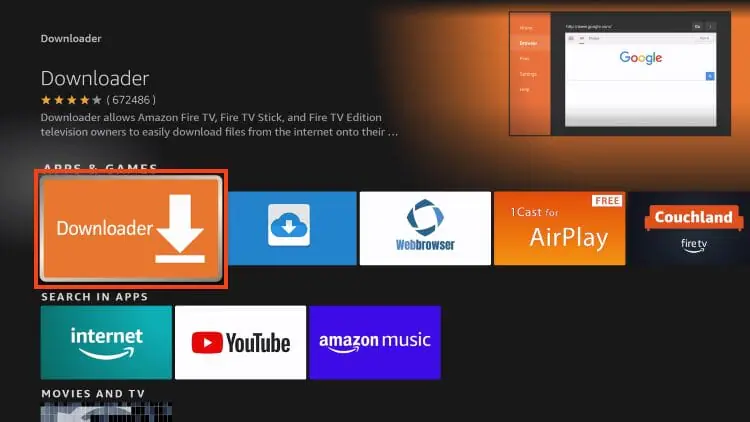
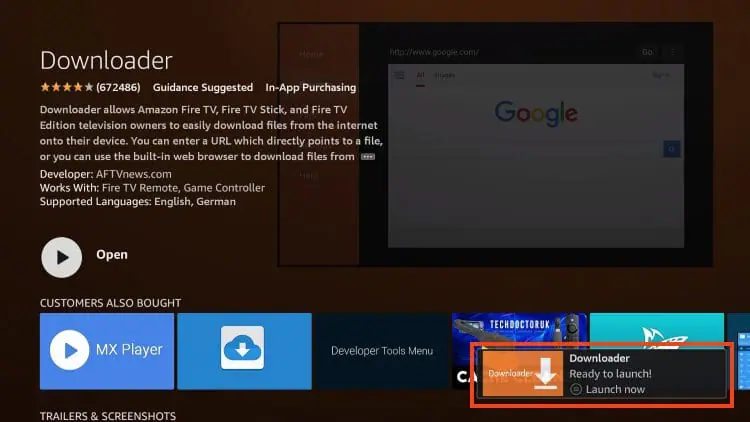
4. Click Get/Download.
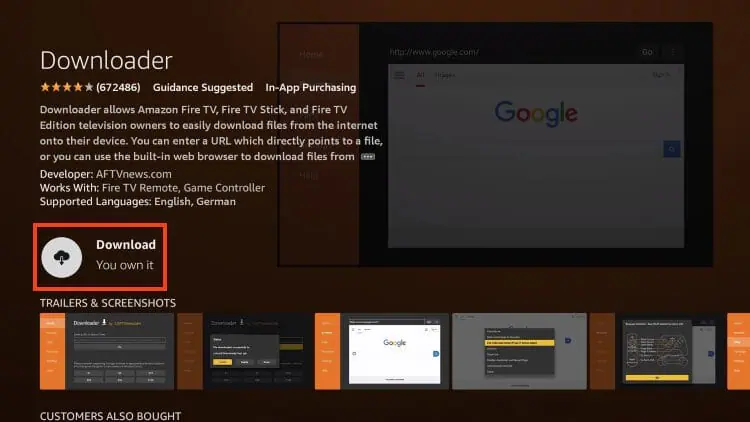
5. Wait for the app to install.
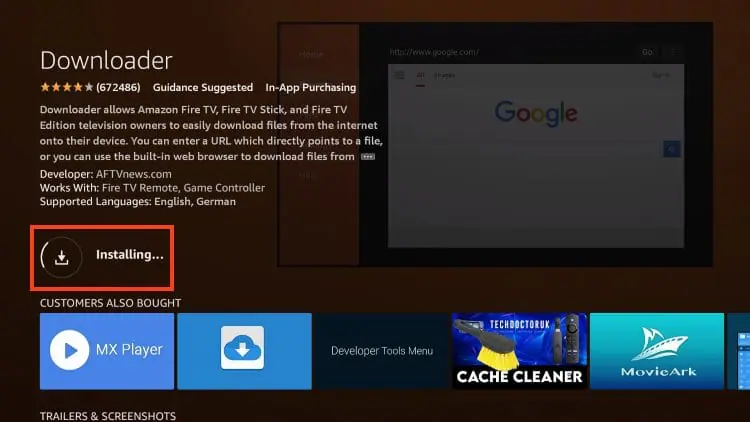
6. Ready to launch message will show up in the bottom right-hand corner.
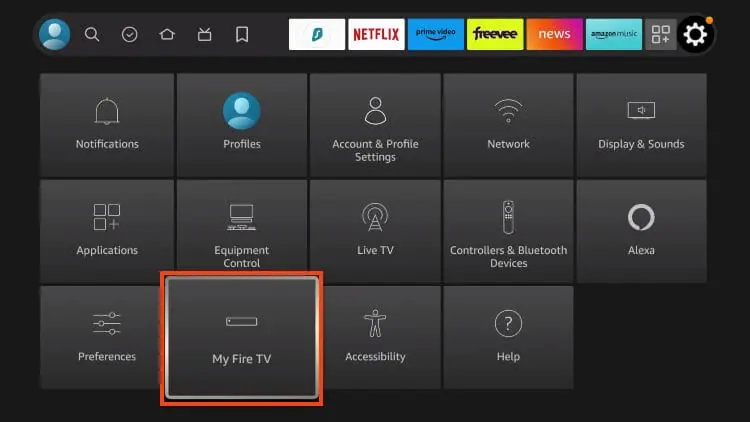
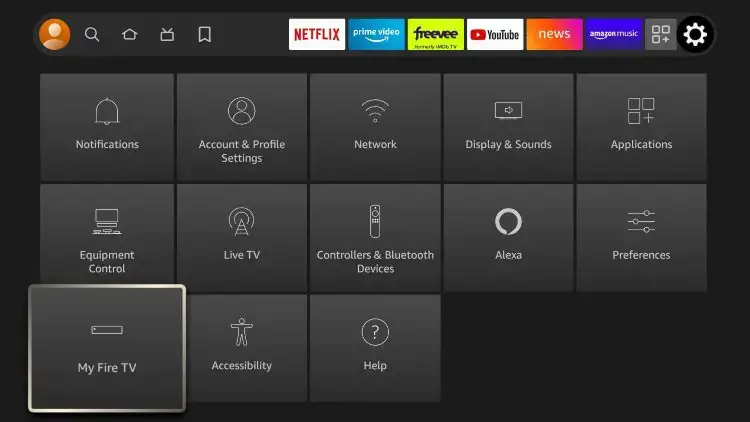
7. Go back into Device Settings and select My Fire TV.
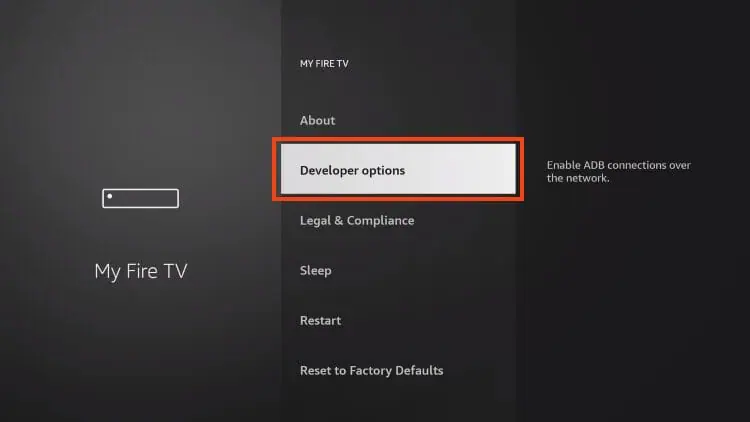
8. Choose Developer Options.
NOTE: If you do not see Developer Options, use the screenshots below this guide to enable.
9. Click Install unknown apps.
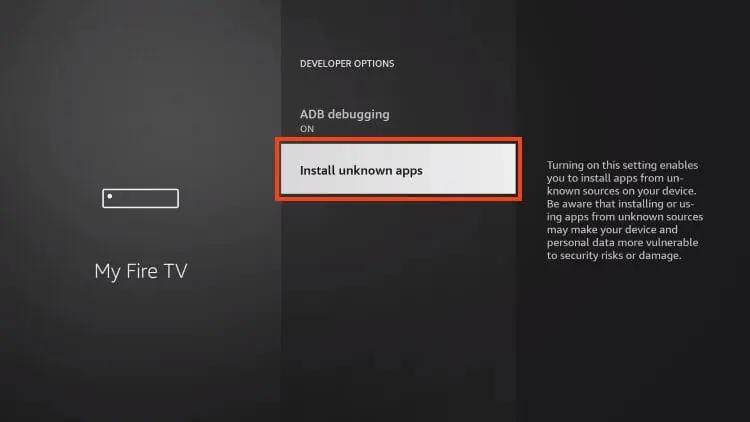
10. Click Downloader.

11. Downloader Unknown Sources will now be ON.

Developer Options Not Available
If you do not see developer options on your device, use the following steps to enable unknown sources for Downloader.
1. Within settings, choose My Fire TV.
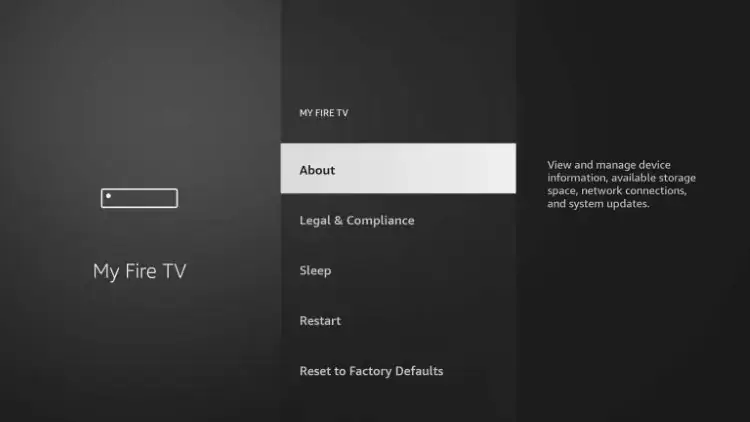
2. Click About.
You will see that Developer Options is not showing.
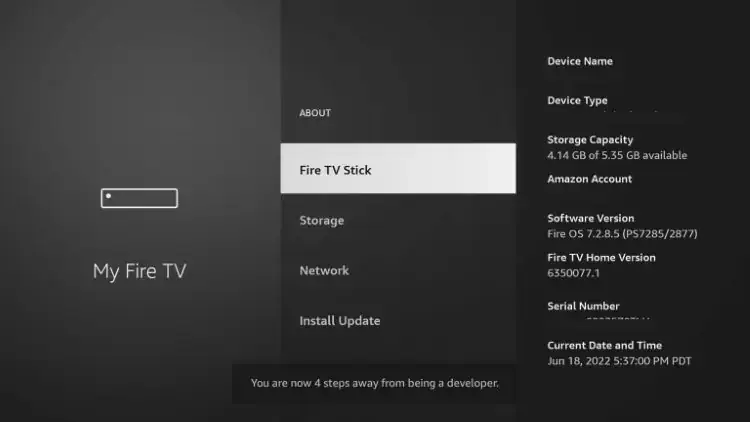
3. Find Fire TV Stick and click the OK button on your remote 7 times.
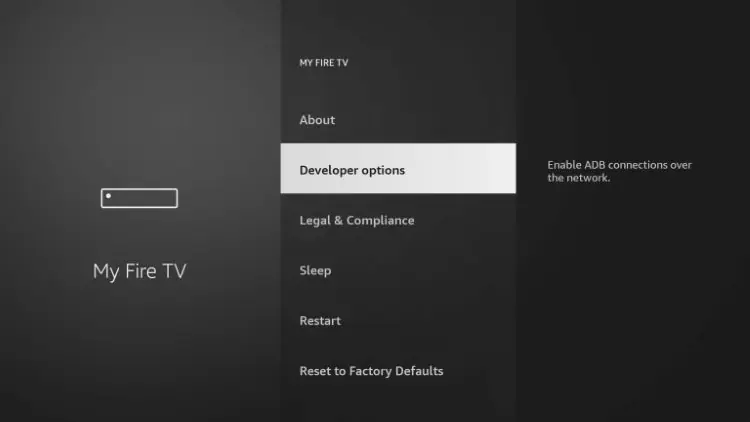
4. Return to My Fire TV and you will now see Developer Options.
Step 2 – Sideload Perfect Player APK
1. Open the Downloader App.
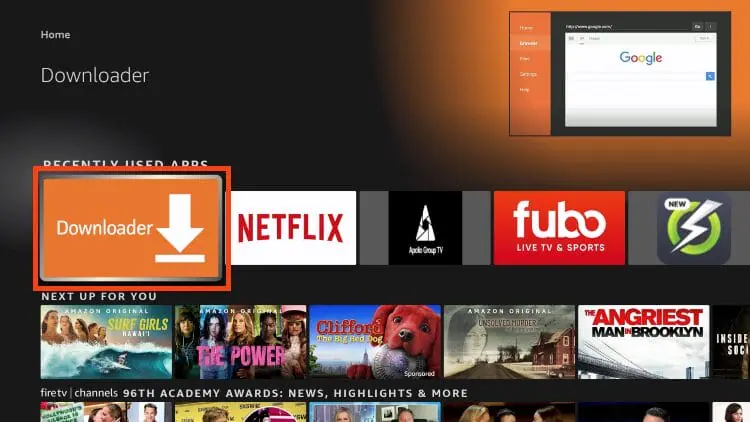
2. Click the URL bar.
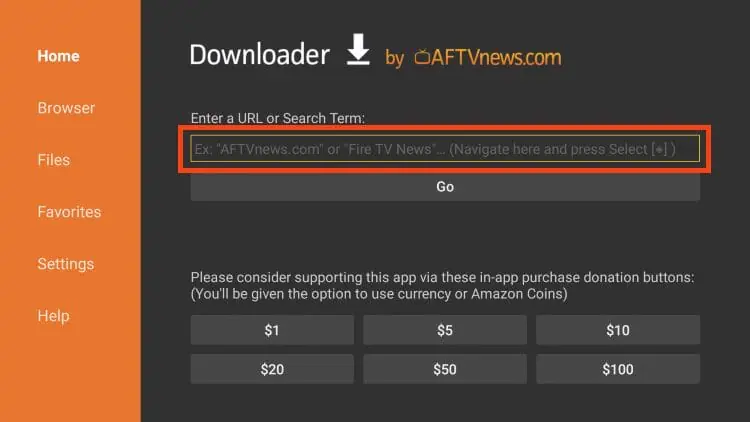
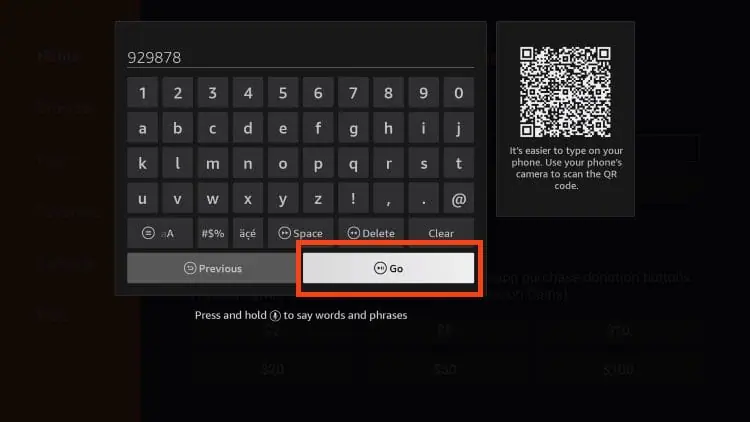
3. Type 929878
4. A redirect page will then display.
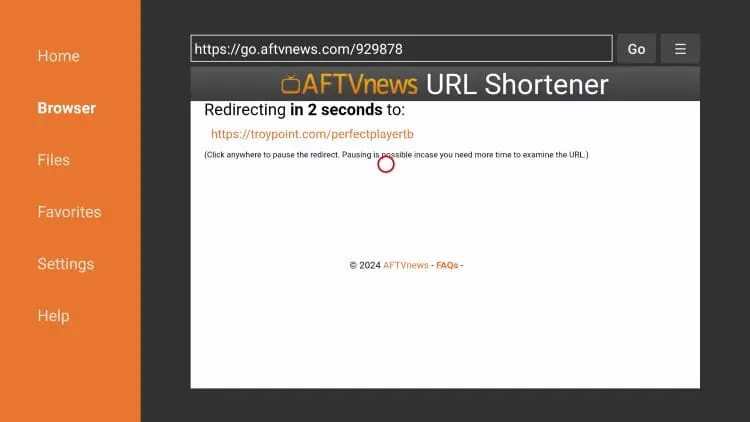
5. Wait for the app to download.
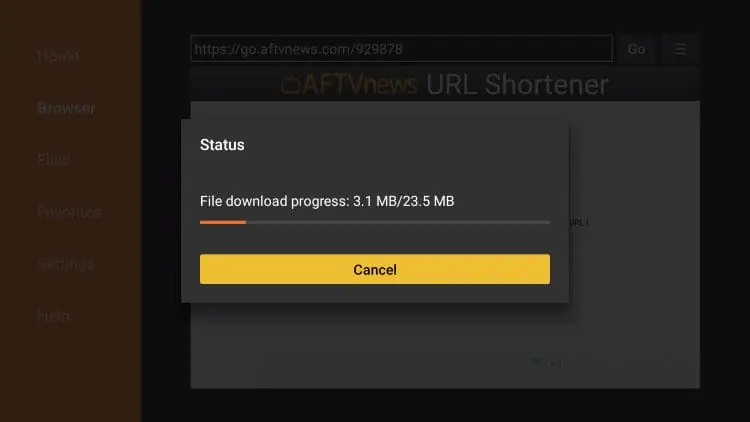
6. Click Install.
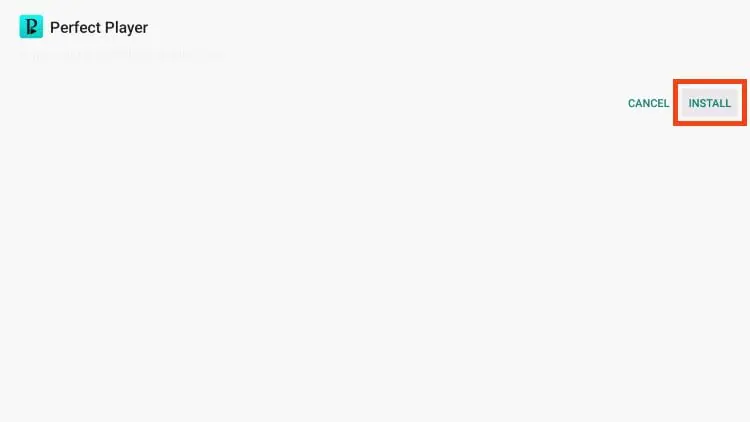
7. Click Done.
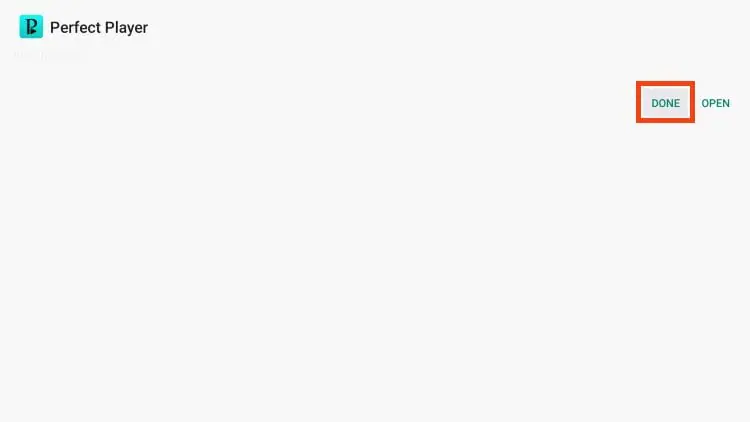
8. Select Delete to remove the installation file.
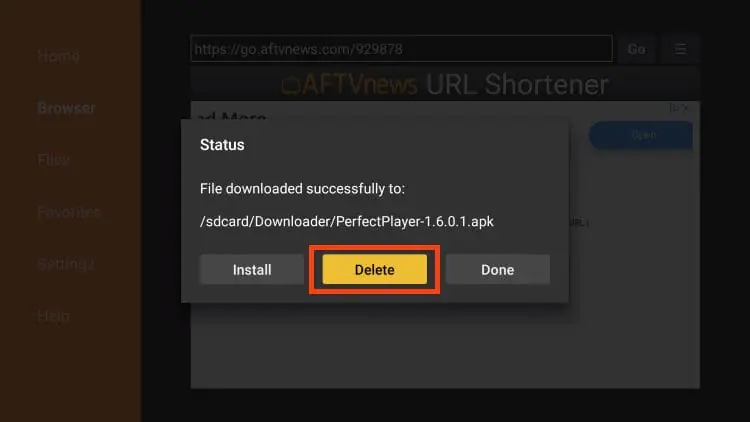
9. Click delete again.
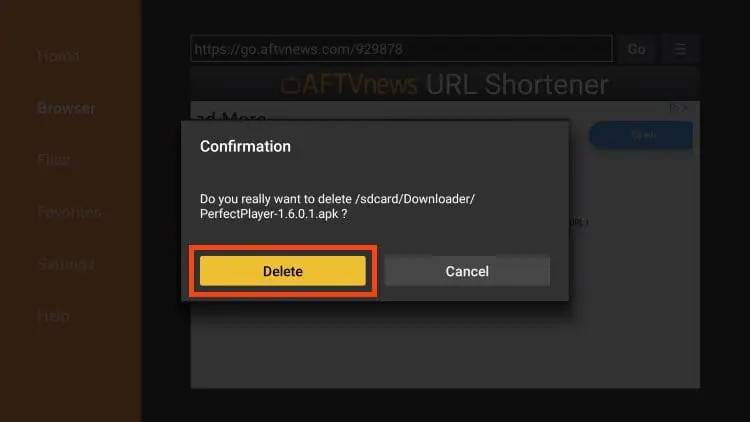
Installation of Perfect Player is now complete.
However, no content will be available until we integrate our IPTV Service. Follow the guide below to do so.
How To Setup Perfect Player IPTV
After app installation is complete, we can open the app and authorize an IPTV Service for use. In the instance below, we are using a popular IPTV Service.
NOTE: Initializing an IPTV Service within Perfect Player requires an M3U URL or Xtream Code URL. This can usually be found in your IPTV Service welcome e-mail or by contacting customer support.
Follow the steps below to integrate IPTV Service in Perfect Player. In this guide, we will add Samsung TV Plus which is a Free IPTV Service available on just about any device.
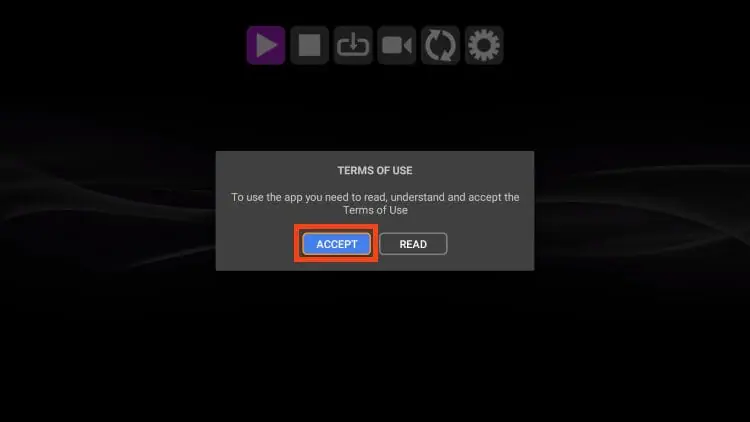
1. Open Perfect Player and click Accept.
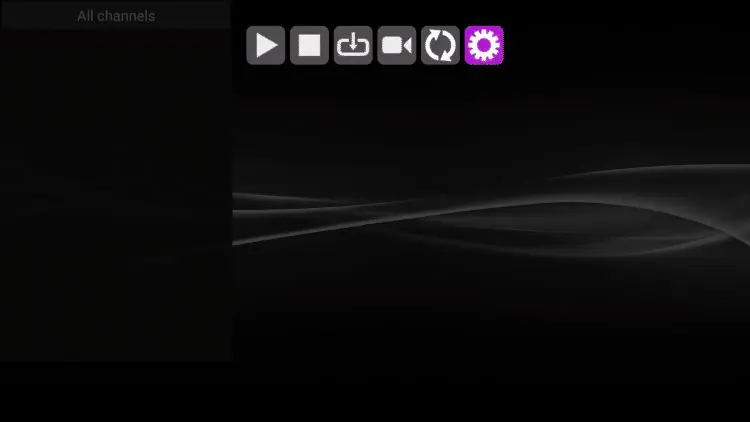
2. Open Perfect Player and click the Settings icon on the far right.
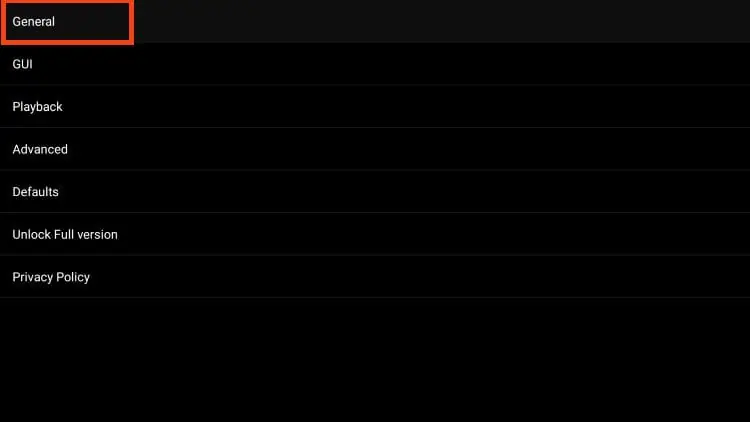
3. Click General.
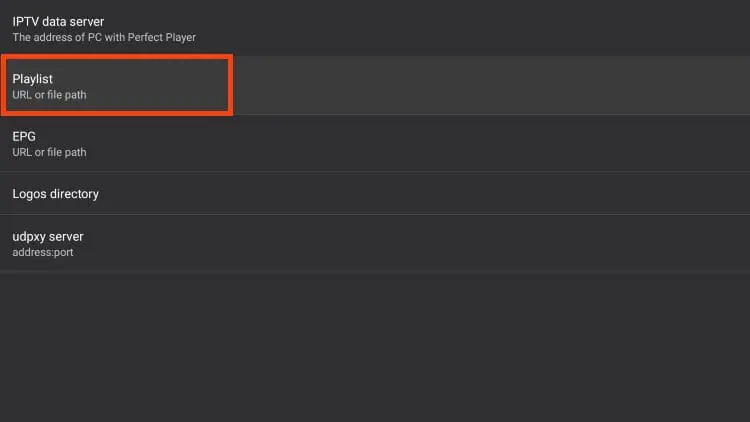
4. Choose Playlist.
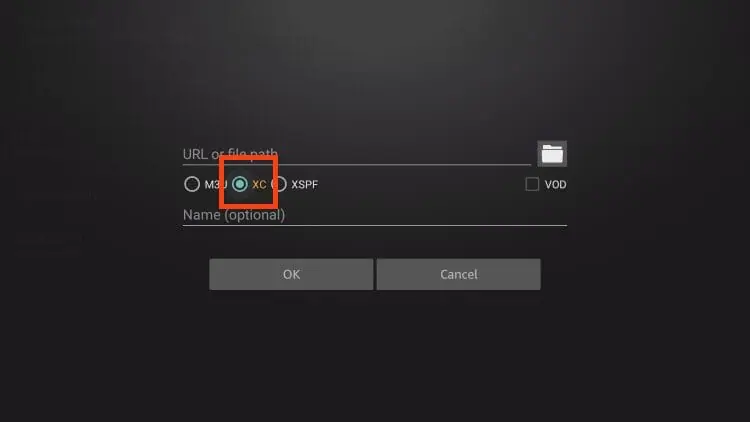
5. Select M3U or XC.
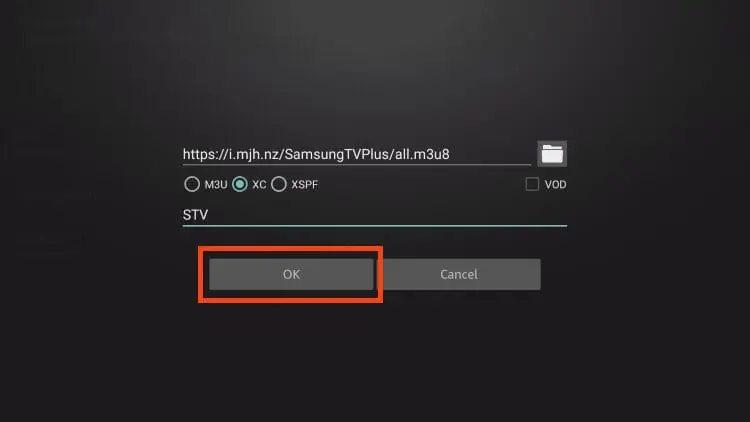
6. Enter in the M3U URL or Xtream Code of your choice and click Next.

7. Insert a name for this playlist and click OK.
8. You will see a Playlist update started message in the upper right-hand corner.
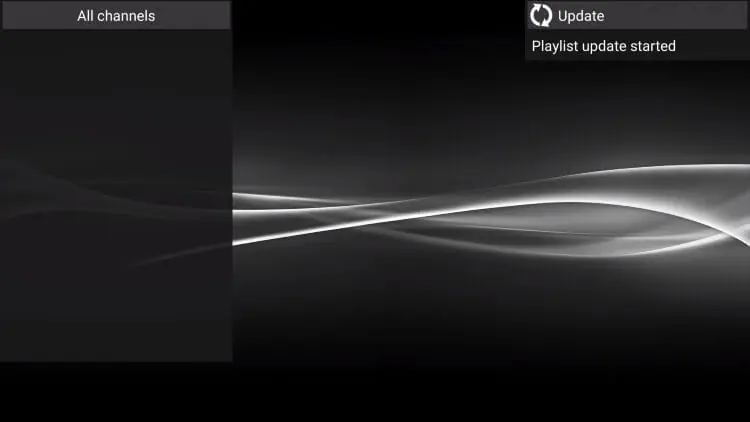
9. Channels are now available for browsing.
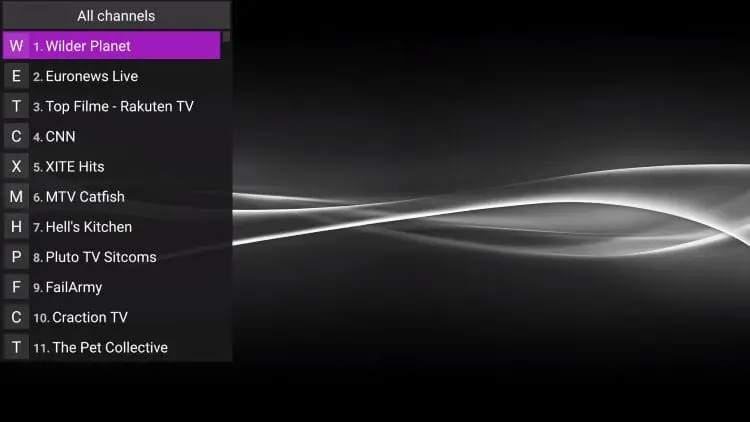
10. If you prefer, you can add an EPG URL for a Program Guide with updated information.

Add Channels to Favorites
Follow the short guide below on how to add your IPTV channels to favorites within Perfect Player.
1. Launch Perfect Player and locate the channel you want to add to favorites. For this example, we chose ABC News.

2. Click the Options button on your remote (3 horizontal lines) then scroll down and select Add to favorites.

3. Your selected channel will then be added to your favorites. to view your favorites, hold down the Options button again then scroll down and select Show favorites.

4. You will then notice that your selected channel is now located within your favorites.

5. To remove a channel from favorites, hover over the selected channel then hold down the Options button on your remote. Then scroll down and choose Remove from favorites.

How to Lock Channels in Perfect Player
Perfect Player includes a Channel Lock feature that lets you PIN-protect specific channels — useful if children have access to the device.
- Go to Settings > General > Channel lock.
- Set a PIN code and confirm it.
- Browse to the channel you want to lock, press the Options button, and select Lock channel.
4. The locked channel will require the PIN to open whenever it is selected.
Perfect Player vs Other IPTV Players: Full Comparison
Feature | Perfect Player | IPTV Smarters | TiviMate | XCIPTV | Smart IPTV |
Price | Free | Free | Freemium | Free | $6 lifetime |
M3U Support | ✓ Yes | ✓ Yes | ✓ Yes | ✓ Yes | ✓ Yes |
Xtream Codes | ✓ Yes | ✓ Yes | ✓ Yes | ✓ Yes | ✗ No |
EPG Support | ✓ Yes | ✓ Yes | ✓ Yes | ✓ Yes | ✓ Yes |
Favourites | ✓ Yes | ✓ Yes | ✓ Yes | ✓ Yes | ✗ No |
Channel Lock | ✓ Yes | ✗ No | ✗ No | ✗ No | ✗ No |
Kodi-free IPTV | ✓ Yes | ✓ Yes | ✓ Yes | ✓ Yes | ✓ Yes |
Firestick App | Sideload | Sideload | Sideload | Sideload | Sideload |
Perfect Player’s standout advantages over other players are its Xtream Codes support, built-in channel lock, and its lightweight, fast interface. For comparison, IPTV Smarters on Firestick and TiviMate IPTV Player also offer excellent EPG support with a slightly more polished interface. XCIPTV Player and IPTV Stream Player are worth considering as lighter Firestick alternatives. For a full list of player setup guides, browse the FlixoPlay blog.
Is Perfect Player Legal and Safe?
Yes. Perfect Player is a fully legal media player app available on the Google Play Store. It is safe to install on any Firestick or Android device. The app itself simply reads playlist files — the same way VLC Media Player or MX Player do. As always, the legality of content depends on your chosen IPTV service provider. Use a licensed, legitimate service.
Troubleshooting Perfect Player IPTV: Common Issues and Fixes
Channels Not Loading After Playlist Is Added
- Verify that your M3U URL is correct and has not expired. A fresh link from your IPTV provider usually fixes this immediately.
- Check your internet connection. Perfect Player requires a stable connection to fetch and stream playlist content.
- Re-enter the playlist URL in Settings > General > Playlist and restart the app.
Buffering or Freezing During Playback
- Test your internet speed. Live IPTV requires a minimum of 10 Mbps for HD and 25 Mbps for 4K streams.
- Switch from Wi-Fi to a wired ethernet connection for more reliable live streaming.
- Restart your router and your Firestick.
EPG Not Showing Programme Information
- Confirm the EPG URL is correct in Settings > General > EPG.
- Some EPG data takes a few minutes to load after the URL is added. Restart Perfect Player and wait.
- Contact your IPTV subscription provider for the correct XMLTV EPG URL if you are unsure which one to use.
Developer Options Not Visible on Firestick
- Go to Settings > My Fire TV > About. Hover over Fire TV Stick and press OK on your remote 7 times. Press back and Developer Options will now appear.
Perfect Player APK Not Installing
- Make sure Unknown Sources is enabled for the Downloader app in Developer Options as described in Step 1.
- Verify the Downloader code 929878 was entered correctly with no spaces.
Frequently Asked Questions:
Perfect Player is a free IPTV media player for Android, Firestick, and Fire TV that supports M3U playlists, Xtream Codes, and EPG programme guides. It is a popular Kodi alternative for live IPTV streaming without the need for plugins or add-ons.
Yes. Perfect Player is completely free to download and use. There are no in-app purchases or subscription fees for the player itself.
Yes. Perfect Player is a legal media player available on the Google Play Store. The legality of content depends on the IPTV service you connect it to, not the app itself.
Perfect Player works on any Android-based device including Amazon Firestick, Fire TV, Fire TV Cube, Android TV boxes (NVIDIA SHIELD, MECOOL), Google TV, and Chromecast with Google TV.
Yes. Perfect Player supports both M3U playlists and Xtream Code URLs. When adding a playlist in the settings, select XC for Xtream Code and enter your provider's server URL, username, and password. Check the setup details page for guidance.
IPTV stands for Internet Protocol Television — it delivers live TV and video content over the internet rather than through cable or satellite. Perfect Player is the player; your IPTV subscription provides the actual content via your M3U URL or Xtream Code.
Yes. Perfect Player is free and can be installed on multiple Firestick or Android TV devices. Each device needs to go through the sideloading process separately, but there is no per-device cost.
Final Thoughts
Perfect Player is a solid, free, and fast IPTV player that punches well above its weight for a no-cost app. Its support for both M3U and Xtream Codes, combined with EPG programme guide, channel favourites, and channel lock, makes it one of the most feature-complete free IPTV players available for Firestick and Android TV. The interface is clean, navigation is quick, and once your playlist is loaded the experience is smooth and reliable.
To get the most out of Perfect Player, make sure you have a high-quality IPTV subscription with a stable M3U URL. If you are exploring other player options as well, browse the FlixoPlay blog for setup guides covering IPTV Smarters, TiviMate, STBEmu Pro, GSE Smart IPTV, and more.