Blogs

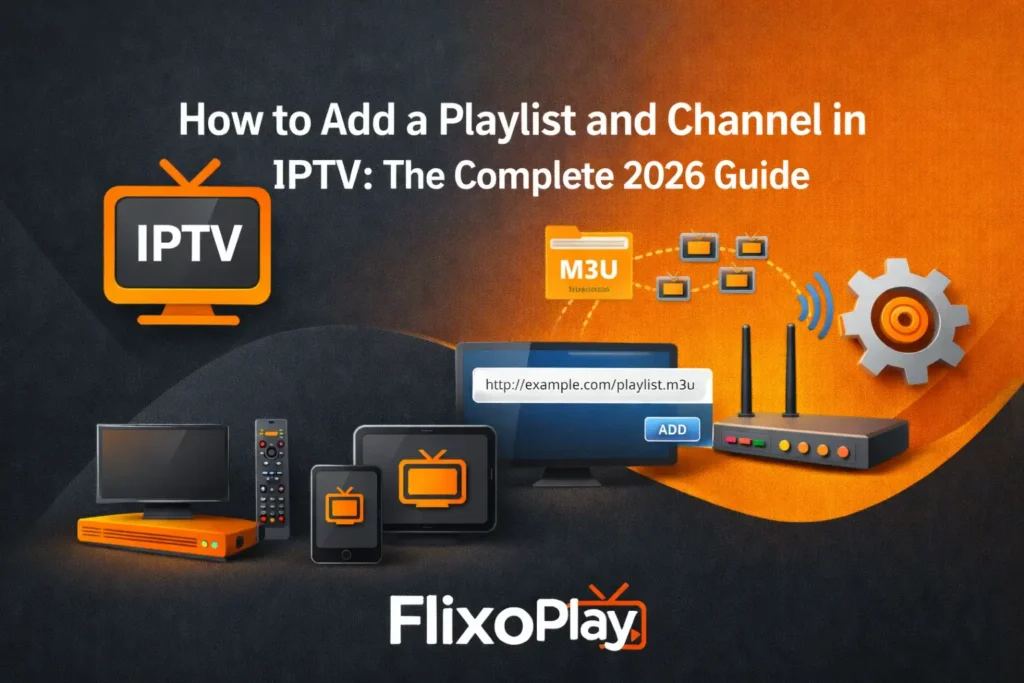
How to Add a Playlist and Channel in IPTV
Blogs, Setup Details

How to Add a Playlist and Channel in IPTV: The Complete 2026 Guide

How to Add a Playlist and Channel in IPTV: The Complete 2026 Guide One of the first things every new IPTV user encounters after subscribing to a service is a simple but important question: how do I actually add my playlist or channels to the app? Whether your provider has sent you an M3U URL, an Xtream Codes login, or a downloadable playlist file, the process of getting those channels onto your screen is the same across every major device — once you understand the underlying structure. In this guide, we walk through everything you need to know about adding playlists and channels in IPTV, covering both the M3U and Xtream Codes methods, comparing the two approaches, explaining the M3U file format for those who want to understand it more deeply, and troubleshooting the most common errors users encounter. This applies whether you are using a TiviMate on Firestick, a Smart TV, an Android device, or any other compatible platform. What Is an IPTV Playlist and Why Does It Matter? An IPTV playlist is the bridge between your subscription and your screen. It is a structured file or URL that tells your IPTV player app where to find every live channel, VOD title, and catch-up stream included in your service. Without it, the app has no content to display — the playlist is essentially the channel list itself. Most IPTV providers supply access credentials in one of two formats: an M3U playlist URL or Xtream Codes API details. Understanding the difference between the two — and knowing when each method is preferable — is the first step toward a smooth, reliable setup. M3U Playlist Format An M3U file (or M3U8 for UTF-8 encoded versions) is a plain text file that contains a sequential list of stream URLs, each accompanied by metadata such as the channel name, logo URL, EPG identifier, and group category. The file begins with the #EXTM3U header and then lists each channel using the #EXTINF directive followed by the stream URL on the next line. A basic M3U entry looks like this: #EXTM3U #EXTINF:-1 tvg-id=”bbcone.uk” tvg-logo=”https://logos.example.com/bbc1.png” group-title=”UK Channels”,BBC One HD http://stream.example.com/bbcone.ts The -1 value for duration indicates a live stream. The tvg-id links the channel to an EPG source, tvg-logo provides the channel icon, group-title organises the channel into a browsable category, and the display title appears after the comma. M3U URLs and M3U8 files are functionally identical in terms of how you add them to an IPTV app — the distinction matters primarily when the playlist contains non-English characters, where M3U8’s UTF-8 encoding ensures those characters display correctly. Xtream Codes API Format Xtream Codes is a more structured login method that uses three pieces of information: a server URL, a username, and a password. Rather than loading a static file, the app communicates directly with the provider’s server to retrieve the channel list, EPG data, and VOD library in real time. This method is generally faster for large channel lists, supports automatic updates without re-importing a file, and enables features like catch-up TV and on-demand content more reliably than a static M3U URL in supported apps. M3U vs Xtream Codes: At a Glance Feature M3U Playlist URL Xtream Codes API Setup complexity Very simple — paste one URL Requires 3 credentials Channel loading speed Moderate Faster for large lists Auto-updates Manual re-import needed Automatic via server VOD & Catch-up support Limited (app-dependent) Full support EPG integration Requires separate EPG URL Built-in Best suited for Quick setup, beginners Power users, large libraries How to Add an M3U Playlist to IPTV: Step-by-Step Adding an M3U URL to your IPTV player app is the quickest way to load your channel list. The process is consistent across most apps — only the menu labels differ slightly. Below is the universal method, followed by app-specific notes. Universal M3U Setup Process     Open your chosen IPTV player app on your device.     Navigate to the main menu or settings area — look for options labelled “Add Playlist”, “Add Source”, “Add M3U”, or similar.     Select the option to add via URL (as opposed to importing a local file).     Paste the M3U URL provided by your IPTV subscription service into the URL field. Take care with copy-paste — extra spaces or missing characters will cause loading failures.     If your provider has also supplied an EPG URL, enter that in the EPG Source field within the same menu.     Save the settings and allow the app to load the playlist. Depending on channel list size, this initial load may take between 30 seconds and two minutes.     Once loaded, you will see your channels organised by group categories as defined in the M3U file. Navigate to your preferred group to begin streaming. For users on Amazon Firestick, IPTV Smarters presents the Add Playlist option immediately after first launch. GSE Smart IPTV handles large M3U files particularly well and offers strong support for custom EPG sources alongside your playlist URL. Adding an M3U File (Local Upload) If your provider has sent you a downloadable .m3u or .m3u8 file rather than a URL, the process is similar but uses the “Import from File” or “Local File” option within the app instead of the URL field. Download the file to your device first, then navigate to it through the app’s file browser. This method works in the same way across all major IPTV player apps. How to Add Channels Using Xtream Codes API The Xtream Codes method delivers a more feature-complete IPTV experience than a basic M3U URL, particularly for users with large channel libraries or those who want built-in VOD and catch-up TV access without additional configuration. Xtream Codes Setup: Step-by-Step     Open your IPTV player app and navigate to Add Playlist or Add Account — look specifically for an “Xtream Codes” or “Xtream Codes API” login option.     Enter the three credentials provided by your IPTV service: the Server URL (sometimes labelled Portal
How to Get and Set Up IPTV in 2026
Blogs, Setup Details

How to Get and Set Up IPTV in 2026: The Complete Step-by-Step Guide

How to Get and Set Up IPTV in 2026: The Complete Step-by-Step Guide Over 15 million households have already made the switch, and the number continues to grow. If you have been wondering how to get IPTV and actually get it working on your devices, you are in exactly the right place. IPTV — Internet Protocol Television — delivers live TV channels, on-demand movies, series, and catch-up content directly over your internet connection, replacing the need for a cable or satellite subscription entirely. What makes IPTV so attractive in 2026 is not just the cost savings — it is the combination of flexibility, content depth, and device compatibility that traditional broadcasting simply cannot match. This guide walks you through the complete IPTV setup process from scratch: what you need before you start, how to choose the right provider, and how to install and configure IPTV on every major device. If you want to understand the broader technology behind it first, our overview of what is an IPTV service covers the fundamentals in detail. What You Need Before Setting Up IPTV A successful IPTV installation depends on having the right foundations in place before you begin. There are four essentials every user needs. 1. A Stable Internet Connection Your internet speed determines the quality of your stream. As a baseline:       Standard Definition (SD): minimum 5 Mbps       High Definition (HD): minimum 10–15 Mbps       Full HD / 4K: 25 Mbps or higher recommended       Multiple simultaneous streams: 25+ Mbps with a wired Ethernet connection preferred Wi-Fi can work reliably for most setups, but a direct Ethernet connection will always deliver more consistent results — particularly during live sports or high-traffic viewing hours. 2. A Compatible Device IPTV works across a wide range of hardware, meaning you almost certainly already own a compatible device:       Amazon Firestick or Fire TV       Smart TVs (Samsung, LG, Sony)       Android TV boxes and Android phones or tablets       iPhone and iPad       Windows PC or Mac       MAG boxes (for Stalker portal setups) 3. An IPTV Subscription Your subscription from a reputable provider gives you the credentials needed to access the service — either an M3U playlist URL or Xtream Codes (a server address, username, and password). This is the core of your IPTV access, so choosing a reliable provider with strong server infrastructure is critical. We cover what to look for in detail below. 4. An IPTV Player App The player app sits between your subscription and your screen — it reads your M3U playlist or Xtream Codes and displays your channel list, EPG, and VOD library. Different apps suit different devices and preferences. TiviMate, IPTV Smarters, and XCIPTV Player are among the most widely used options across Firestick and Android TV devices. How to Get an IPTV Service: Choosing the Right Provider Before any installation steps, you need to select an IPTV service provider. This decision shapes everything — streaming quality, channel availability, server stability, and what happens when something goes wrong. Key Criteria for Selecting an IPTV Provider       Server uptime and stability — look for providers with anti-freeze technology and 99%+ uptime       Content scope — live channels, VOD library, PPV events, catch-up TV, and EPG support       Streaming quality — HD, Full HD, and 4K availability without additional cost       Device compatibility — confirm your devices are explicitly supported       Customer support — responsive assistance that is available when setup issues arise       Transparent pricing — no hidden charges, with monthly and annual plan options       Free trial availability — a genuine trial period signals provider confidence in their service Avoid services that offer suspiciously cheap “lifetime” packages or lack any visible customer support infrastructure. These red flags are consistent indicators of unstable services that disappear without notice. Understanding Your Login Credentials Once you subscribe, your provider will supply one of two types of access credentials:       M3U playlist URL — a single link that loads all your channels and VOD content into any compatible player app       Xtream Codes API — a server address combined with a username and password, used by advanced player apps for faster channel loading and EPG integration Keep these credentials secure. They are your access keys and should not be shared. IPTV Setup Guide: Step-by-Step for Every Device Below is a complete device-by-device IPTV installation guide. Find your device and follow the steps in order. The process is straightforward regardless of your technical experience. Setting Up IPTV on Amazon Firestick The Firestick is one of the most popular IPTV devices globally, combining portability with a clean interface. Start by installing a compatible IPTV player — IPTV Smarters on Firestick is the most widely used starting point for beginners.     From the Firestick Home screen, navigate to Find → Search and type the name of your chosen IPTV player app.     Download and install the app. Some apps require enabling “Apps from Unknown Sources” in Settings → My Fire TV → Developer Options.     Open the app and select Add Playlist, Login with Xtream Codes, or the equivalent option for your chosen player.     Enter your M3U URL or Xtream Codes credentials (server address, username, password) provided by your IPTV service.     Save the settings and allow the app to load your channel list. This may take 30–60 seconds on first load.     Enable the EPG (Electronic Program Guide) within the app settings for a full TV guide experience. Setting Up IPTV on Smart TV (Samsung, LG, Sony) Most modern Smart TVs support IPTV player apps through their built-in app stores. Samsung users can follow our dedicated IPTV Smarters Pro installation guide for Samsung Smart TV for a device-specific walkthrough.     Open your TV’s app store (Samsung

What Is the Best IPTV Service in 2026
Setup Details, Blogs

What Is the Best IPTV Service in 2026? A Complete Expert Guide

What Is the Best IPTV Service in 2026? A Complete Expert Guide As cable bills continue to climb and traditional broadcasting struggles to keep pace with modern viewing habits, more households are asking the same question: what is the best IPTV service available right now? IPTV — Internet Protocol Television — delivers live channels, on-demand movies, and series directly over your internet connection, cutting out the middlemen of cable infrastructure entirely. In this guide, we evaluate the leading IPTV providers of 2026 across every dimension that matters: server stability, content depth, device flexibility, pricing transparency, and customer support. We also cover everything you need to get started — including which streaming apps to use on your Firestick, Android TV, Smart TV, or iOS device — so you can be streaming within minutes of subscribing. What Separates the Best IPTV Service from the Rest? The IPTV market is crowded, and not all providers are built equally. The services that consistently earn top marks share a handful of defining qualities:       Rock-solid server infrastructure with anti-freeze technology and near-100% uptime       Extensive content libraries — live channels, VOD, PPV events, and catch-up TV       Consistent streaming quality across HD, Full HD, and 4K resolutions       Broad device support covering Firestick, Android TV, Smart TVs, iOS, MAG boxes, and PC       Responsive, round-the-clock customer support       Transparent pricing with no hidden fees — and ideally a free trial Understanding these pillars helps you determine which IPTV is the best match for your specific household, whether you are watching movies, international content, or all three. How We Evaluate the Best IPTV Subscription in 2026 Server Stability and Uptime Buffering is the single biggest frustration in IPTV. The strongest providers invest in geographically distributed server networks and anti-freeze technology that maintains smooth playback even during peak demand — live Premier League fixtures, Super Bowl Sunday, or major PPV events. Look for providers that guarantee 99%+ uptime as a baseline. Channel Selection and VOD Depth Volume alone does not define quality. The best IPTV subscriptions offer content that is relevant to your region and interests — local news, international leagues, premium movie channels, and a regularly refreshed Video on Demand library. PPV coverage for UFC, NFL, NBA, and boxing adds significant value for fans. Streaming Quality HD (720p), Full HD (1080p), and 4K UHD options should all be available without surcharges. More importantly, the service should sustain that quality consistently rather than dropping resolution during busy periods. Device and App Compatibility The best IPTV services work seamlessly across all your screens. This is where the choice of streaming app matters as much as the provider. Apps like TiviMate, IPTV Smarters, XCIPTV Player, and Perfect Player each offer different strengths — from clean EPG integration to multi-screen support and parental controls. Your provider should support at minimum two or three of these leading apps. Electronic Program Guide (EPG) An EPG is no longer optional. It transforms passive browsing into an organised, television-like experience — showing what is on now, scheduling upcoming content, and enabling catch-up viewing. Providers that include a well-populated EPG are investing in long-term user satisfaction. Pricing and Trial Availability Monthly, quarterly, and annual plans give users the freedom to start small and scale. A provider offering a genuine free trial — particularly without requiring payment details — demonstrates confidence in their service quality and removes the financial risk from your first experience. Top IPTV Services in 2026: Which IPTV Is the Best for You? Based on real-world performance, user feedback, content quality, and value, these are the standout IPTV providers defining the category this year. 1. EagleCast TV — Best Overall for USA, UK & Canada       5,000+ live channels and 10,000+ VOD titles       5 simultaneous connections on one subscription       Compatible with Smart TVs, MAG, Android, and iOS       24/7 customer support with strong Trustpilot ratings       Pricing: $14.99/month · $29.99/3 months · $69.69/year · $100/24 months EagleCast TV earns its position through consistent network performance and curated content tailored for North American and UK audiences. Fast onboarding, a reliable technical team, and verified positive reviews make it a particularly strong choice for users stepping into IPTV for the first time. 2. IPTV US — Best for Channel Volume and Stability       55,000+ live channels and 90,000+ VOD — updated daily       Advanced anti-freeze servers for buffer-free viewing       Up to 5 simultaneous streams with VPN-friendly access       Full EPG and catch-up TV included       Pricing: $29.99/3 months · $39.99/6 months · $69.99/year (+ 3 months bonus) With over 30,700 active users and five years of industry experience, IPTV US has built a reputation anchored in reliability and content scale. It suits users who want maximum channel choice without compromising on streaming stability. 3. Flash4KIPTV — Best Content Library with Free Trial       18,000+ live channels and 150,000+ VOD titles       36-hour free trial — no payment information required       PPV events, anti-freeze technology, and EPG included       Supports credit card, PayPal, and cryptocurrency payments       Pricing: $11.99/month · $32.99/3 months · $94.99/year Flash4KIPTV stands out for operating without IP lock and maintaining one of the largest on-demand libraries available. Its generous free trial removes any risk from the initial commitment, making it an ideal starting point for users new to paid IPTV. 4. PioneerSTV — Best for Multi-Device Households       45,000+ live channels and 140,000+ VOD       5+ simultaneous device connections       Compatible with Firestick, Android TV, Smart TV, iOS, and PC       24/7 customer support with fast setup       Pricing: $9.99/month · $34/3 months · $76/year For households streaming across multiple screens simultaneously, PioneerSTV offers one of the most capable multi-device setups in the market. Its content

What Is IPTV VLAN Complete Guide to IPTV VLAN
Setup Details, Blogs

What Is IPTV VLAN? Complete Guide to IPTV VLAN Meaning, Setup & Optimization (2026)

What Is IPTV VLAN? Complete Guide to IPTV VLAN Meaning, Setup & Optimization (2026) As IPTV adoption continues to accelerate across homes and businesses worldwide, network configuration has become one of the most critical — and most overlooked — factors in delivering a seamless streaming experience. Among the foundational concepts every serious IPTV user or network administrator should understand is the IPTV VLAN. Whether you are managing a residential Firestick setup or deploying an enterprise-grade IPTV infrastructure, understanding what IPTV VLAN means and how it functions can be the difference between constant buffering and flawless, high-definition live television. In this comprehensive guide, we break down the IPTV VLAN meaning in plain language, explain how VLANs interact with IPTV traffic, walk through configuration principles, and clarify why this network technology matters in 2026’s increasingly congested digital environment. What Is a VLAN? The Foundation You Need to Understand Before addressing IPTV specifically, it is essential to understand the core concept of a Virtual Local Area Network (VLAN). A VLAN is a logically segmented portion of a physical network. Rather than physically separating devices with different hardware, a VLAN uses software-defined rules — typically managed through a network switch — to create isolated broadcast domains within a single infrastructure. Think of a VLAN as a series of invisible walls inside a building’s shared hallway. Everyone walks through the same corridor, but the walls ensure that private conversations (data packets) from one group never reach another group unless explicitly permitted. Key characteristics of a VLAN include:       Network isolation: Each VLAN operates as an independent logical network, preventing unintended data mixing.       Traffic prioritisation: VLANs allow administrators to assign Quality of Service (QoS) rules to prioritise time-sensitive data.       Security enforcement: Segmentation limits exposure of sensitive traffic to unauthorised devices.       Scalability: VLANs scale without requiring additional physical cabling or hardware investment. What Is IPTV VLAN? Defining the Term Precisely An IPTV VLAN is a dedicated Virtual Local Area Network configured specifically to carry Internet Protocol Television traffic. In practical terms, it is a logically isolated network segment through which IPTV data — including live TV streams, Video on Demand (VOD) content, Electronic Programme Guide (EPG) data, and catch-up TV packets — travels separately from standard internet or corporate data traffic. Internet Service Providers (ISPs) commonly deploy IPTV VLANs to deliver managed IPTV services directly to subscribers. In this model, your router or ONT (Optical Network Terminal) receives two separate network streams: one VLAN for your standard internet browsing and another VLAN exclusively for IPTV delivery. Each VLAN is tagged with a unique identifier — known as a VLAN ID — which routers and managed switches use to route traffic correctly. For third-party IPTV services accessed through apps such as TiviMate, IPTV Smarters, or XCIPTV Player, VLANs at the home network level can similarly isolate streaming traffic from general household internet use — improving reliability and reducing buffering caused by bandwidth competition. What Is a VLAN ID in an IPTV Context? A VLAN ID (VID) is a numerical tag, ranging from 1 to 4094, assigned to each VLAN. When your ISP provisions an IPTV service, they allocate a specific VLAN ID for IPTV traffic. Your router must be configured to recognise and process this tagged traffic correctly. Without correct VLAN tagging, your router will either drop the IPTV packets entirely or route them incorrectly, resulting in no signal or severe stream degradation. Common IPTV VLAN IDs vary by ISP and region, but users frequently encounter values between 10 and 850 depending on their provider’s infrastructure. Why IPTV Traffic Requires Its Own VLAN Standard internet traffic is inherently tolerant of minor delays and packet loss. A webpage might load a fraction of a second slower; an email might queue momentarily. IPTV streams, by contrast, are extraordinarily sensitive to latency, jitter, and packet loss. A single dropped packet during a live football match can cause pixelation, freezing, or complete stream failure. This is precisely why IPTV VLAN separation is not merely a best practice — for ISP-managed IPTV services, it is technically essential. By isolating IPTV traffic onto its own VLAN, network engineers can:       Apply QoS rules that give IPTV packets absolute priority over regular browsing or file downloads.       Prevent bandwidth-heavy activities — such as large file transfers, online gaming, or video conferencing — from competing with live TV streams.       Ensure stable multicast group management through protocols such as IGMP (Internet Group Management Protocol), which is fundamental to live IPTV delivery.       Reduce latency and jitter to levels where streams remain consistent and buffer-free regardless of other network activity.   For users running IPTV on streaming devices, this network-level discipline directly translates to uptime improvements and a more stable viewing experience — particularly for households with multiple simultaneous streams. ISP-Managed IPTV VLANs vs. Third-Party IPTV Services ISP-Managed IPTV Over Dedicated VLANs Telecom providers delivering managed IPTV — such as those operating fibre-to-the-home (FTTH) networks — typically provision a dedicated VLAN for IPTV alongside your internet service. In this architecture:       Your ONT or modem-router combo receives two or more tagged VLAN streams simultaneously.       The IPTV VLAN feeds directly into a set-top box (STB) or compatible router interface without touching your general internet connection.       IGMP snooping and multicast routing are handled at the ISP level, ensuring efficient stream delivery.   In this scenario, the end user may never need to configure anything manually — the VLAN is provisioned automatically by the ISP’s equipment. Third-Party IPTV Services and Home Network VLANs Third-party IPTV subscriptions accessed through players — whether on a Firestick via MX Player, Android TV, a MAG box via STBEmu Pro, or a Smart TV — do not inherently use ISP-provisioned VLANs. However, technically adept users may create their own VLAN at the home router level to segregate IPTV streaming traffic from other devices. This is most common

What Is an IPTV Service
Blogs, Setup Details

What Is an IPTV Service? Everything You Need to Know in 2026

What Is an IPTV Service? Everything You Need to Know in 2026 The way we consume television has changed beyond recognition. Millions of viewers worldwide have already moved away from traditional satellite dishes and cable subscriptions in favour of a more flexible, internet-driven alternative. At the centre of this shift is a technology known as Internet Protocol Television — or IPTV. Whether you have encountered the term while researching streaming options, seen it mentioned in online forums, or simply want to understand what all the discussion is about, this guide covers every essential aspect of what an IPTV service is, how it works, and what to look for when evaluating one. From understanding the core technical framework to exploring compatible devices such as Firestick and Android TV, we have put together a comprehensive resource designed to give you an authoritative understanding of IPTV in 2026. What Is IPTV? A Clear and Accurate Definition IPTV stands for Internet Protocol Television. It refers to the delivery of television content — including live channels, on-demand video libraries, and time-shifted programming — over an internet protocol (IP) network rather than through conventional terrestrial, satellite, or cable broadcast infrastructure. In practical terms, this means your television programming is delivered via the same broadband connection you use to browse the web, stream music, or make video calls. Instead of receiving a broadcast signal passively, an IPTV service sends video data in packets directly to your device, enabling a far more interactive and personalised viewing experience. This distinction is fundamental. Traditional broadcast television delivers a continuous signal to all viewers simultaneously. IPTV, by contrast, sends only the content you have requested, at the moment you request it — making it inherently more efficient and adaptable. How Does an IPTV Service Work? Understanding the mechanics behind IPTV helps clarify why it has become the preferred choice for so many users. The process involves several components working in concert: Content source: Live broadcasts, sports events, and VOD libraries are ingested by the IPTV provider from licensed or proprietary sources. Encoding and transcoding: Video content is encoded into a digital format suitable for IP delivery, typically using codecs such as H.264 or H.265. Content Delivery Network (CDN): Encoded streams are distributed through server infrastructure designed to minimise latency and ensure stable playback. Client application: A compatible IPTV player or application on your device — such as a Firestick, Android TV box, Smart TV, or computer — decodes and renders the stream. User interface: An Electronic Programme Guide (EPG) is typically provided, mirroring the familiar grid format of traditional TV guides. The entire process happens within seconds of a channel being selected, provided the user has a sufficiently stable broadband connection. Most reputable IPTV services recommend a minimum speed of 10 Mbps for standard definition and 25 Mbps or above for reliable HD and 4K playback. The Three Core Types of IPTV Services Not all IPTV services are structured identically. There are three primary delivery models, and most platforms today offer a combination of all three. 1. Live IPTV Live IPTV replicates the experience of traditional television broadcasting in real time. Sports fixtures, news channels, entertainment, and regional programming are streamed as they happen. This is the most commonly discussed format and the one most users are referring to when they ask what IPTV services are. 2. Video on Demand (VOD) VOD libraries allow subscribers to access pre-recorded content at any time. Films, television series, documentaries, and original productions are stored on the provider’s servers and delivered upon request. This model closely resembles the experience offered by mainstream streaming platforms. 3. Catch-Up TV (Time-Shifted TV) Catch-up functionality enables users to access content that has already aired — typically within a defined window of 7 to 30 days. This is particularly valued by users who prefer watching programmes on their own schedule rather than adhering to a broadcast timetable. Key Technical Standards Behind IPTV Several technical protocols and formats underpin how IPTV content is organised and delivered. Understanding these terms helps users make more informed decisions when selecting a service or configuring a player. M3U playlists: A standard playlist format that organises channel URLs into a structured list. Most IPTV players accept M3U URLs directly from the provider. Xtream Codes API: A widely adopted API protocol used by IPTV providers to manage subscriptions, authenticate users, and deliver streams in a structured manner compatible with most third-party players. EPG (Electronic Programme Guide): A schedule overlay that displays programme names, timings, and descriptions across live channels — replicating the channel guide familiar from cable and satellite TV. HLS and MPEG-DASH: Common adaptive streaming protocols that adjust video quality dynamically based on the user’s available bandwidth, reducing buffering and improving the viewing experience. Players such as IPTV Smarters, TiviMate, and XCIPTV all support both M3U and Xtream Codes input, making them among the most versatile options available to subscribers in 2026. One of the defining advantages of IPTV over legacy broadcasting formats is its compatibility with a wide range of consumer devices. Unlike satellite or cable setups that require dedicated hardware, IPTV runs on devices you may already own. Amazon Firestick and Fire TV: Among the most popular IPTV-compatible devices globally, offering straightforward sideloading of third-party applications. Android TV and Google TV: Devices running these platforms benefit from direct access to IPTV applications via the Google Play Store, alongside flexible sideloading options. Samsung and LG Smart TVs: Select IPTV applications are available via the Tizen and webOS app stores respectively, though functionality varies by model and region. MAG boxes: Purpose-built IPTV set-top boxes produced by manufacturers such as Infomir, running a Linux-based OS with an integrated IPTV middleware. iOS devices (iPhone and iPad): Applications such as IPTV Smarters Pro on iOS provide a seamless mobile IPTV experience. Windows and macOS: Desktop clients and web-based players allow IPTV access on computers. VLC Media Player remains a reliable option for M3U-based playback across all desktop platforms. What to Look for in a Quality IPTV Service With

How to Install Sparkle TV IPTV Player on Firestick
Setup Details, Blogs

How to Install Sparkle TV IPTV Player on Firestick & Android TV (2026)

How to Install Sparkle TV IPTV Player on Firestick & Android TV (2026) Sparkle TV is rapidly becoming one of the most popular IPTV players for Firestick, Fire TV, and Android TV users who want a clean, modern alternative to heavier players. With a TiviMate-inspired interface, a built-in EPG programme guide, DVR recording, multi-screen view, and VOD support, it covers every major feature most IPTV users need — and comes in both a free version and an affordable premium tier called Sparkle TV Plus. This guide walks through every part of the setup: installing Sparkle TV on your Firestick or Android TV device via the Downloader app, connecting your IPTV subscription, purchasing and activating Sparkle Plus, syncing your premium account across devices, and a full breakdown of every feature the app offers.   IMPORTANT     Sparkle TV is a media player only — it does not include any built-in live channels or content. To stream live TV, you need an active IPTV service with login credentials, an M3U URL, or Xtream Code details.   TIP     A VPN is strongly recommended when using any IPTV subscription to keep your streaming activity private from your ISP. What Is Sparkle TV? Sparkle TV is a freemium IPTV media player designed for live TV streaming on Android-based devices. Its interface draws clear inspiration from TiviMate IPTV Player but adds its own unique features including multi-screen view, picture-in-picture, and a polished EPG. The free version provides solid core functionality while Sparkle TV Plus unlocks the full feature set including DVR, VOD, favourites, multi-playlist support, and more. Because Sparkle TV is not available directly in the Amazon App Store, it must be sideloaded onto Firestick using the Downloader app — a quick, straightforward process covered in full below. Sparkle TV Free vs Sparkle TV Plus: What’s the Difference? Sparkle TV operates on a freemium model. The free version is fully functional for basic IPTV streaming, but most users will want to upgrade to Sparkle Plus to unlock the features that make it stand out from other players. Feature Free Version Sparkle TV Plus Live IPTV Streaming ✓ Yes ✓ Yes EPG Programme Guide Basic ✓ Full + Logos Favourites ✗ No ✓ Yes DVR / Recording ✗ No ✓ Yes Video on Demand (VOD) ✗ No ✓ Yes Timeshift (Pause Live TV) ✗ No ✓ Yes Multiple Playlists ✗ No ✓ Yes Multi-Screen View ✗ No ✓ Yes Custom Categories ✗ No ✓ Yes Channel Logos in EPG ✗ No ✓ Yes   Sparkle TV Plus Pricing Monthly    $1.49 / month  Best for short-term useAnnual    $7.49 / year  Most popular — save 58% vs monthlyLifetime    $19.99 one-time payment  Best value — pay once, use foreverPLUS     To purchase Sparkle Plus, you must install the Sparkle app through the Google Play Store on an Android phone or tablet, or via BlueStacks on a Windows PC. Once purchased, you can then sync and activate Plus on your Firestick or Android TV device. Full instructions are in Step 3 of this guide. Sparkle TV Key Features       Electronic Programme Guide (EPG) — Full TV guide showing current and upcoming programmes with channel logos (Plus only)       Built-in DVR — Record live IPTV channels directly within the app (Plus only)       Timeshift — Pause, rewind, and resume live TV without losing your place (Plus only)       Video on Demand (VOD) — Browse and watch catch-up and on-demand content from your IPTV provider (Plus only)       Multi-Screen View — Watch multiple live channels simultaneously on one screen (Plus only)       Picture-in-Picture — Keep a channel playing in a small window while browsing the EPG       Favourites — Save preferred channels for instant one-click access (Plus only)       Multiple Playlist Support — Connect more than one IPTV service in a single app (Plus only)       Parental Controls — Lock channels or categories with a PIN       Custom Categories — Organise channels into your own categories and groups (Plus only)       Full Settings Panel — Controls for source management, player, display, and remote configuration What You Need Before Installing Sparkle TV       An Amazon Firestick, Fire TV, or Android TV / Google TV device       An active IPTV subscription with M3U URL or Xtream Code credentials       The Downloader app installed on your Firestick (covered in Step 1 below)       An Android phone or tablet (only needed if purchasing Sparkle Plus) How to Install Sparkle TV on Firestick — Step by Step The steps below use a Fire TV Stick 4K Max but apply to all Firestick and Fire TV models including the Fire TV Stick, Fire TV Stick 4K, and Fire TV Cube. Android TV and Google TV users on NVIDIA SHIELD, MECOOL, or Chromecast with Google TV can follow the same process. STEP 1 Install Downloader and Enable Unknown Sources Sparkle TV is not listed in the Amazon App Store, so it must be sideloaded. The Downloader app handles this process. You also need to enable Unknown Sources for Downloader in Developer Options so Firestick allows the installation. Open the Amazon App Store on your Firestick. Search for Downloader and install the Downloader by AFTVnews app. 2. Open Downloader. 3. Hover over the URL bar and click the select button on your remote to open the keyboard. 4. We will now access the TROYPOINT Toolbox by inputting the Downloader Code – 250931. 5. You will then encounter a redirect page. 6. Once in the Toolbox, scroll down to find Sparkle TV and click Download. 7. Select Install. 8. Choose Done. 9. Select Delete. 10. Delete again. Installation is now complete! Continue reading for important details and setup instructions for the Sparkle TV App on your preferred device. How to Purchase Sparkle TV Plus Sparkle TV Plus must be purchased through the Google Play Store on an Android phone or tablet (or via BlueStacks on PC). Once purchased, you then sync the Plus account to your Firestick

How to Install Perfect Player IPTV on Firestick
Setup Details, Blogs

How to Install Perfect Player IPTV on Firestick & Android TV (2026)

How to Install Perfect Player IPTV on Firestick & Android TV (2026) Perfect Player is one of the most capable and lightweight IPTV players available for Firestick, Fire TV, and Android TV. It supports both M3U playlists and Xtream Codes, includes a built-in EPG electronic programme guide, and delivers a clean, fast interface that is noticeably quicker to navigate than heavier players. If you have an active IPTV subscription and are looking for a reliable Firestick IPTV player, Perfect Player is one of the best options available. This guide walks you through the complete setup from scratch: preparing your Firestick for sideloading, installing Perfect Player via the Downloader app, connecting your M3U playlist or Xtream Code, adding your EPG URL, managing channel favourites, and fixing common issues. Every step is covered below.   TIP     Perfect Player requires your M3U URL and EPG URL from your IPTV provider to stream channels. You can also use an Xtream Code URL. If you do not yet have these details, visit FlixoPlay.com and check the setup details page for guidance on what you need. What Is Perfect Player IPTV? Perfect Player is a free Android-based IPTV media player designed specifically for live TV streaming via M3U playlists and Xtream Codes. Unlike Kodi — which requires additional plugins and configuration — Perfect Player is purpose-built for IPTV and works straight out of the box once your playlist URL is entered. It is not available in the Amazon App Store, so it must be sideloaded onto Firestick using the Downloader app, which is covered in full below. Perfect Player Features Feature Details Price Free to download and use Playlist Support M3U URL, Xtream Codes, XMTLV, JTV EPG Support Yes — full electronic programme guide with XMTLV and JTV format support Favourites Mark channels as favourites for fast access and quick channel surfing Channel Lock Lock specific channels with a PIN for parental control Language Support English, Greek, Portuguese, Russian, Spanish, Ukrainian Device Compatibility Amazon Firestick, Fire TV, Android TV, Google TV, NVIDIA SHIELD, MECOOL Kodi Alternative Purpose-built for IPTV — no plugins or add-ons required   What You Need Before You Start       An Amazon Firestick, Fire TV, or Android TV / Google TV device       An active IPTV subscription with an M3U URL or Xtream Code credentials       An EPG URL from your IPTV provider for the programme guide (optional but recommended)       The Downloader app installed from the Amazon App Store (covered in Step 1)   TIP     If your IPTV provider has not given you an M3U URL or EPG URL yet, contact their support team or check your welcome email. For a compatible IPTV service that provides all setup details, visit FlixoPlay.com. Step 1 – Prepare Your Device for Installation 1. Launch the search bar from your home screen. 2. Type Downloader.   3. Choose the Downloader App. 4. Click Get/Download. 5. Wait for the app to install. 6. Ready to launch message will show up in the bottom right-hand corner. 7. Go back into Device Settings and select My Fire TV. 8. Choose Developer Options. NOTE: If you do not see Developer Options, use the screenshots below this guide to enable. 9. Click Install unknown apps. 10. Click Downloader. 11. Downloader Unknown Sources will now be ON. Developer Options Not Available If you do not see developer options on your device, use the following steps to enable unknown sources for Downloader. 1. Within settings, choose My Fire TV. 2. Click About. You will see that Developer Options is not showing. 3. Find Fire TV Stick and click the OK button on your remote 7 times. 4. Return to My Fire TV and you will now see Developer Options. Step 2 – Sideload Perfect Player APK 1. Open the Downloader App. 2. Click the URL bar. 3. Type 929878 4. A redirect page will then display. 5. Wait for the app to download. 6. Click Install. 7. Click Done. 8. Select Delete to remove the installation file. 9. Click delete again. Installation of Perfect Player is now complete. However, no content will be available until we integrate our IPTV Service. Follow the guide below to do so. How To Setup Perfect Player IPTV After app installation is complete, we can open the app and authorize an IPTV Service for use. In the instance below, we are using a popular IPTV Service. NOTE: Initializing an IPTV Service within Perfect Player requires an M3U URL or Xtream Code URL. This can usually be found in your IPTV Service welcome e-mail or by contacting customer support. Follow the steps below to integrate IPTV Service in Perfect Player. In this guide, we will add Samsung TV Plus which is a Free IPTV Service available on just about any device. 1. Open Perfect Player and click Accept. 2. Open Perfect Player and click the Settings icon on the far right. 3. Click General. 4. Choose Playlist. 5. Select M3U or XC. 6. Enter in the M3U URL or Xtream Code of your choice and click Next. 7. Insert a name for this playlist and click OK. 8. You will see a Playlist update started message in the upper right-hand corner. 9. Channels are now available for browsing. 10. If you prefer, you can add an EPG URL for a Program Guide with updated information. Add Channels to Favorites Follow the short guide below on how to add your IPTV channels to favorites within Perfect Player. 1. Launch Perfect Player and locate the channel you want to add to favorites. For this example, we chose ABC News. 2. Click the Options button on your remote (3 horizontal lines) then scroll down and select Add to favorites. 3. Your selected channel will then be added to your favorites. to view your favorites, hold down the Options button again then scroll down and select Show favorites. 4. You will then notice that your selected channel is now located within your favorites. 5. To remove a channel from favorites, hover over the selected channel then hold down the Options button on your remote. Then scroll down and choose Remove from favorites. How to Lock Channels in Perfect Player Perfect Player includes a Channel Lock feature that lets you PIN-protect specific channels

How to Install GSE Smart IPTV on Firestick
Setup Details, Blogs

How to Install GSE Smart IPTV on Firestick & Android TV (2026)

How to Install GSE Smart IPTV on Firestick & Android TV (2026) What Is GSE Smart IPTV and Why Use It on Firestick? GSE Smart IPTV is a versatile, feature-rich IPTV player that allows you to import and stream content from multiple IPTV services on a single platform. Available for Android, iOS, and Amazon Fire TV devices, it supports both M3U playlists and the Xtream Codes API, making it compatible with virtually every IPTV provider on the market. Unlike dedicated players like IPTV Smarters Pro or TiviMate which focus primarily on a single-service experience, GSE Smart IPTV is built for users who want to manage multiple playlists and IPTV subscriptions from one place. It also supports local media playback, FTP playlist importing, EPG program guides, and external players — making it one of the most flexible IPTV players available. GSE Smart IPTV is available on the Apple App Store and Google Play Store, but it is not available on the Amazon App Store. To install it on Firestick, you need to sideload the APK — the same process used for apps like XCIPTV Player and IPTV Stream Player. This guide covers every step in detail. Compatibility: GSE Smart IPTV works on all Amazon Firestick models including Firestick Lite, 2nd Gen, 3rd Gen, Firestick 4K, Firestick 4K Max, and Fire TV Cube. The setup process is identical across all models. What You Need Before You Start       Amazon Firestick or Fire TV (any model)       Downloader app installed from the Amazon App Store       Unknown Sources enabled for Downloader in Developer Options       Your IPTV credentials — M3U URL or Xtream Codes login from your IPTV service provider       Stable internet connection (Wi-Fi 5GHz or Ethernet adapter recommended) Already set up sideloading? If you’ve previously installed another IPTV app via the Downloader app — for example when following our IPTV Smarters Pro Firestick guide — your device is already prepared. Skip directly to Part 2. Part 1: Prepare Your Firestick for Sideloading Step 1: Install the Downloader App The Downloader app is a free tool from the Amazon App Store that serves as your browser and download manager for fetching APK files directly to your Firestick.     From the Firestick home screen, select the Find tab and choose Search. Type “Downloader” and select it from the suggestions. 3. After installation of the downloader app, go to Settings on the home screen. It should be on the right side of the screen.  4: Under the Settings menu, you’ll find several choices. Browse to the My Fire TV icon. 5: On the next window, among the options listed, select the item Developer Options. 6:  Choose Install Unknown Apps. 7: The window displays applications that you haven’t downloaded from official sources. Select the Downloader app and enable it. With that, your device is ready to install third-party applications. Now, we can install GSE Smart IPTV. And to begin with, you have to open the Downloader app.  8: On the app home screen, you should see the URL textbox. Click on it, and using the on-screen keyboard, type the following: Also, if you want to use a shortened version of the URL, enter  “gsesmartiptv.com.” 9: Once you’re done typing, hit GO. The Downloader app will then redirect you to a webpage via a browser window. Scroll down the page. After that, choose the tab Download for Amazon Devices. It connects the Downloader app to the file location and starts downloading GSE Smart APK on the device. 10: A window will pop up after downloading the APK. Click on INSTALL and allow a few minutes for the procedure to get done. 11: Once the installation is over, you will see another prompt telling the completion of the process. Hit DONE. Accessing The App On Firestick If you have more than 20 apps installed on your Firestick, you might not necessarily find the GSE Smart IPTV icon on the home screen. In case you’re worried about the ways to access the app, follow the steps below.  On the Firestick home screen, navigate to the Settings option. From there, go to Applications and then Manage Applications. From the list of apps, locate GSE Smart TV and launch the app.  OR On the Firestick remote, press the Home button for about 5 seconds. When the prompt window is displayed, click on the Apps icon.    Scroll down to find the newly installed GSE Smart IPTV app and select it. For quicker access, you can also move the app and add it to your home screen.  You will need to press the 3-line menu key on the remote, and on the prompt window, hit on Move. Now, drag the app icon from the bottom to the first row. Set Up GSE Smart IPTV with Your IPTV Service When you first open GSE Smart IPTV, it will ask for permissions — tap OK and then Allow on each prompt. Accept the EULA agreement by tapping Agree. You’ll then arrive at the GSE Smart IPTV home screen, which has a left-side menu divided into three sections: LOCAL, REMOTE, and EPG. Add M3U Playlist URL (Remote Playlist) If your IPTV provider gave you an M3U URL, use this method to load your full channel list:  From the left menu, select Remote Playlists under the REMOTE section. Tap the + icon at the top of the screen Xtream-Codes API. The Xtream Codes API is a more efficient login method — it loads content on demand rather than downloading the full playlist at once. Most premium IPTV services support this format. For full details on supported credential formats, see our IPTV setup details.  From the left column of the screen, choose Xtreme-Codes API. Select the “+” icon at the top once again.  When the popup shows, enter the required details and continue by tapping Add.    EPG Guide. The third choice on the left menu is the EPG (XMLTV Format). Using this, you can import EPG from either a URL or the local storage. In case you’re wondering if your IPTV service provider supports EPG, then you shouldn’t worry. Most providers

How to Install Smart IPTV (SIPTV) on Firestick
Setup Details, Blogs

How to Install Smart IPTV (SIPTV) on Firestick & Android TV (2026)

How to Install Smart IPTV (SIPTV) on Firestick & Android TV (2026) Smart IPTV — commonly referred to as SIPTV — is one of the most popular IPTV players available for Firestick, Fire TV, and Android TV. It works with virtually any IPTV service that provides an M3U URL, delivers a clean and stable live TV experience, and costs just a one-time fee of around $6 for lifetime access — making it one of the best value IPTV players on the market. This guide covers everything: setting up your Firestick or Android TV device for sideloading, installing Smart IPTV via the Downloader app, configuring your M3U playlist, and a full breakdown of features, pros, cons, and alternatives. Follow every step and you will be watching live TV within minutes.    NOTE   To register with Smart IPTV, you must submit your device’s MAC address. A MAC address is a unique device identifier that can potentially reveal your location. If anonymity is a priority, consider alternatives like TiviMate or IPTV Smarters which do not require MAC address registration.  TIP   Using a VPN while streaming IPTV keeps your activity private from your ISP. A VPN is strongly recommended alongside any IPTV subscription. What Is Smart IPTV (SIPTV)? Smart IPTV is a dedicated IPTV media player that works with nearly all IPTV services compatible with M3U URLs or playlist links. Unlike free players such as VLC Media Player, Smart IPTV is a paid app — but its one-time lifetime licence of approximately $6 makes it an extremely cost-effective option for long-term IPTV use. It is available on Firestick, Fire TV Cube, Fire TV 4K, Android TV, Google TV, and LG Smart TV, making it one of the most versatile cross-platform IPTV players available. Smart IPTV Features Feature Details Pricing ~$6 one-time payment — lifetime access, no recurring fees Playlist Support M3U URL and M3U playlist file Multi-Playlist Supports multiple playlists in a single app Device Compatibility Firestick, Fire TV, Android TV, Google TV, LG Smart TV Setup Method Web-based dashboard at my.siptv.app using device MAC address EPG Support Yes — electronic programme guide for live TV scheduling VOD / Catch-Up Yes — depending on your IPTV provider Updates Regular app updates included with lifetime licence What You Need Before Installing Smart IPTV       An Amazon Firestick, Fire TV, or Android TV / Google TV device       An active IPTV subscription that provides an M3U URL       The Downloader app installed on your Firestick (covered in Step 1 below)       A browser on your phone or PC to access my.siptv.app for playlist setup    TIP   Do not yet have an IPTV service? Visit FlixoPlay.com to get a subscription with M3U URL included — fully compatible with Smart IPTV.   How to Install Smart IPTV on Firestick — Step by Step The guide below uses a Fire TV Stick 4K Max but the same steps apply to all Firestick and Fire TV models including the Firestick 4K, Fire TV Cube, and Fire TV Stick Lite. Android TV and Google TV users (NVIDIA SHIELD, MECOOL, etc.) can also follow these instructions. STEP 1 Set Up Your Firestick for Sideloading Smart IPTV is not available in the Amazon App Store, so it must be sideloaded using the Downloader app. First you need to install Downloader and enable Unknown Sources on your device. Install the Downloader App From your Firestick home screen, locate the Search bar and select it. 2. Type Downloader into the search field. Select the Downloader by AFTVnews app from the search results. Click Download or Get and wait for the installation to complete. Once installed, you will see a Downloader ready to launch confirmation message. 6. Return to the home screen to hover over Settings and click My Fire TV. 7. Choose Developer Options. IMPORTANT: Please see the notes below if you don’t see Developer Options on your screen. 8. Click Install unknown apps. 9. Find the Downloader app and choose it. 10. This will turn Unknown Sources to On for the Downloader app and allow you to install apps of your choice including SIPTV. Developer Options Not Available  IMPORTANT   If you do not see Developer Options in My Fire TV, go to Settings > My Fire TV > About. Then hover over Fire TV Stick and press the OK button on your remote 7 times. This unlocks Developer Options. Press back and Developer Options will now appear. STEP 2 Install Smart IPTV via Downloader Open the Downloader app on your Firestick. 2. Hover over the URL bar and click the select button on your remote to open the Keyboard. 3. Type the Downloader Code for Smart IPTV which is 26604 . 4. You will now see a redirect page. 5. Click Install. 6. You will then see Smart IPTV installation message. Click Done. 7. When prompted, click Delete. Installation of Smart IPTV is now complete. Continue reading to learn how to set up Smart on your preferred device. How to Set Up Smart IPTV After installing Smart IPTV, you can launch the app to continue the setup process. 1. Launch Smart IPTV. 2. If you see the following message, click Allow. 3. You will then encounter the following screen: On your phone or computer, open a browser and go to my.siptv.app. Enter your device MAC address and paste your M3U URL from your IPTV provider into the playlist field. Click Send 31. Click Save and Return to the Smart IPTV app on your Firestick and click Restart. Your playlist will load and all your channels will appear.   SUCCESS   Setup is complete. Your IPTV channels are now live in Smart IPTV. You can start watching immediately. How to Add Multiple Playlists in Smart IPTV One of Smart IPTV’s most useful features is the ability to combine multiple M3U playlists in a single app. This means you can bring different IPTV services together into one organised channel list. Go to my.siptv.app in your browser. Enter your MAC address and add a second M3U

How to Watch IPTV on VLC Media Player
Setup Details, Blogs

How to Watch IPTV on VLC Media Player: Complete Setup Guide (2026)

How to Watch IPTV on VLC Media Player: Complete Setup Guide (2026) VLC Media Player is one of the most widely used free media players in the world — but most people do not realise it is also a fully capable IPTV player. With VLC, you can stream live TV channels, load an M3U playlist, and watch your entire IPTV subscription directly on your Windows PC, Mac, Linux machine, Android, or iPhone — no extra app required. This guide walks you through everything: downloading and installing VLC, adding your IPTV channels via M3U URL or playlist file, optimising VLC for smooth IPTV streaming, and fixing the most common playback issues. Whether you are a first-time user or switching from another IPTV player, this is the only guide you need. What Is VLC Media Player? VLC Media Player is a free, open-source, cross-platform media player developed by the VideoLAN project. It supports virtually every audio and video format without requiring additional codecs, and it runs on Windows, macOS, Linux, Android, iOS, and more. For IPTV users, VLC is particularly valuable because it natively supports M3U playlist files, network streams, and RTSP/HLS/UDP protocols — the same formats used by all major IPTV providers. Why Use VLC for IPTV Streaming? While dedicated IPTV players like IPTV Smarters, TiviMate, and XCIPTV Player offer more IPTV-specific features, VLC has its own strengths:       Completely free — no subscription, no trial, no in-app purchases       Universal format support — plays any stream format your IPTV provider uses       Available on every platform — Windows, Mac, Linux, Android, iPhone       No account required — just install and load your M3U link       Advanced network buffering controls — reduces freezing and buffering on slower connections       DVR/recording capability — record live IPTV channels directly within VLC Key Features of VLC for IPTV Feature What It Means for IPTV Users M3U Playlist Support Load your IPTV channel list via URL or local file Network Stream (HLS/RTSP) Directly paste your IPTV stream URL to play Playlist Manager Browse, search, and organise all your channels Buffering / Caching Controls Adjust cache size to fix freezing on live streams Stream Recording Record any live IPTV channel to your local storage Subtitle Support Load external subtitle files for VOD content Multi-Audio Track Switch between audio tracks on multi-language channels Hardware Decoding Uses GPU acceleration for smooth 4K and HD playback Step 1: Download and Install VLC Media Player VLC is available for free from the official VideoLAN website. Always download from the official source to avoid modified or bundled installer versions On Windows     Open your browser and go to www.videolan.org. 2.     Click Download VLC in the centre of the homepage. The site auto-detects Windows and offers the correct installer.     Once downloaded, run the installer. On the language screen, select your preferred language and click OK.     Click Next on the Welcome screen, then Next on the License Agreement screen.     On the Choose Components screen, the default selections are fine for IPTV use. Click Next. 6.     Click Install, then Finish once complete. On macOS     Go to www.videolan.org and click Download VLC. The Mac .dmg file downloads automatically.     Open the .dmg file, drag the VLC icon into your Applications folder, and launch it from there. On Android     Open the Google Play Store, search for VLC for Android, and tap Install. On iPhone / iPad Open the App Store, search for VLC for Mobile, and tap Get. Step 2: How to Add IPTV Channels to VLC (M3U Playlist Setup) Once VLC is installed, adding your IPTV channels takes less than a minute. You will need either an M3U URL or a downloaded M3U file from your IPTV provider. Method 1: Load IPTV via M3U URL (Recommended) This is the easiest method and works on all platforms. Your IPTV provider gives you a direct M3U link that VLC streams live — your channel list always stays up to date automatically. Open VLC and click Media in the top menu bar. Select Open Network Stream (or press Ctrl + N). In the Network URL field, paste your M3U URL provided by your IPTV subscription provider. Click Play. VLC will begin loading your playlist. Once loaded, press Ctrl + L to open the full playlist panel. All your IPTV channels will appear here. Click any channel to start watching. How to Optimise VLC for IPTV Streaming (Stop Buffering & Freezing) The default VLC settings are not optimised for live IPTV streaming. These changes make a significant difference to playback quality, especially on slower connections. Increase the Network Cache (Reduces Buffering) Open VLC and go to Tools > Preferences. At the bottom left, select Simple as default  29. In the left panel, go to Input / Codecs. 30. Find Network >  default caching policy (ms) and increase it from the default 1000ms to 3000–5000ms for live IPTV streams. 31. Click Save and restart VLC. Enable Hardware Decoding (Smoother HD & 4K Playback) 32. Go to Tools > Preferences > Input / Codecs 33. Under Hardware-accelerated decoding, select Automatic or DirectX Video Acceleration (DXVA) 2.0 on Windows. 34. Click Save and restart VLC. Use UDP/RTP for Lower Latency (Advanced) If your IPTV provider supports UDP or RTP streams, these protocols deliver lower latency than HLS. Ask your provider for a UDP stream URL and load it via Media > Open Network Stream. This is especially effective on wired LAN connections. How to Record Live IPTV Channels on VLC One of VLC’s standout features for IPTV users is the ability to record any live channel directly to your local storage. Start playing an IPTV channel using either method above. Go to View > Advanced Controls. A red record button appears below the playback bar. Click the red record button to start recording. Click it again to stop. 38. Recorded files are saved

Scroll to Top