
كيفية تثبيت مشغل TiviMate IPTV على فايرستيك وتلفزيون أندرويد (2026)

What Is TiviMate and Why Is It the Best IPTV Player for Firestick?
TiviMate IPTV Player has earned its reputation as one of the most powerful and polished مشغلات IPTV available for Firestick, Fire TV, Android TV, and Google TV devices. With over a decade of development behind it, TiviMate has become the go-to choice for IPTV users who want a premium streaming experience — clean interface, advanced features, and rock-solid performance.
Like most dedicated IPTV players, TiviMate does not include channels of its own. It functions as an advanced video player that connects to your IPTV service using either an عنوان URL ل M3U أو Xtream Codes API. Once connected, it transforms those streams into a beautifully organized, feature-rich viewing experience — complete with EPG, recording, multi-playlist support, and much more.
Since TiviMate is not available on the Amazon App Store, it needs to be sideloaded onto your Firestick. If you’ve already done this for other apps like IPTV Smarters Pro أو مشغل XCIPTV, the process will be very familiar. This guide covers the full installation, TiviMate Premium setup, and all key features.
Note: TiviMate is compatible with Firestick, Fire TV, Amazon Fire TV Stick 4K Max, Android TV, and Google TV boxes. It is not fully compatible with Android phones or tablets — for mobile devices, a different IPTV player is recommended.
TiviMate Free vs Premium: What's the Difference?
TiviMate offers both a free version and a Premium subscription, currently priced at $33.99 for a lifetime licence covering up to 5 simultaneous devices. While the free version lets you get a feel for the app, it’s significantly limited — most of the features that make TiviMate exceptional are locked behind the Premium upgrade.
Here is a full breakdown of what TiviMate Premium unlocks:
- Scheduled recordings — Record live TV automatically at set times
- Custom recurring recordings — Set up repeat recording schedules
- Multiple playlist support — Combine two or more IPTV services into one app
- Backup and Restore — Save and recover your full app configuration
- UI Customization — Adjust panel transparency, timeout, and layout
- External video player support — Use MX Player, VLC, or other players for playback
- Parental Controls — PIN-protect playlists, groups, and channels
- Picture-in-Picture (PiP) — Keep streaming while using other apps
- Favorites management — Build and manage a fully personalized channel list
- Catch-up TV — Watch previously aired content (provider dependent)
- Auto Frame Rate (AFR) — Automatically matches the display refresh rate to your content
- Manual channel sorting — Arrange channels exactly the way you want
- Customizable EPG update intervals — Control how often your TV guide refreshes
- Last channel on startup — Automatically resumes the last channel you watched
Important Warning: A surge of IPTV providers are promoting a free “TiviMate Premium Mod APK” cloned from the original. This modified version has not been verified and should be avoided entirely. Always install TiviMate from the official source using the steps in this guide.
الخطوة 1: إعداد جهاز Firestick - تثبيت أداة التنزيل وتمكين مصادر غير معروفة
Before you can sideload TiviMate, you need the تطبيق التنزيل and unknown sources enabled on your Firestick. This is the same preparation required for any sideloaded IPTV app. Full details are also available on our IPTV setup guide.
How to Install TiviMate on Firestick/Android TV
Step 1 – Prepare for Installation
Before you can sideload TiviMate, you need the تطبيق التنزيل and unknown sources enabled on your Firestick. This is the same preparation required for any sideloaded IPTV app. Full details are also available on our IPTV setup guide.
Lorem ipsum dolor sit amet, consectetur adipiscing elit. Ut elit tellus, luctus nec ullamcorper mattis, pulvinar dapibus leo.
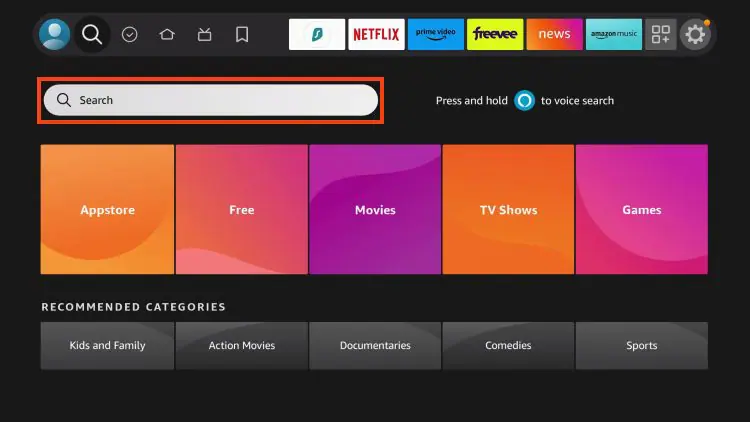
1. From the home screen of your device, locate the search bar and open it.
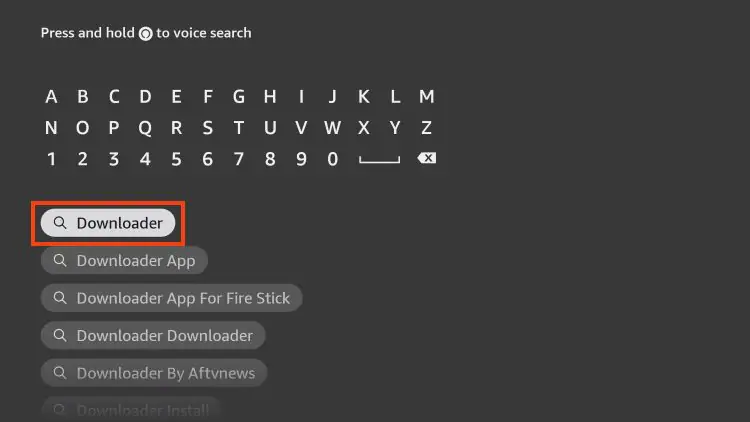
2. Search for the Downloader application.
3. Select it.

4. Choose “Download” or “Get”.

5. Wait a few seconds while the app downloads.

6. You are notified when the installation has been completed.

7. Go back to your Settings and click My Fire TV.

8. Choose نبذة عن.
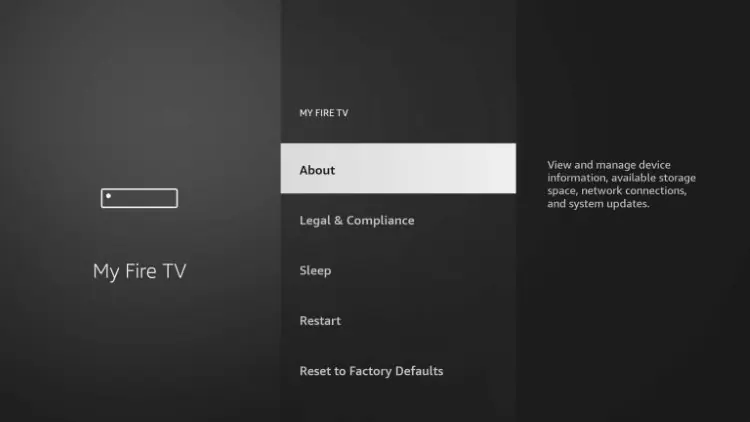
9. Hover over فاير تي في ستيك (or other name) and click the select button 7 times until you see “You are now a developer” message.
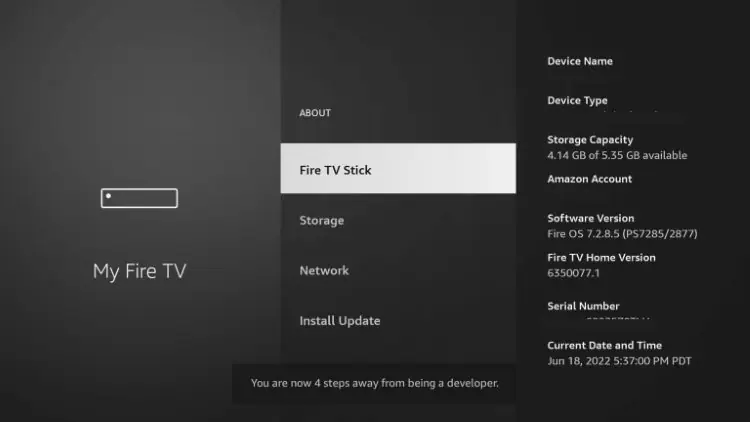
10. Return to the My Fire TV tab and Developer options is now listed.
NOTE: If you have an older model of Fire TV Stick, you will see Developer Options within My Fire TV without selecting “About”.

11. Choose Install unknown apps.

12. Select Downloader.
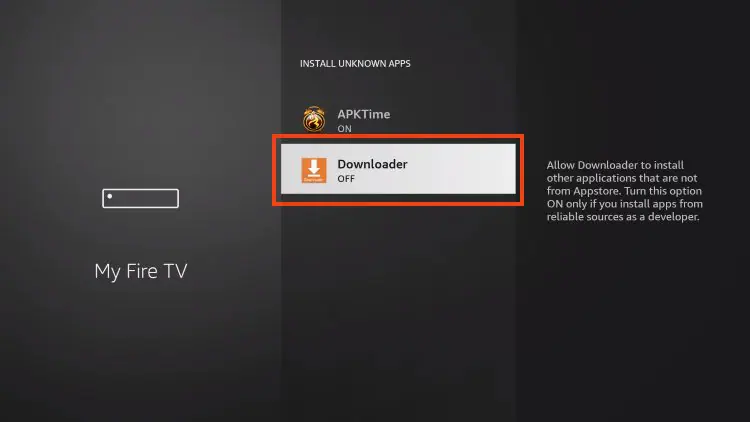
13. Unknown Sources has now been enabled for the Downloader app which we will use to install TiviMate.
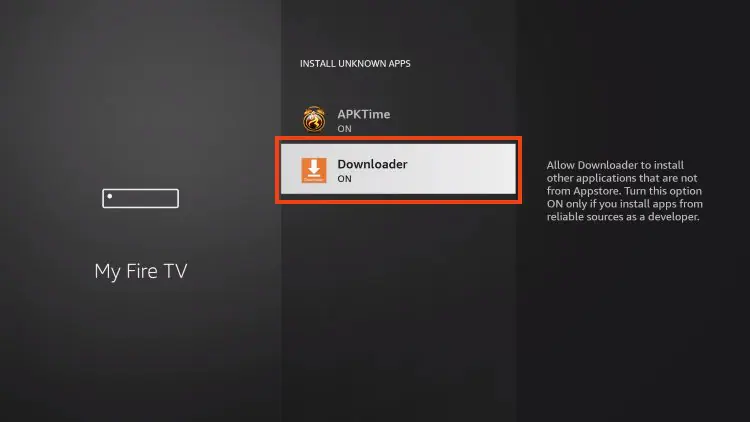
We can now continue to the downloading steps.
Step 2 – Install TiviMate IPTV Player
With your device prepared, use the Downloader app to fetch TiviMate via the TROYPOINT Toolbox — the same method used to sideload apps like مشغل البث التلفزيوني عبر الإنترنت و XCIPTV.
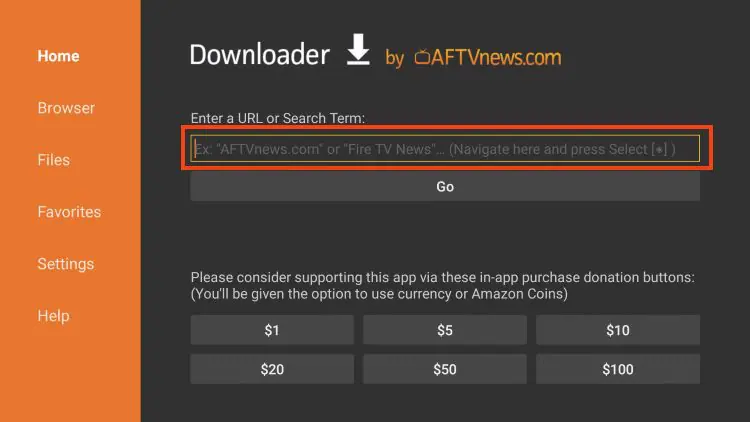
1. Open Downloader and click to select the URL menu bar as highlighted below.
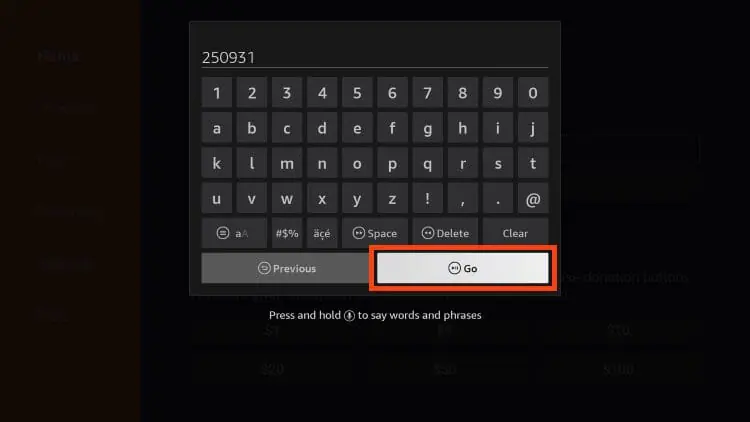
2. Input 250931 and click Go.
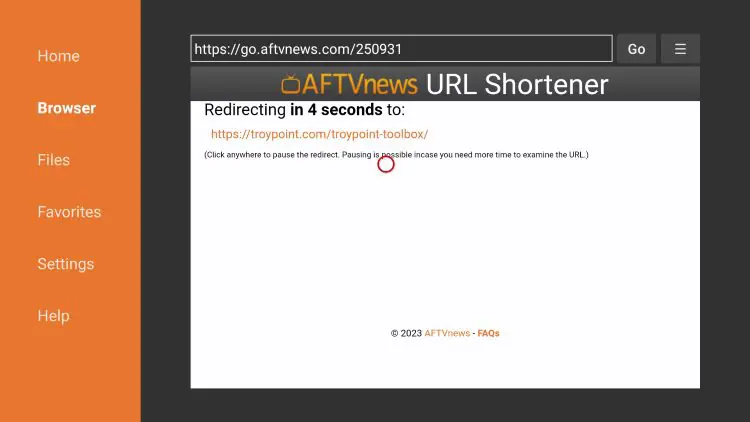
3. Wait for the redirect page to load.
4. TROYPOINT Toolbox home screen is now presented.
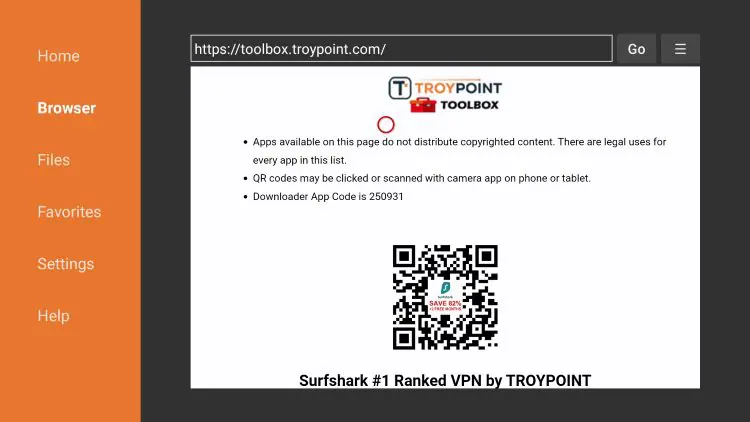
5. Scroll down to find TiviMate and click Download.

6. Wait for the app to download.

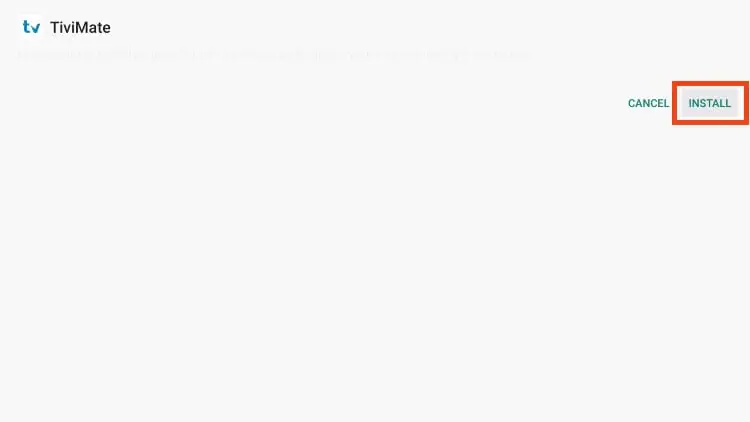
7. Click Install.
8. The TiviMate “Ready to launch!” message now appears.
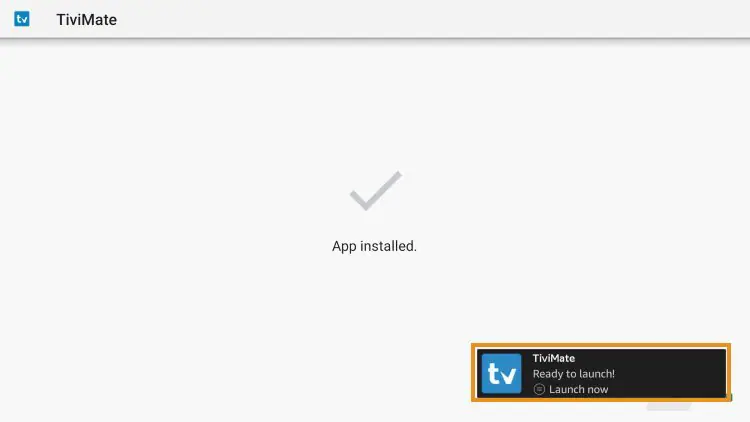
9. Click Done.

10. You will now return to the Downloader app where we can remove the installation file. Click Delete.
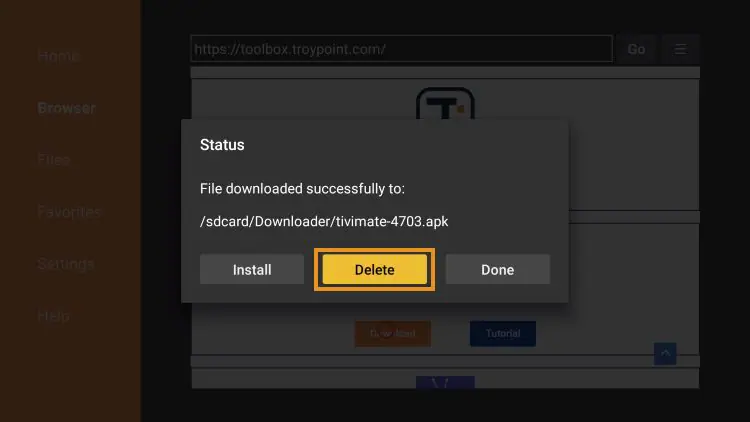
11. Click Delete again.

Installation is now complete. Continue reading to learn how to set up the app on your preferred device.
Download and Install TiviMate IPTV Player APK
Lorem ipsum dolor sit amet, consectetur adipiscing elit. Ut elit tellus, luctus nec ullamcorper mattis, pulvinar dapibus leo.
With your device prepared, use the Downloader app to fetch TiviMate via the TROYPOINT Toolbox — the same method used to sideload apps like مشغل البث التلفزيوني عبر الإنترنت و XCIPTV.
After the app installation is complete, we can open the app and authorize an IPTV Service for use.
NOTE: Initializing an IPTV Service within TiviMate requires an M3U URL or Xtream Code. This can usually be found in your service welcome e-mail or by contacting customer support.
While there is a free version available for use without a subscription package, those who choose to use the free app will miss out on tons of fabulous features.
For example, if you try adding a channel or channels to favorites, you will be prompted with the following message:
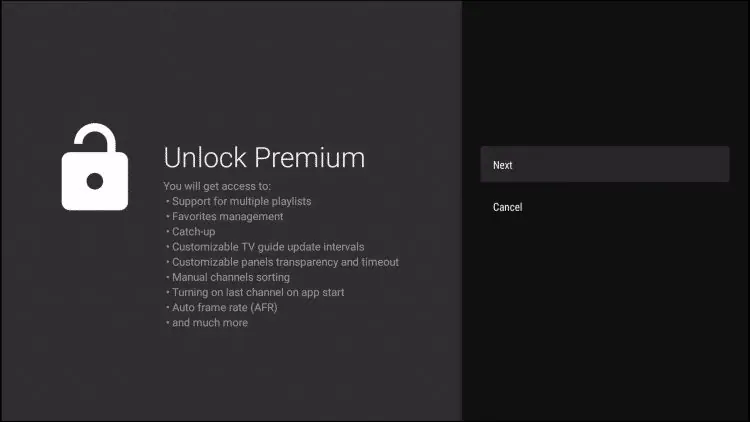
For those who wish to use the free version, simply click Cancel and continue using the app at no charge.
However, if you purchase the premium option through the Companion app, we can log in for added benefits.
If you need to create an account, you can follow the instructions below on how to do so through the Google Play Store.
Set Up TiviMate Premium via the Companion App
To unlock TiviMate’s full feature set, you’ll need a Premium subscription ($33.99 lifetime, up to 5 devices). The subscription is managed through the TiviMate Companion App, which is only available on the Google Play Store and therefore needs to be installed on an Android phone, tablet, or via BlueStacks on a PC.
Note: If you have a generic Android TV box with stock Android, you may be able to install the Companion App directly via Google Play Store on that device. On true Android TV OS devices (like NVIDIA SHIELD), you’ll need to register via an Android phone or BlueStacks instead. You can also sign up directly on the official TiviMate website.
1. Open the Google Play Store on your Android Device. We are using Bluestacks in this tutorial on my Windows PC. Search for “tivimate companion” and select the first choice.
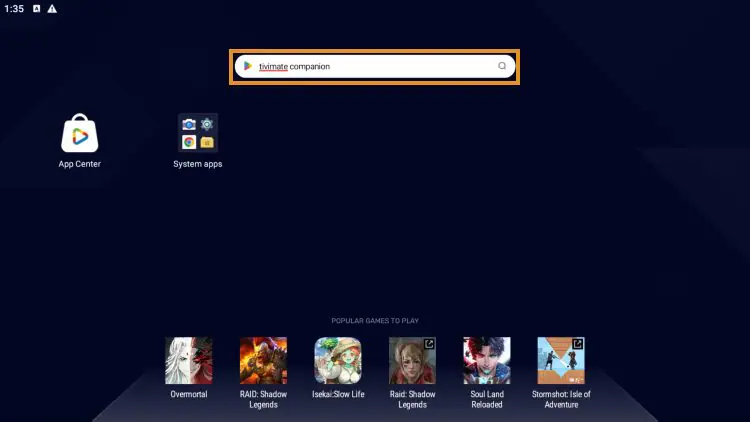
2. Click Install.
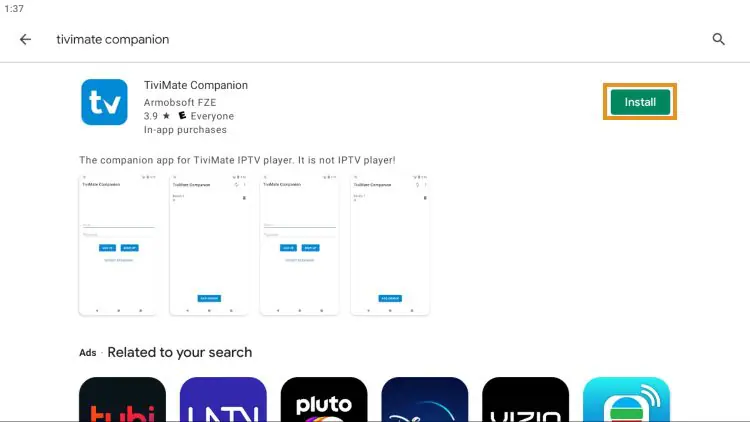
3. Wait for the app to install.
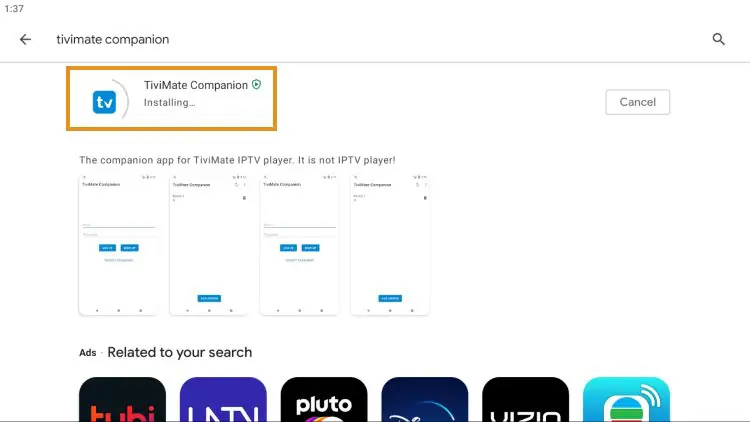
4. Click Open.
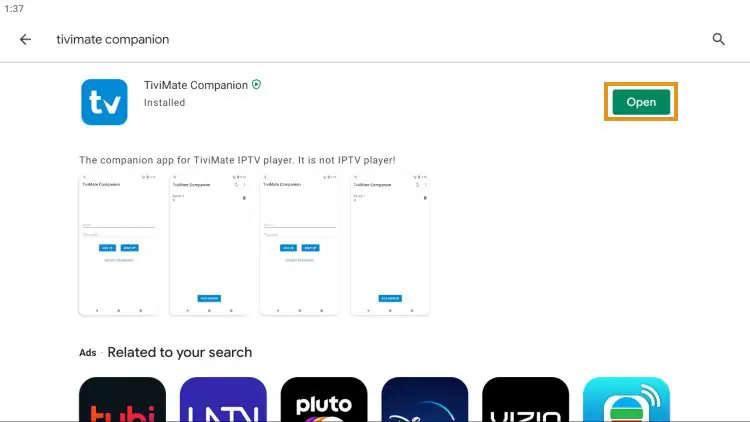
5. Click Account.
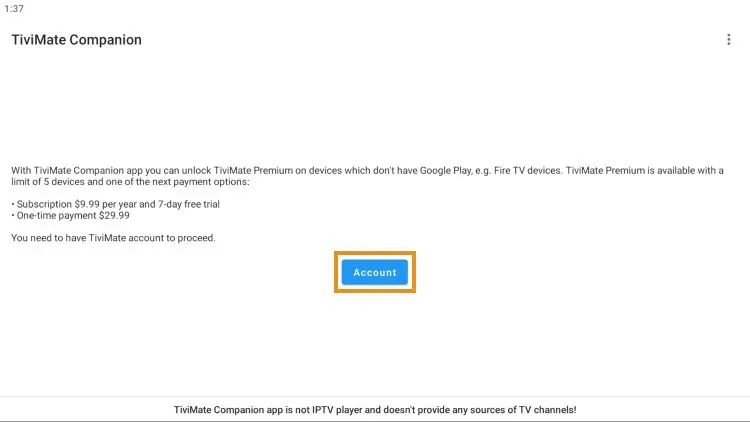
6. Enter your preferred username and password and select Sign up.
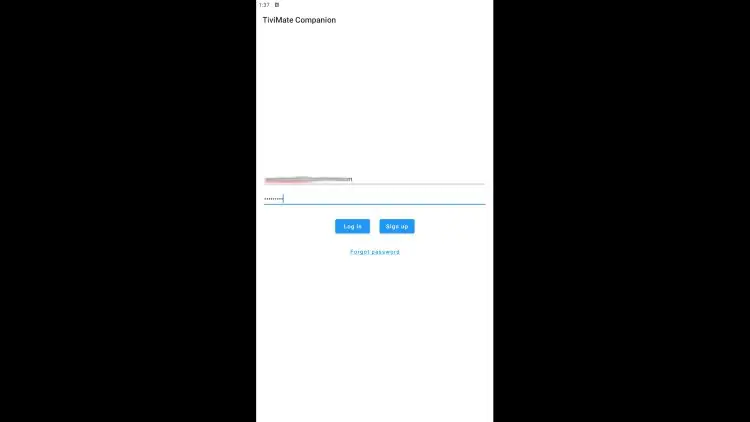
7. Re-enter your password and click Create account.
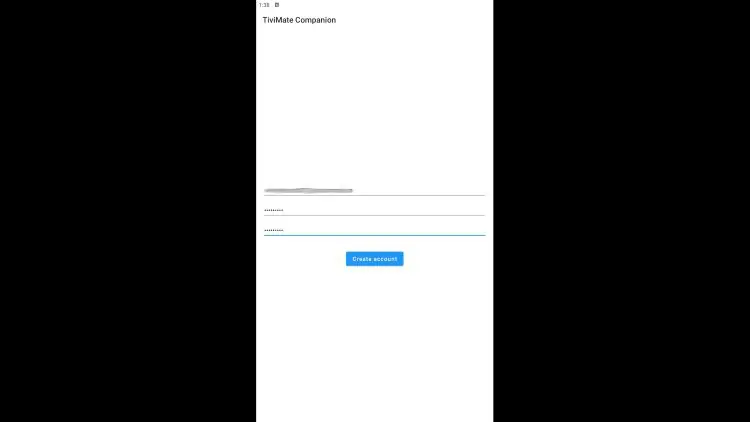
8. Choose the subscription package of your choice and enter your payment information.

9. Registration is complete!

Be sure to write down or remember your login information to sign into the app.
Step 2 -Log In to TiviMate Premium
After you have created your Premium account, you can log in to the service within the app previously installed.
1. From the home screen, select Settings.
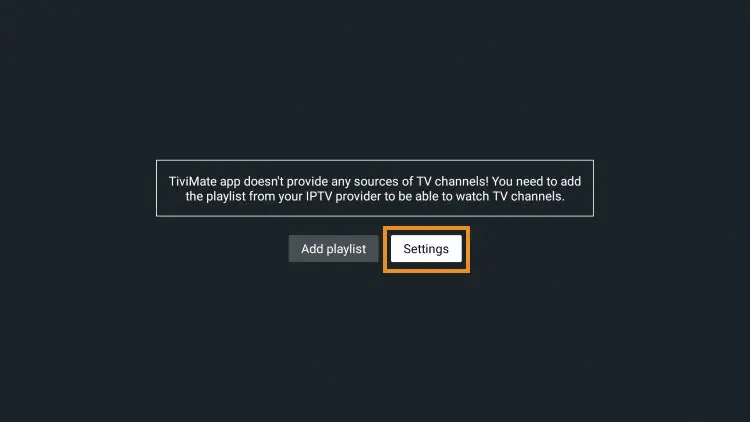
2. Choose Unlock Premium.

3. Click Next.

4. Choose Account.

5. Enter your login credentials.
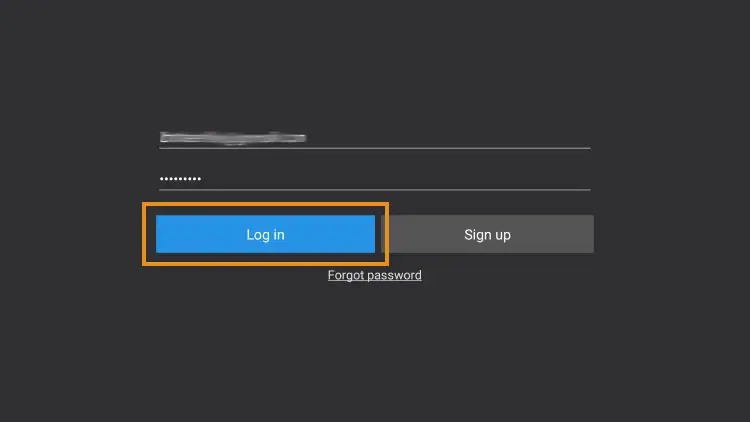
6. Click Next.
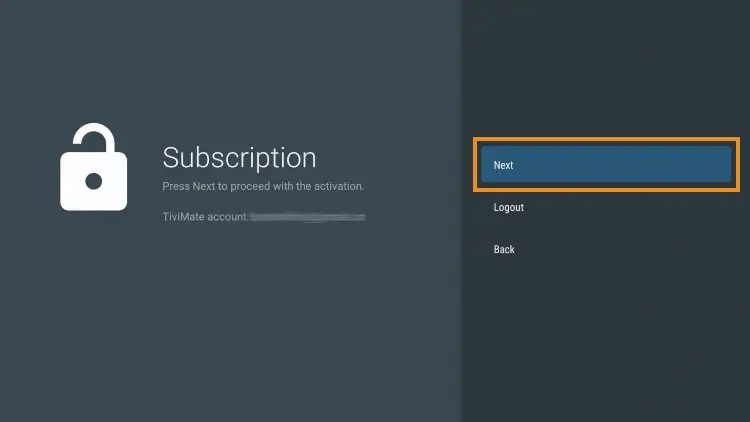
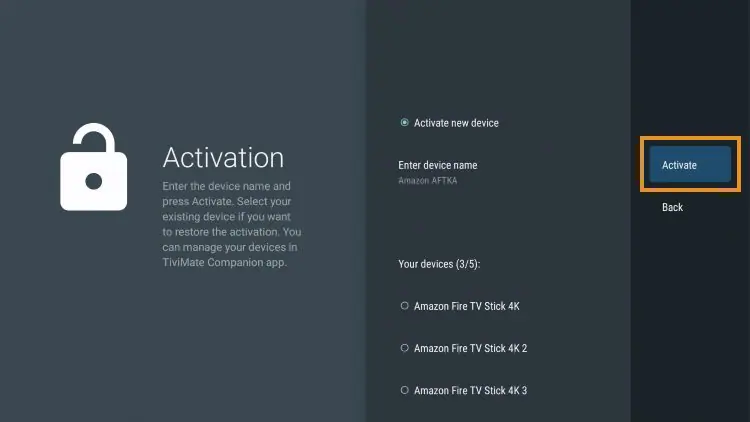
7. Enter the device name of your choice and click Activate.
8. Click OK.
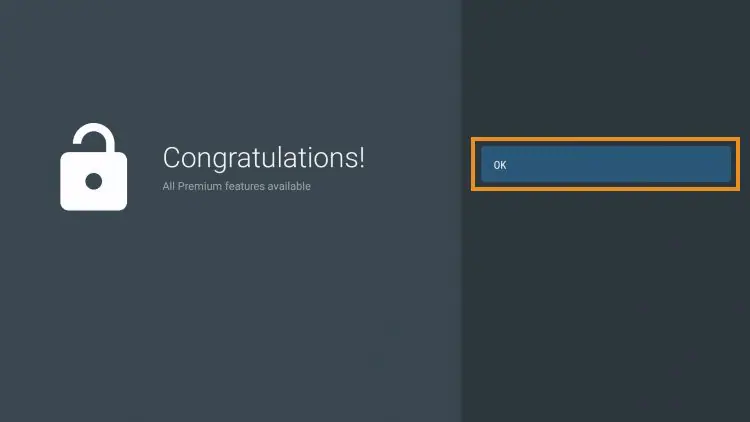
That’s it! Once logged in, you will have access to all advanced features of the app for an enjoyable live-streaming experience.
TiviMate Features & Settings Guide
Navigation with Firestick Remote
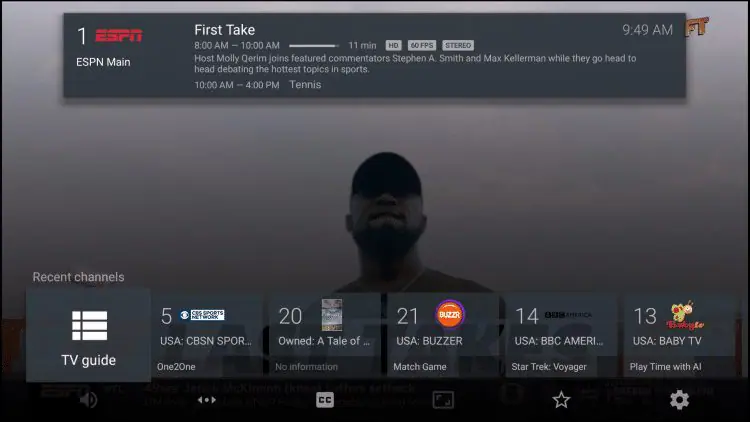
TiviMate is fully optimized for remote navigation. Here’s how the Firestick remote buttons work inside the app:
- Select: Open selected channel or access playback options
- Back: Show channel groups or return to the TV Guide
- Left/Right: Scroll to previous or next program in the EPG
- Up/Down: Scroll through channels in the current group
- Rewind/Fast Forward: Scroll through channels up or down without changing the current channel
Groups Management
One of TiviMate’s most powerful features is the ability to manage channel Groups — the categories that appear in the left-side menu. You can hide, reorder, and remove groups you don’t use to create a cleaner, more personal viewing experience.

Select Manage groups
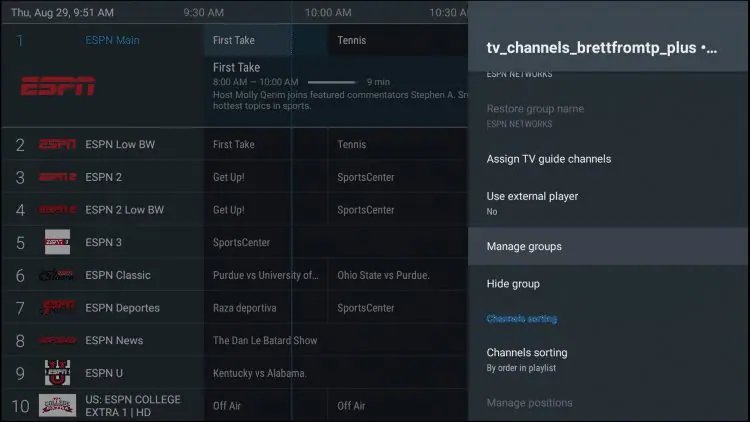
To remove an unwanted or unused Group, simply switch the toggle off:
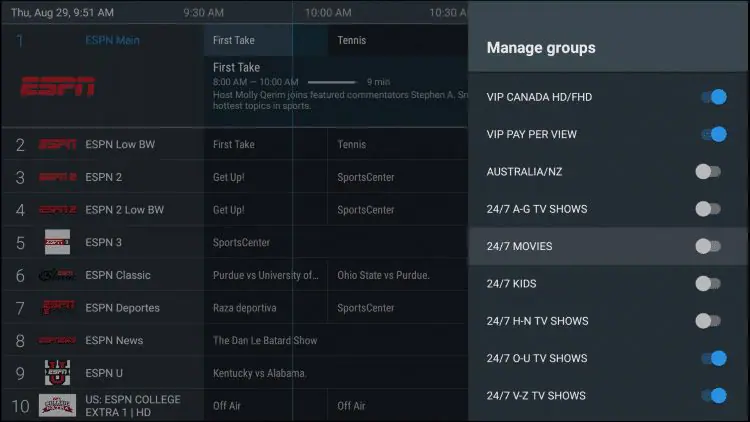
Only highlighted groups will now be visible on the left-side menu bar of the home screen. To adjust the order of these, simply click Manage positions:
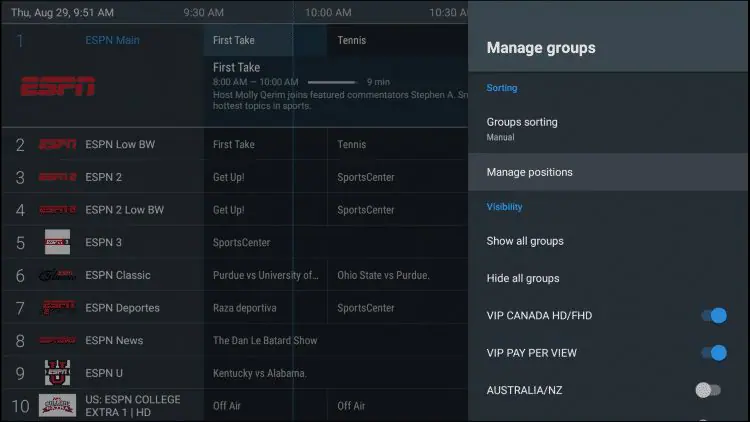
Click to highlight and adjust the group position to your preference! We suggest using the Favorites Tab at the top for a personal streaming experience.
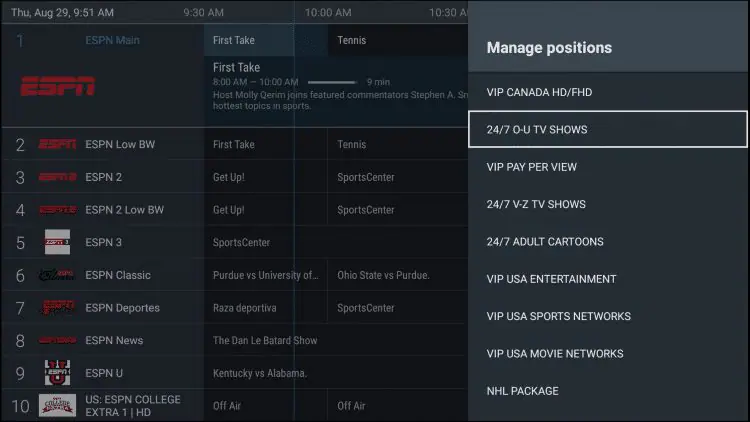
NOTE: TROYPOINT recommends adding your preferred channels to Favorites to get the most out of this app. This will enable all navigational features to work within the Favorites “Group” meaning all scrolling and selection will be through your Favorite Channels!
Favorites Manager
Adding channels to Favorites gives you a dedicated group with full remote navigation support — the most efficient way to access the channels you watch most.
- While watching: Long-press the Select button and choose Add to Favorites
- From the TV Guide: Press the Menu button, select a channel, and choose Add to Favorites
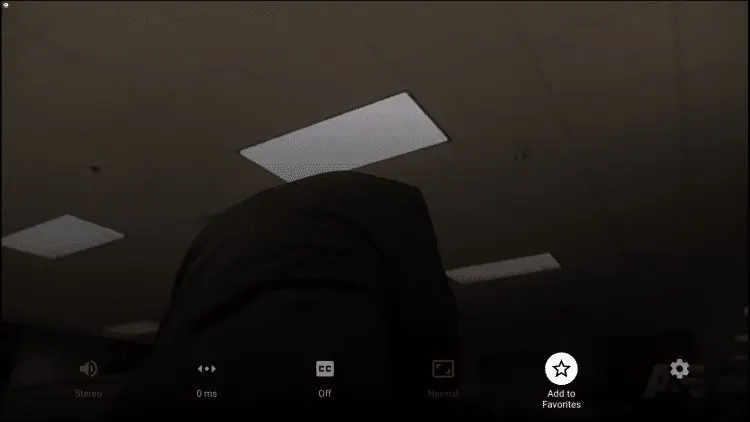
Or, if you would like to add multiple channels quickly, simply press the Menu button from the TV Guide to prompt the following options:

After making a channel selection, users have numerous options within the player.
You can easily access the channel list by clicking the down button.
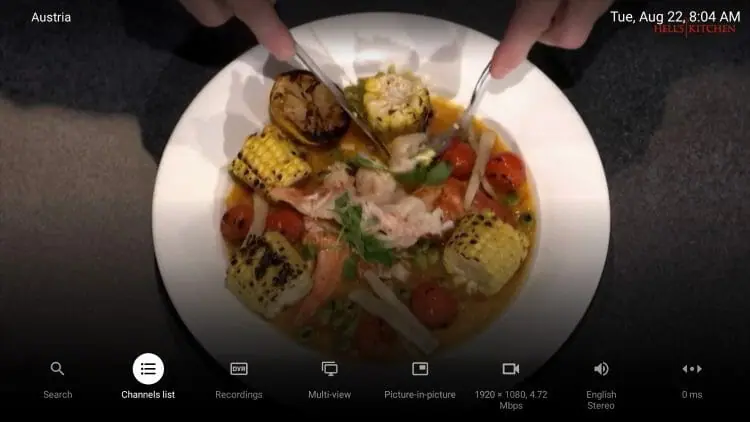
This will prompt quick access to the Channel list without returning to the EPG.
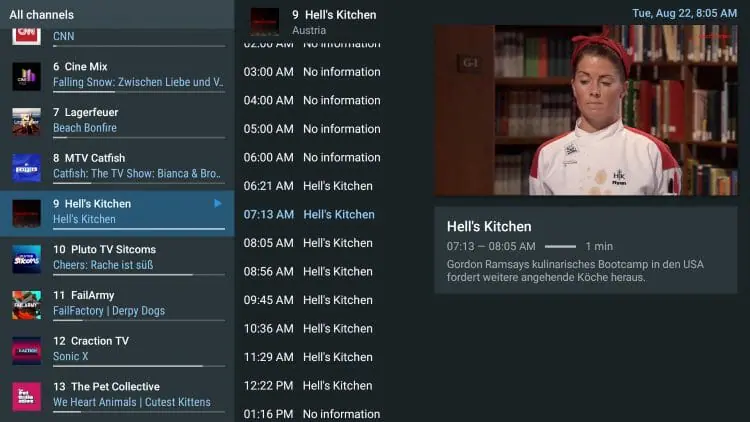
EPG (Electronic Program Guide)
Using the built-in EPG is the best way to browse through your channel selections and more.
Here is the recommended method to set up the EPG within TiviMate.
- Open Settings and select EPG
- Click Past Days to Keep EPG and set it to 1
- Update Intervals – 24 hours
- Update on app start – Off
- Update on Playlist Change – On
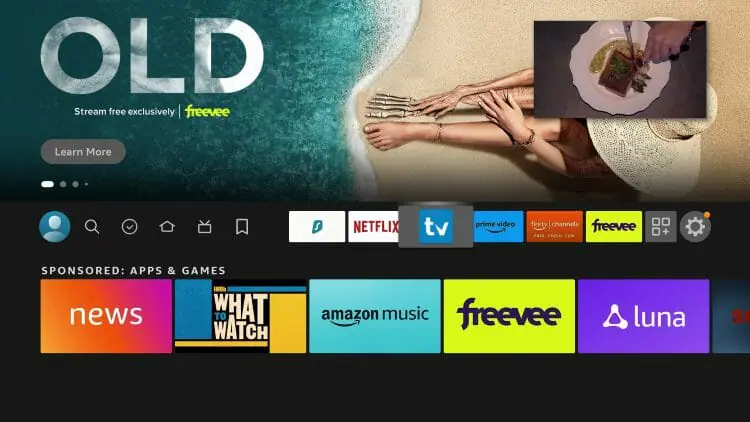
Picture in Picture
Another fabulous feature available is the Picture-in-Picture setting that will let you browse other apps/tools on your device while continuing to stream live content.
You can find this in the full-screen mode of your preferred channel.

This will keep TiviMate playing in the background while you are able to access other options on your preferred device!
TiviMate Settings
Within the Settings are the following provided options:
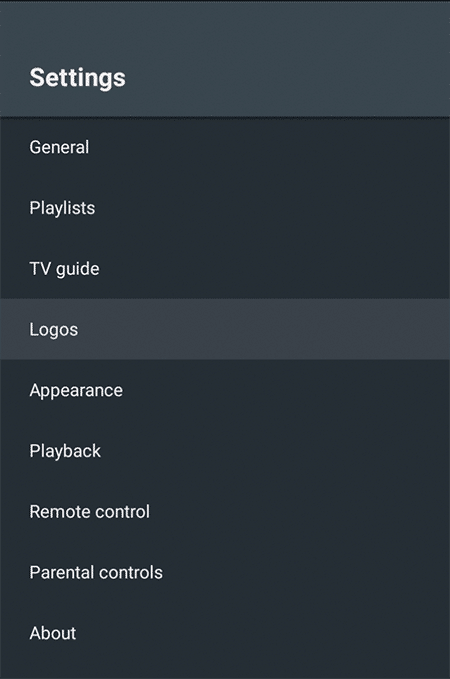
There are a few options within the app’s settings that are worth checking out. One thing we suggest is enabling the confirmation message prior to exiting out.
This way, you will not accidentally close the app by pressing the back button too many times:

Another feature to note is the auto-update option for the TV guide. This will ensure your guide is always up to date:
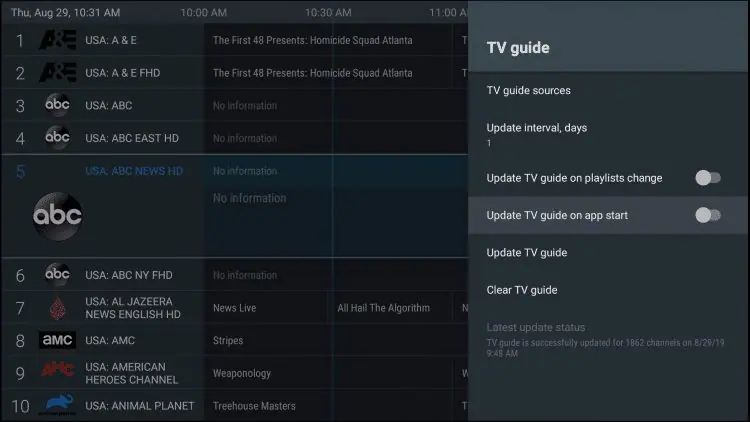
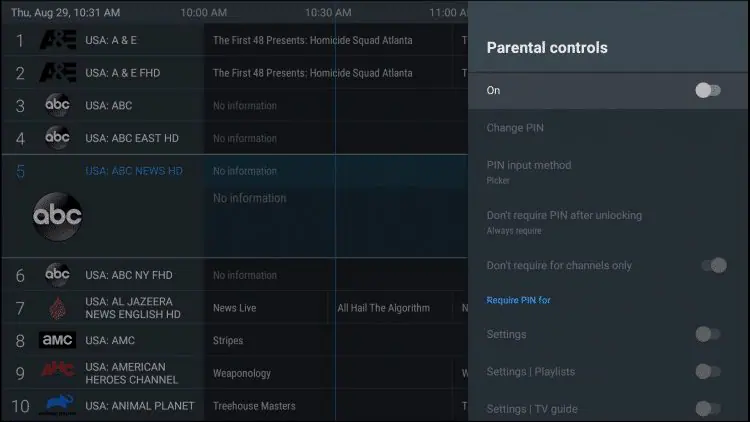
Parental Controls
TiviMate Premium includes a full parental controls system, allowing you to set a PIN number that restricts access to specific playlists, TV Guide categories, group options, and individual channels.
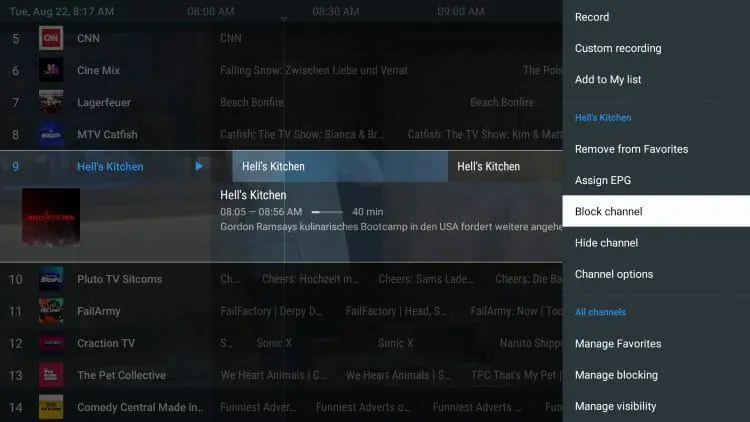
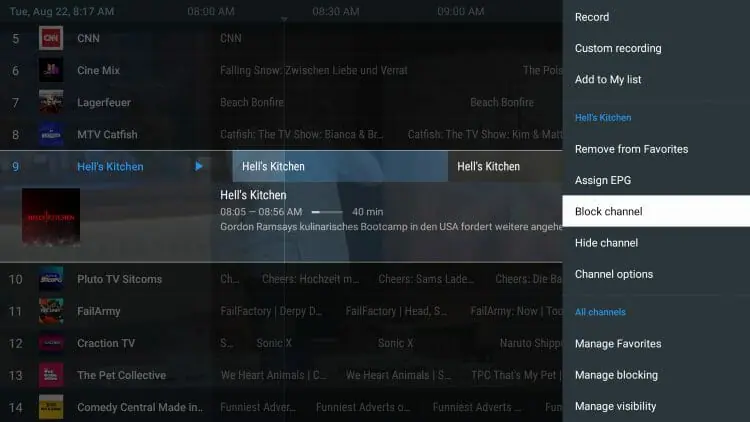
To go along with the Parental Controls is also the ability to block various channels.
you can find this option within the Settings of any channel.
Within the Settings option are tons of features and options that will help you get the most out of your Live TV experience.
Adjusting these will help cater the app to your specific preferences. We suggest checking out all of these Categories to ensure the app is set to your liking.
Subtitles
Lorem ipsum dolor sit amet, consectetur adipiscing elit. Ut elit tellus, luctus nec ullamcorper mattis, pulvinar dapibus leo.
While other IPTV players fall short when it comes to Closed Captioning, TiviMate does not.
That being said, working subtitles will vary from Channel to Channel within the app.
How To Enable Subtitles:
- Open and play your preferred content.
- Long-press the Select button on your remote to open options and choose CC.

- Change toggle from “Off” to “Closed captions 1”.
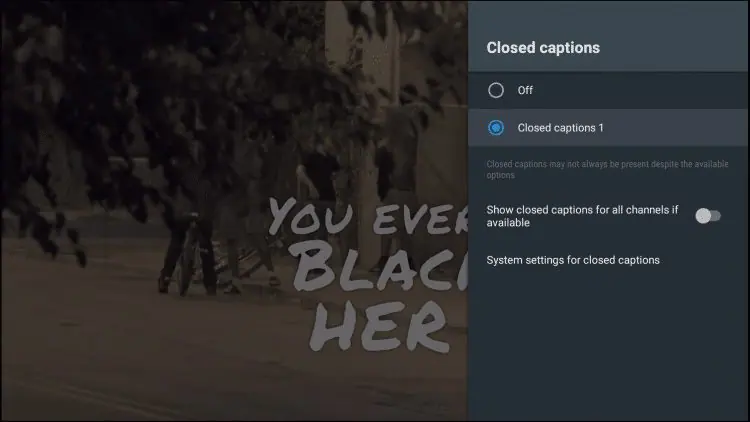
- Subtitles will now load for your content.

TiviMate External Video Player
Another excellent feature that TiviMate provides is the ability to use external video players.
This is something we don’t always see in IPTV Players that usually have a built-in video player.

Users can easily choose to “open in external player” after making a channel selection.
We could go on and on about all of the features TiviMate provides, however, your best bet is to try it yourself to see just how extensive these options are!
Recording Live TV
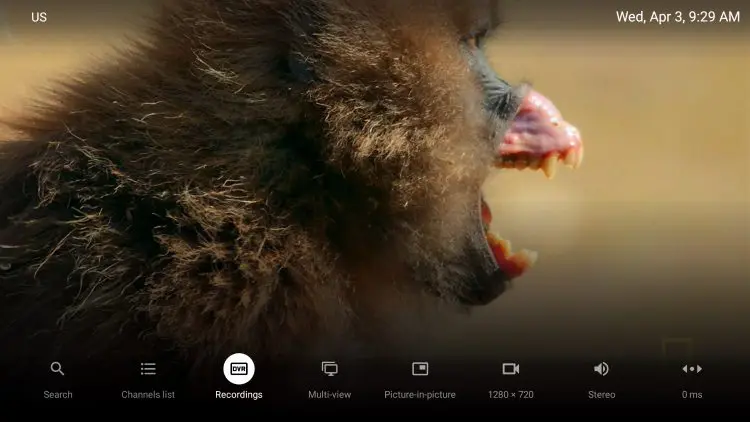
TiviMate Premium’s recording feature is one of its most impressive capabilities. You can record live TV while watching, record from the channel guide, or schedule recordings in advance — even multiple recordings at the same time.
Note: Before recording, ensure you have a USB drive formatted as FAT32 connected to your Firestick. Without external storage, recordings cannot be saved.
TiviMate offers three recording modes:
- Live recording while watching: Tap record during playback
- Live recording from the guide: Select a current program from the EPG and start recording
- Scheduled recording: Long-press a future program in the TV Guide, select Custom Recording, then choose New Recording to set your channel and timeframe
Remote Settings
Because there are so many things you can do with the TiviMate interface, it may get confusing which buttons you should use to access all of the various features provided.
Pictured below is a simple remote guide that shows you what all of the buttons on your firestick will do when you are within the TiviMate interface.

If you use another device, such as Android or Google TV, these options will be similar and should work well for quick access to various settings/features in your application.
Audio Sync
For those who have audio issues when the channel you are watching and the audio don’t match up, we can adjust this with the audio sync by clicking the select button on your remote within a channel and adjusting the offset up or down until it matches the video.
Overall, the possibilities within the TiviMate APK are endless. Because of its easy navigation and fast streaming abilities, it is sure to be a favorite among all IPTV users.
Access Your Account on the TiviMate Official Website
Recently, the developer has created an official website for the application that provides a few details and screenshots with information. However, the best use of this website is the ability to login to your TiviMate premium account and view all activated devices.
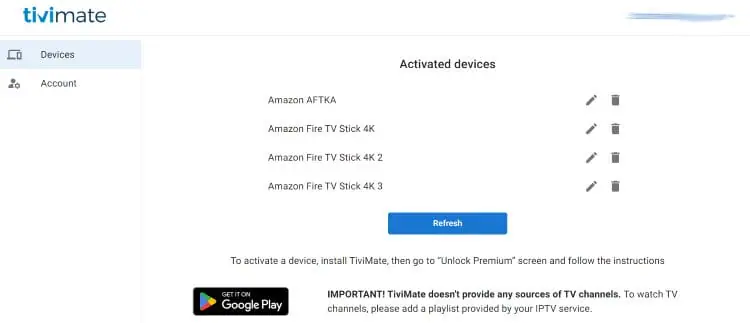
Users can also pay for a Premium subscription on the official website with lifetime access for up to 5 devices.
TiviMate uses the Link Payment system, but you can also choose to pay with a different method (such as Credit Card) when going through the purchase process.

Warning: Beware of Fake TiviMate Websites and Imposters
TiviMate is a video player only — it does not host, sell, or distribute any TV channels. Unfortunately, numerous fraudulent websites and services use the TiviMate name to sell IPTV subscriptions to unsuspecting users.
If you encounter a website claiming to offer live TV channels under the TiviMate name, avoid it completely. Do not enter any payment information on these sites.
Stay safe: Only install TiviMate using the official steps outlined in this guide. Only pay for TiviMate Premium through the official Companion App or the TiviMate website. Any other source is unauthorised and potentially harmful.
This same caution applies when choosing your IPTV service provider. Always use a verified, legitimate الاشتراك في IPTV from a trusted source.
الأسئلة الشائعة (FAQs)
TiviMate has a free version that offers basic playback functionality. However, the majority of its most valuable features — including recording, multiple playlists, Picture-in-Picture, and favorites management — require the Premium upgrade, currently priced at $33.99 for a lifetime licence covering up to 5 devices.
TiviMate is compatible with virtually any IPTV service that provides an M3U URL or Xtream Codes API credentials. This covers the vast majority of providers on the market. If you're looking for a reliable service to pair with TiviMate, explore our available subscription options.
All three are IPTV players that support M3U and Xtream Codes — but TiviMate stands apart with its premium recording capabilities, multi-playlist management, and highly customizable EPG. IPTV Smarters Pro و مشغل XCIPTV are both excellent free alternatives, but TiviMate's Premium feature set is unmatched for power users.
Yes — TiviMate Premium covers up to 5 simultaneous devices per licence. You can activate and manage all devices through the Companion App. If you need more connections for a larger household or business setup, check out our خطط إعادة بيع البث التلفزيوني عبر الإنترنت لخيارات مرنة متعددة الوصلات.
Since TiviMate is sideloaded, it won't update automatically via the Amazon App Store. To update, repeat the installation process — open the Downloader app, enter the TiviMate code, and install the new version over the existing one. Your settings, playlists, and Premium activation will all be preserved.
Buffering in TiviMate is usually caused by internet speed or server-side issues from your IPTV provider. Try connecting your Firestick to a 5GHz Wi-Fi band or using a wired Ethernet adapter, lowering video quality in the player settings, restarting your router and Firestick, or switching to a different server if your provider offers multiple options.
TiviMate IPTV Player is genuinely the most feature-complete IPTV player for Firestick and Android TV available today. From its intuitive group management and EPG to its recording capabilities and Picture-in-Picture mode, TiviMate Premium delivers a streaming experience that no free player can fully match.
If you're just starting out and want to explore other free options first, our guides on IPTV Smarters Pro و مشغل البث التلفزيوني عبر الإنترنت are great starting points. When you're ready to step up, TiviMate Premium is the clear choice.
Browse our complete IPTV guides library for more tutorials, app comparisons, and streaming tips — and find the right IPTV subscription plan to go alongside TiviMate for the ultimate live TV experience.
الأفكار النهائية
TiviMate IPTV Player is genuinely the most feature-complete IPTV player for Firestick and Android TV available today. From its intuitive group management and EPG to its recording capabilities and Picture-in-Picture mode, TiviMate Premium delivers a streaming experience that no free player can fully match.
If you’re just starting out and want to explore other free options first, our guides on IPTV Smarters Pro و مشغل البث التلفزيوني عبر الإنترنت are great starting points. When you’re ready to step up, TiviMate Premium is the clear choice.
Browse our complete IPTV guides library for more tutorials, app comparisons, and streaming tips — and find the right IPTV subscription plan to go alongside TiviMate for the ultimate live TV experience.