Naam auteur: FlixoPlay

How to Watch IPTV on VLC Media Player
Details instellen, Blogs

How to Watch IPTV on VLC Media Player: Complete Setup Guide (2026)

How to Watch IPTV on VLC Media Player: Complete Setup Guide (2026) VLC Media Player is one of the most widely used free media players in the world — but most people do not realise it is also a fully capable IPTV player. With VLC, you can stream live TV channels, load an M3U playlist, and watch your entire IPTV subscription directly on your Windows PC, Mac, Linux machine, Android, or iPhone — no extra app required. This guide walks you through everything: downloading and installing VLC, adding your IPTV channels via M3U URL or playlist file, optimising VLC for smooth IPTV streaming, and fixing the most common playback issues. Whether you are a first-time user or switching from another IPTV player, this is the only guide you need. What Is VLC Media Player? VLC Media Player is a free, open-source, cross-platform media player developed by the VideoLAN project. It supports virtually every audio and video format without requiring additional codecs, and it runs on Windows, macOS, Linux, Android, iOS, and more. For IPTV users, VLC is particularly valuable because it natively supports M3U playlist files, network streams, and RTSP/HLS/UDP protocols — the same formats used by all major IPTV providers. Why Use VLC for IPTV Streaming? While dedicated IPTV players like IPTV Smarters, TiviMate, and XCIPTV Player offer more IPTV-specific features, VLC has its own strengths:       Completely free — no subscription, no trial, no in-app purchases       Universal format support — plays any stream format your IPTV provider uses       Available on every platform — Windows, Mac, Linux, Android, iPhone       No account required — just install and load your M3U link       Advanced network buffering controls — reduces freezing and buffering on slower connections       DVR/recording capability — record live IPTV channels directly within VLC Key Features of VLC for IPTV Feature What It Means for IPTV Users M3U Playlist Support Load your IPTV channel list via URL or local file Network Stream (HLS/RTSP) Directly paste your IPTV stream URL to play Playlist Manager Browse, search, and organise all your channels Buffering / Caching Controls Adjust cache size to fix freezing on live streams Stream Recording Record any live IPTV channel to your local storage Subtitle Support Load external subtitle files for VOD content Multi-Audio Track Switch between audio tracks on multi-language channels Hardware Decoding Uses GPU acceleration for smooth 4K and HD playback Step 1: Download and Install VLC Media Player VLC is available for free from the official VideoLAN website. Always download from the official source to avoid modified or bundled installer versions On Windows     Open your browser and go to www.videolan.org. 2.     Click Download VLC in the centre of the homepage. The site auto-detects Windows and offers the correct installer.     Once downloaded, run the installer. On the language screen, select your preferred language and click OK.     Click Next on the Welcome screen, then Next on the License Agreement screen.     On the Choose Components screen, the default selections are fine for IPTV use. Click Next. 6.     Click Install, then Finish once complete. On macOS     Go to www.videolan.org and click Download VLC. The Mac .dmg file downloads automatically.     Open the .dmg file, drag the VLC icon into your Applications folder, and launch it from there. On Android     Open the Google Play Store, search for VLC for Android, and tap Install. On iPhone / iPad Open the App Store, search for VLC for Mobile, and tap Get. Step 2: How to Add IPTV Channels to VLC (M3U Playlist Setup) Once VLC is installed, adding your IPTV channels takes less than a minute. You will need either an M3U URL or a downloaded M3U file from your IPTV provider. Method 1: Load IPTV via M3U URL (Recommended) This is the easiest method and works on all platforms. Your IPTV provider gives you a direct M3U link that VLC streams live — your channel list always stays up to date automatically. Open VLC and click Media in the top menu bar. Select Open Network Stream (or press Ctrl + N). In the Network URL field, paste your M3U URL provided by your IPTV subscription provider. Click Play. VLC will begin loading your playlist. Once loaded, press Ctrl + L to open the full playlist panel. All your IPTV channels will appear here. Click any channel to start watching. How to Optimise VLC for IPTV Streaming (Stop Buffering & Freezing) The default VLC settings are not optimised for live IPTV streaming. These changes make a significant difference to playback quality, especially on slower connections. Increase the Network Cache (Reduces Buffering) Open VLC and go to Tools > Preferences. At the bottom left, select Simple as default  29. In the left panel, go to Input / Codecs. 30. Find Network >  default caching policy (ms) and increase it from the default 1000ms to 3000–5000ms for live IPTV streams. 31. Click Save and restart VLC. Enable Hardware Decoding (Smoother HD & 4K Playback) 32. Go to Tools > Preferences > Input / Codecs 33. Under Hardware-accelerated decoding, select Automatic or DirectX Video Acceleration (DXVA) 2.0 on Windows. 34. Click Save and restart VLC. Use UDP/RTP for Lower Latency (Advanced) If your IPTV provider supports UDP or RTP streams, these protocols deliver lower latency than HLS. Ask your provider for a UDP stream URL and load it via Media > Open Network Stream. This is especially effective on wired LAN connections. How to Record Live IPTV Channels on VLC One of VLC’s standout features for IPTV users is the ability to record any live channel directly to your local storage. Start playing an IPTV channel using either method above. Go to View > Advanced Controls. A red record button appears below the playback bar. Click the red record button to start recording. Click it again to stop. 38. Recorded files are saved
How to Install STBEmu Pro on Firestick
Blogs, Details instellen

Hoe STBEmu Pro op Firestick te installeren Beste MAG Emulator Gids (2026)

How to Install STBEmu Pro on Firestick Best MAG Emulator Guide (2026) What Is STBEmu Pro and Why Use It on Firestick? STBEmu Pro — short for STB Emulator Pro — is a unique and powerful IPTV application that works differently from most conventional IPTV players. Rather than connecting via M3U playlists or Xtream Codes like apps such as IPTV Smarters Pro or XCIPTV Player, STBEmu Pro works by emulating a MAG Box — a dedicated IPTV set-top box — directly on your Firestick. A MAG Box is a type of set-top box (STB) that streams IPTV and OTT content over the internet. STBEmu Pro replicates the MAG Box environment on your Firestick, allowing IPTV providers that use MAG/portal-based infrastructure to deliver content to your device — without you needing to own a physical MAG Box. STBEmu Pro supports emulation of MAG 250, MAG 270, and MAG 322 models. It is particularly suited for users whose IPTV providers supply a portal URL rather than standard M3U or Xtream Codes credentials. If you’re unsure which format your provider uses, check our IPTV setup details for a full breakdown of supported formats. STBEmu vs STBEmu Pro: What’s the Difference? There are two versions of the STB Emulator app:       STBEmu (Free): Fully functional but displays ads during use       STBEmu Pro ($5.49): One-time paid version — completely ad-free with the same core feature set For regular use, STBEmu Pro is the recommended choice. The ad-free experience makes it significantly more enjoyable for daily streaming, and the one-time cost is minimal compared to ongoing subscription fees for other apps. Important: STBEmu Pro does not support M3U playlists. It connects to IPTV services exclusively via portal URLs (MAG portal / Stalker Middleware). If your IPTV provider only supplies M3U or Xtream Codes credentials, consider using IPTV Smarters Pro or IPTV Stream Player instead. Is STBEmu Pro Safe and Legal to Use? STBEmu Pro is available on both the Google Play Store and Apple App Store — confirming it is a legitimate, officially published application. However, it is not available on the Amazon App Store, which means it must be sideloaded onto your Firestick. The STBEmu Pro APK has been scanned on VirusTotal. Out of 66 security vendors, only one flagged the URL — a result that is generally considered within acceptable limits for a legitimate app. The app itself is an emulator only and does not host, distribute, or supply any content or channels. Legal Note: STBEmu Pro is a legal application. However, the legality of its use depends entirely on the IPTV service you connect it to. Always ensure your IPTV provider holds the proper licences to distribute the content you’re accessing. Using STBEmu Pro with unlicensed or pirated streams may be illegal in your country. What You Need Before You Start Before beginning the installation, make sure you have the following ready:       Amazon Firestick, Fire TV, or Fire TV Stick 4K Max       Downloader app installed from the Amazon App Store       Unknown Sources enabled for Downloader in Developer Options       STBEmu Pro APK URL from the official source       Portal URL from your IPTV provider — STBEmu Pro uses portal-based login, not M3U or Xtream Codes Part 1: Prepare Your Firestick for Sideloading Since STBEmu Pro is not on the Amazon App Store, it needs to be sideloaded using the Downloader app. This is the same preparation process used for all sideloaded IPTV apps. If you’ve already done this for another app — such as when following our guide on how to install IPTV Smarters on Firestick — skip directly to Part 2. 1. Install the Downloader app. You can use the Find > Search option on the home screen to get Downloader from the Amazon Store. 2. Navigate to Settings>My Fire TV>Developer Settings You will see one of the following two options depending on your FireStick device version: Option 1 (new devices) – Install Unknown Apps: Click it and proceed to the next step to enable Downloader. Option 2 (old devices) – Apps from Unknown Sources: Click this option and then click Turn On on the following prompt. Skip the next step. Note: If you do not see Developer Options, go to Settings > My Fire TV > About.Now, select Fire TV Stick and click it 7 times to enable Developer Options. 3. Enable Downloader. Part 2: Install STBEmu Pro on Your FireStick With your Firestick prepared, use the Downloader app to fetch and install the STBEmu Pro APK. This is the same sideloading method used to install apps like XCIPTV Player and IPTV Stream Player on Firestick. 1. On your FireStick home screen, click My Apps. 2. Navigate to the Downloader app and click on it. 3. Click the URL box. 4. Enter the download URL. Then, wait a few moments for the APK file to download. 5. Click Install. 6. Click Done. 7. Click Delete to remove the APK file from your FireStick. 8. Click Delete again to confirm the previous action. STBEmu Pro is now installed on your Firestick. Continue to the next section to configure it with your IPTV portal. How to Set Up and Use STBEmu Pro on Firestick STBEmu Pro has a unique setup process compared to standard IPTV players. Because it emulates a MAG Box, configuration is done through profiles and portal URLs rather than simple username/password login fields. First Launch and Main Menu Open STBEmu Pro from your Firestick’s 15. On the launch screen, you’ll see three options at the bottom:  Configure Application: Opens the full settings and profile configuration menu  Restore Settings: Restore a previously saved configuration backup  Close: Exit the app 16. Select Configure Application to begin setup. Configure Application Menu After selecting Configure Application, a menu with four sections appears:       Common Settings: Customize app language, UI visibility duration, screen orientation, navigation bar, and overlay buttons       Configure Keymaps: Map remote control buttons to specific app functions       Profiles: Add and manage your IPTV portal connections — this is where you enter your portal URL       About: View app

IBO Pro Player Complete Setup Installation
Details instellen, Blogs

IBO Pro speler: Complete installatiegids voor alle apparaten

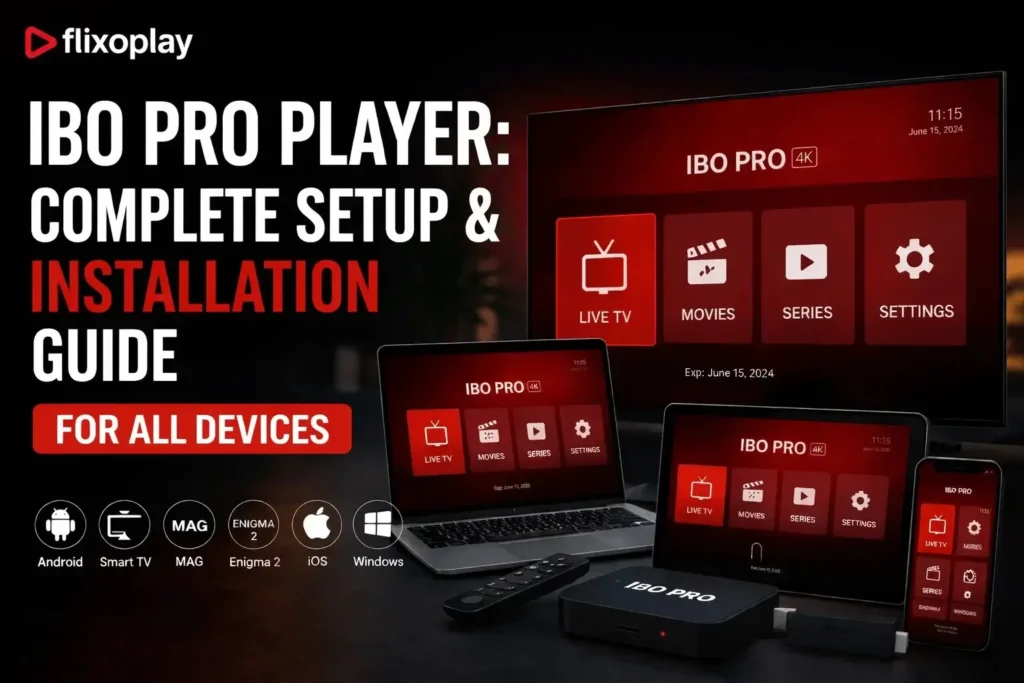
IBO Pro Player: Complete Setup & Installation Guide for All Devices Whether you just downloaded IBO Pro Player or are setting it up for the first time, this guide covers everything — from installing the app on your smart TV or device, to adding your IPTV playlist and getting your channels live. Follow each step carefully and you will be streaming in minutes. What Is IBO Pro Player? IBO Pro Player (also known as IBO Player Pro or IBOPlayer) is a powerful IPTV media player that supports a wide range of audio and video codecs. It is designed to give users a seamless IPTV playback experience across multiple devices including smart TVs, Android TV boxes, Amazon Firestick, Windows PCs, iPhones, LG Smart TVs, and Roku. Its intuitive interface, playlist management, subtitle support, and Xtream Codes compatibility make it one of the most popular IPTV players available today. How to Install IBO Pro Player on Any Device Installation steps vary slightly depending on your device. Follow the section that matches yours below. How to Set Up IBO Pro Player on Smart TV (Complete Walkthrough) This is the most popular setup method. If you are using a Samsung, LG, or Android-based smart TV, here is exactly how to get IBO Player Pro installed and your playlist loaded. Step 1: Install IBO Pro Player from Your Smart TV App Store Turn on your smart TV and open the app store (Samsung Smart Hub, LG Content Store, or Google Play Store on Android TV). Search for IBO Pro Player and click Install. Once the download completes, open the app. Step 2: Note Your MAC Address and Device ID When you open IBO Pro Player for the first time, the home screen will display your unique MAC address and device ID. These are tied to your device and are required when activating or linking your IPTV subscription. Write them down or take a photo. Step 3: Go to the IBO Pro Player Website and Open Manage Playlist On your phone or computer, visit the IBO Pro Player website. Log in to your account and navigate to the Manage Playlist section. This is where you will link your IPTV subscription to the app on your TV. Step 4: Add Your Playlist Click Add Playlist. You will see two options to connect your IPTV service: Option A — M3U Link If your IPTV provider gave you an M3U URL, select the M3U option and paste the link into the field provided. This URL contains your entire channel list and is ready to stream once saved. Option B — Xtream Codes If your provider uses Xtream Codes, select that option and enter your server URL, username, and password as provided. Xtream Codes is the most stable connection method for IPTV and is recommended where available. If you do not have an IPTV subscription yet, you can get one from FlixoPlay.com — they provide both M3U links and Xtream Codes login details that are fully compatible with IBO Pro Player. Step 5: Open IBO Pro Player on Your TV — Your Playlist Is Live Head back to your smart TV and open IBO Pro Player. Your playlist will load automatically and your channels will appear. You are now ready to watch live TV, VOD, and more through your IPTV service. IBO Pro Player Installation on Windows There are two ways to install IBO Player Pro on a Windows PC:       Via the Microsoft Store: Open the Microsoft Store, search for IBO Pro Player, and click Get or Install. Follow the on-screen instructions. •        Using a .exe installer: If you have the .exe file from a trusted source, double-click it and follow the setup wizard. Always verify the file source before running it. IBO Pro Player Installation on Android TV IBO Player may not always appear directly in the Google Play Store on Android TV. If that is the case, use the Downloader app method: Install the Downloader app from the Google Play Store on your Android TV. Go to Settings > Security & Restrictions and enable Install Unknown Apps for Downloader. Open Downloader and enter the IBO Pro Player APK URL provided by your distributor.  Download and install the APK, then open IBO Pro Player and follow the setup steps above. IBO Pro Player Installation on iPhone Installing IBO Player on iPhone is straightforward through the Apple App Store: Open the App Store on your iPhone. Search for IBO Pro Player.  Tap Get to download and install. Authenticate with Face ID, Touch ID, or your Apple ID if prompted. IBO Pro Player on Amazon Firestick Installing IBO Player on Firestick requires sideloading via the Downloader app: Go to Settings > My Fire TV > Developer Options and turn on Apps from Unknown Sources. Search for and install the Downloader app on your Firestick. Open Downloader and enter the IBO Pro Player APK URL for Firestick. 11. Download the APK and follow the installation prompts. IBO Pro Player on LG Smart TV Open the LG Content Store, search for IBO Pro Player, and install it if available. If the app does not appear in the LG Content Store for your region, you can use screen mirroring from your phone or connect an Android TV stick to your TV’s HDMI port as an alternative. IBO Pro Player on Roku TV Open the Roku Channel Store from your home screen, go to Search Channels, and look for IBO Pro Player. If it appears as a channel, add it. If it is not available in your region’s Roku store, screen mirroring or an external streaming device is the best alternative. Frequently Asked Questions About IBO Pro Player Is IBO Pro Player free to use? The IBO Pro Player app itself is free to download. However, to watch IPTV content you need an active IPTV subscription that provides you with either an M3U link or Xtream Codes credentials. Is it safe to enable Unknown Sources on Android TV

How to Install IPTV Smarters Pro on Samsung Smart TV
Details instellen, Blogs

Hoe IPTV Smarters Pro installeren op Samsung Smart TV (2026)

How to Install IPTV Smarters Pro on Samsung Smart TV (2026) Can You Install IPTV Smarters Pro on a Samsung Smart TV? IPTV Smarters Pro is one of the most versatile IPTV players available — and yes, it can be installed on Samsung Smart TVs. However, unlike on iOS where it’s a straightforward App Store download, or on Firestick where the Downloader app handles everything, Samsung Smart TV requires a slightly different approach: sideloading the APK via a USB drive after enabling Developer Mode on your television. Samsung’s Tizen OS — the operating system powering most Samsung Smart TVs — does not allow third-party app installations by default. To install IPTV Smarters Pro, you need to unlock this capability by activating Developer Mode, which is a built-in Samsung feature designed for app testing. Once enabled, sideloading becomes straightforward. This guide walks you through every step in detail — from enabling Developer Mode to configuring your IPTV subscription within the app. The full process typically takes less than 15 minutes. Compatibility Note: Samsung Smart TVs running Tizen OS (2016 and later models) support sideloading. Older Samsung TVs running different operating systems may not be compatible with this method. Check your TV model’s specifications before proceeding. What You Need Before You Start Before beginning the installation, make sure you have the following ready:       A Samsung Smart TV (2016 or later, running Tizen OS)       A USB drive formatted as FAT32 — used to transfer the APK file to your TV       A Windows or Mac computer to download the APK file and copy it to the USB drive       The IPTV Smarters Pro APK file downloaded from the official source       A file manager app installed on your Samsung TV (available in the Samsung App Store)       Your IPTV credentials — username, password, and server URL from your IPTV service provider Tip: Always download the IPTV Smarters Pro APK from the official website at iptvsmarters.com. Avoid unverified third-party sources as these may contain modified or unsafe versions of the app. Step 1: Enable Developer Mode on Your Samsung Smart TV Before starting, make sure your TV is compatible with third-party apps. You’ll need: Press Home on your Samsung remote and go to Apps. Scroll down and select the Settings (gear) icon. Enter 12345 using your remote or the on-screen keypad. In the pop-up window, turn Developer Mode ON. Step 2: Prepare the Apps You’ll Need Search the Samsung App Store for StreamSmarters Pro. If it’s not there: Download a file manager app. Find a trusted source for the StreamSmarters Pro APK. Get a USB drive to transfer the APK to your TV. Step 3: Sideload StreamSmarters Pro on Your TV With the APK on your USB drive and a file manager installed on your TV, you’re ready to sideload IPTV Smarters Pro. This is the same fundamental process used to install any third-party IPTV app on Samsung TV — similar in principle to how XCIPTV Player and IPTV Stream Player are sideloaded on Firestick. Step 4: Set Up IPTV Smarters Pro on Samsung Smart TV With the app installed, launch IPTV Smarters Pro from your Apps section and connect it to your IPTV service. The configuration process is identical to other platforms — you’ll use either Xtream Codes API or an M3U playlist URL. Full credential setup details are available on our IPTV setup page. Adjust video settings to reduce buffering. Enable <a href="/nl/”https://en.wikipedia.org/wiki/Electronic_program_guide”/" target="”_blank”">EPG</a> (TV guide) for easier channel browsing. Customize the interface. Step 5: Optimize IPTV Smarters Pro Settings on Samsung TV Once connected, take a few minutes to configure the app settings for the best possible streaming experience on your Samsung TV:       EPG (Electronic Program Guide): Enable EPG in settings to get a full TV guide showing current and upcoming programs across all channels       Video Player Settings: If you experience buffering, lower the default stream quality or switch the video decoder mode       Parental Controls: Set a PIN to restrict access to specific channels or content categories       Favorites: Add your most-watched channels to Favorites for instant access from the home screen       Interface Theme: Customize the app’s layout and color scheme from Settings > Interface to suit your preference       Keep App Updated: Periodically re-download the latest APK and reinstall to keep the app updated with new features and fixes Troubleshooting Common Issues on Samsung Smart TV Developer Mode Not Showing After Entering 12345       Make sure you’re in the Apps > Settings (gear icon) screen — the code only works from this specific location       Try entering the code slowly using the remote — some Samsung remotes register rapid input incorrectly       Confirm your Samsung TV model supports Developer Mode — models older than 2016 may not have this feature APK Not Showing on USB Drive in File Manager       Confirm the USB drive is formatted as FAT32 — NTFS and exFAT may not be readable       Make sure the APK is in the root folder of the USB drive, not inside a subfolder       Try a different USB drive or a different USB port on the TV Installation Fails or App Won’t Open       Verify Developer Mode is still enabled — it resets after a factory reset or some firmware updates       Re-download the APK from the official source in case the file was corrupted during transfer       Restart your Samsung TV and try the installation again Buffering or Poor Stream Quality       Connect your Samsung TV to your router via Ethernet cable instead of Wi-Fi for the most stable connection       Lower the stream quality in IPTV Smarters Pro video settings       Contact your IPTV provider to check if an alternative server is available with better performance Channels Not Loading After Login       Double-check your username, password, and

How to Install IPTV Smarters Pro on iOS iPhone
Details instellen

Zo installeer je IPTV Smarters Pro op iOS - Complete handleiding voor iPhone en iPad (2026)

How to Install IPTV Smarters Pro on iOS — iPhone & iPad Complete Guide (2026) What Is IPTV Smarters Pro on iOS? IPTV Smarters Pro is one of the most widely used IPTV player applications available across all major platforms — including iOS. Available for both iPhone and iPad, it gives Apple device users a fully featured gateway to live TV channels, on-demand movies, TV series, and catch-up content through their preferred IPTV service provider. Unlike many IPTV players that are exclusive to Android or require sideloading — such as XCIPTV Player or IPTV Stream Player on Firestick — IPTV Smarters Pro is officially available on the Apple App Store. This makes installation on iPhone and iPad significantly simpler — no sideloading, no developer settings, no APK files required. IPTV Smarters Pro on iOS supports both Xtream Codes API and M3U playlist URLs, making it compatible with virtually every IPTV service provider. Whether you’re streaming live sports, international channels, or VOD content, this guide walks you through every step from download to first stream. Platform Note: This guide specifically covers IPTV Smarters Pro on iPhone and iPad (iOS). For installation on other devices, see our guides on IPTV Smarters on Firestick and our full IPTV setup details. Why Use IPTV Smarters Pro on iPhone and iPad? Apple users have historically had fewer IPTV player options compared to Android. IPTV Smarters Pro fills that gap with a polished, App Store-approved experience that brings the full power of IPTV to your iPhone and iPad. Here’s what makes it the top choice for iOS:       Officially on the App Store: No sideloading or workarounds needed — download it like any other app       Clean, touch-optimized interface: Designed to work smoothly with iOS gestures and navigation       Cross-platform compatibility: Use the same IPTV credentials across iOS, Android, Firestick, and more       Xtream Codes and M3U support: Works with virtually any IPTV service provider       Full feature set: Live TV, VOD, series, catch-up, EPG, multi-screen, recording, and parental controls — all in one app       Free to download: The app itself is free — you only need an active IPTV subscription to access content How to Download IPTV Smarters Pro on iPhone and iPad Watching IPTV using IPTV Smarters Pro on iOS devices is easy and straightforward. To get started, users need to download and install the IPTV Smarters app from the App Store, Here are the steps to follow: 1. Download and install IPTV Smarters Pro on IOS Devices from the App Store. Simply search for “IPTV Smarters” in the App Store and click “Get” to download and install the app. And thats it the app should be on your Homescreen. How To Setup IPTV Smarters Pro on IOS Devices : Once you have installed IPTV Smarters Pro on IOS, you need to configure it to connect to your IPTV service . You will need to enter the username, password, and URL provided by your IPTV service provider.(if you dont have the needed login info you can order your IPTV account HERE.) 1. After the app is done installing open it ,for the first time launching the app you the TERMS OF USE window will pop up click ACCEPT. 2. After that three options will show up choose ADD YOUR PLAYLIST (via XC API) or Xtream Codes. 3. Now you will need the username, password, and URL provided by your IPTV service provider that you got in the email , you have four blank fields like shown in picture below on the First field put any name you want , on the Second field put the username from the email you got on the Third field put the password from the email , and on the Fourth field put the URL that you got on the email as well , then click on ADD USER. 4. Wait for the Channels , Movies.. to load. 5. Once you have entered your IPTV service details, you can start watching IPTV channels and content using IPTV Smarters Pro on your iOS device. Simply navigate to the “Live TV” section of the app and select the channel you want to watch. You can also access other features such as the Electronic Program Guide (EPG) and Video-On-Demand (VOD) sections. 6. After choosing the desired category all the streams will show up and all you need to do now is to choose which one you want to watch and start streaming ! Users can further customize their IPTV Smarters experience by configuring various settings such as video player options, EPG settings, parental controls, and interface preferences. These settings allow users to tailor the app to their specific preferences and requirements. Tips and Tricks for Getting the Most from IPTV Smarters Pro on iOS Build Your Favorites List Early As soon as you’ve loaded your playlist, start adding your most-watched channels to Favorites. This saves you from browsing through your entire channel list every time you open the app. A well-organized Favorites list makes your daily viewing experience significantly faster and more enjoyable. Use EPG Reminders for Must-Watch Programs Open the EPG, navigate to any upcoming program, and set a reminder directly from the guide. IPTV Smarters Pro will notify you before the program starts — so you never miss a live match, premiere, or scheduled broadcast again. Adjust Video Player Settings for Your Connection If you experience buffering or playback issues, go into the app’s video player settings and lower the default stream quality. On slower connections, a reduced quality setting will deliver a smoother, buffer-free experience compared to forcing a high-bitrate stream. Enable Subtitles for Multilingual Content During playback, tap the subtitle icon to see available language options. For international channels or foreign-language VOD content, enabling subtitles significantly improves the viewing experience — especially on a smaller iPhone screen. Keep Your App Updated Unlike sideloaded apps on Firestick that require manual updates, IPTV Smarters Pro on iOS updates automatically through the App Store. Enable automatic app updates in your iPhone settings to ensure you’re always running the latest version with the newest features and fixes. Troubleshooting Common IPTV Smarters Pro Issues on iPhone and iPad Channels Not Loading After

Hoe TiviMate IPTV-speler installeren
Details instellen

Hoe TiviMate IPTV-speler installeren op Firestick & Android TV (2026)

How to Install TiviMate IPTV Player on Firestick & Android TV (2026) What Is TiviMate and Why Is It the Best IPTV Player for Firestick? TiviMate IPTV Player has earned its reputation as one of the most powerful and polished IPTV players available for Firestick, Fire TV, Android TV, and Google TV devices. With over a decade of development behind it, TiviMate has become the go-to choice for IPTV users who want a premium streaming experience — clean interface, advanced features, and rock-solid performance. Like most dedicated IPTV players, TiviMate does not include channels of its own. It functions as an advanced video player that connects to your IPTV service using either an M3U URL or Xtream Codes API. Once connected, it transforms those streams into a beautifully organized, feature-rich viewing experience — complete with EPG, recording, multi-playlist support, and much more. Since TiviMate is not available on the Amazon App Store, it needs to be sideloaded onto your Firestick. If you’ve already done this for other apps like IPTV Smarters Pro or XCIPTV Player, the process will be very familiar. This guide covers the full installation, TiviMate Premium setup, and all key features. Note: TiviMate is compatible with Firestick, Fire TV, Amazon Fire TV Stick 4K Max, Android TV, and Google TV boxes. It is not fully compatible with Android phones or tablets — for mobile devices, a different IPTV player is recommended. TiviMate Free vs Premium: What’s the Difference? TiviMate offers both a free version and a Premium subscription, currently priced at $33.99 for a lifetime licence covering up to 5 simultaneous devices. While the free version lets you get a feel for the app, it’s significantly limited — most of the features that make TiviMate exceptional are locked behind the Premium upgrade. Here is a full breakdown of what TiviMate Premium unlocks:       Scheduled recordings — Record live TV automatically at set times       Custom recurring recordings — Set up repeat recording schedules       Multiple playlist support — Combine two or more IPTV services into one app       Backup and Restore — Save and recover your full app configuration       UI Customization — Adjust panel transparency, timeout, and layout       External video player support — Use MX Player, VLC, or other players for playback       Parental Controls — PIN-protect playlists, groups, and channels       Picture-in-Picture (PiP) — Keep streaming while using other apps       Favorites management — Build and manage a fully personalized channel list       Catch-up TV — Watch previously aired content (provider dependent)       Auto Frame Rate (AFR) — Automatically matches the display refresh rate to your content       Manual channel sorting — Arrange channels exactly the way you want       Customizable EPG update intervals — Control how often your TV guide refreshes       Last channel on startup — Automatically resumes the last channel you watched Important Warning: A surge of IPTV providers are promoting a free “TiviMate Premium Mod APK” cloned from the original. This modified version has not been verified and should be avoided entirely. Always install TiviMate from the official source using the steps in this guide. Step 1: Prepare Your Firestick — Install Downloader & Enable Unknown Sources Before you can sideload TiviMate, you need the Downloader app and unknown sources enabled on your Firestick. This is the same preparation required for any sideloaded IPTV app. Full details are also available on our IPTV setup guide. How to Install TiviMate on Firestick/Android TV Step 1 – Prepare for Installation Before you can sideload TiviMate, you need the Downloader app and unknown sources enabled on your Firestick. This is the same preparation required for any sideloaded IPTV app. Full details are also available on our IPTV setup guide. Lorem ipsum dolor sit amet, consectetur adipiscing elit. Ut elit tellus, luctus nec ullamcorper mattis, pulvinar dapibus leo. 1. From the home screen of your device, locate the search bar and open it. 2. Search for the Downloader application. 3. Select it. 4. Choose “Download” or “Get”. 5. Wait a few seconds while the app downloads. 6. You are notified when the installation has been completed. 7. Go back to your Settings and click My Fire TV. 8. Choose About. 9. Hover over Fire TV Stick (or other name) and click the select button 7 times until you see “You are now a developer” message. 10. Return to the My Fire TV tab and Developer options is now listed. NOTE: If you have an older model of Fire TV Stick, you will see Developer Options within My Fire TV without selecting “About”. 11. Choose Install unknown apps. 12. Select Downloader. 13. Unknown Sources has now been enabled for the Downloader app which we will use to install TiviMate. We can now continue to the downloading steps. Step 2 – Install TiviMate IPTV Player With your device prepared, use the Downloader app to fetch TiviMate via the TROYPOINT Toolbox — the same method used to sideload apps like IPTV Stream Player and XCIPTV. 1. Open Downloader and click to select the URL menu bar as highlighted below. 2. Input 250931 and click Go. 3. Wait for the redirect page to load. 4. TROYPOINT Toolbox home screen is now presented. 5. Scroll down to find TiviMate and click Download. 6. Wait for the app to download. 7. Click Install. 8. The TiviMate “Ready to launch!” message now appears. 9. Click Done. 10. You will now return to the Downloader app where we can remove the installation file. Click Delete. 11. Click Delete again. Installation is now complete. Continue reading to learn how to set up the app on your preferred device. Download and Install TiviMate IPTV Player APK Lorem ipsum dolor sit amet, consectetur adipiscing elit. Ut elit tellus, luctus nec ullamcorper mattis, pulvinar dapibus leo. With your device prepared, use the Downloader app to fetch TiviMate via the TROYPOINT Toolbox — the same method used to sideload apps like IPTV Stream Player and XCIPTV. After the app installation is complete, we can open the

How to Install MX Player on Firestick
Details instellen

Complete handleiding voor het installeren van MX Player op Firestick (2026)

How to Install MX Player on Firestick Complete Guide (2026) What Is MX Player and Why Install It on Firestick? MX Player is one of the most popular and feature-rich media players available for Android-based devices. Originally designed for smartphones, it works exceptionally well on streaming devices like the Amazon Firestick, FireStick 4K, FireStick 4K Max, FireStick Lite, and Fire TV — making it a go-to choice for anyone who wants a powerful, flexible video player on their TV. Unlike dedicated IPTV players that connect to live TV services, MX Player is a general-purpose media player built to handle locally stored video and audio files, as well as online content. It supports hardware acceleration, multi-core decoding, gesture controls, and a wide range of media formats — features that set it apart from basic players. One important thing to note: the MX Player app you may find on the Amazon App Store is an OTT streaming platform — it is not the same as the MX Player video player. The actual MX Player video player is only available via sideloading, which is exactly what this guide covers. If you’ve already sideloaded apps like IPTV Smarters Pro or XCIPTV Player, this process will feel very familiar. Key Features of MX Player Before diving into the installation, here’s a quick look at what makes MX Player worth installing on your Firestick:       Hardware acceleration: Offloads video decoding to your device’s GPU for smoother, buffer-free playback       Multi-core decoding: Takes advantage of multi-core processors for faster, more efficient performance       Gesture controls: Swipe to adjust volume, brightness, and seek position — intuitive and remote-friendly       Wide format support: Plays virtually all major video, audio, and subtitle formats without needing additional codecs       Kids Lock: Locks the app during playback so children can’t accidentally exit or change settings       File transfer: Built-in file transfer feature for moving media between devices on the same network       Background playback: Continues playing audio in the background while you multitask on your Firestick Is MX Player Safe and Legal to Use? Yes — MX Player is a 100% legal application. It is officially published on Google Play Store and other major app marketplaces. The fact that it requires sideloading on Firestick is simply because Amazon’s App Store carries a different app under the MX Player name (their OTT platform), not the video player. The MX Player APK has been scanned on VirusTotal and comes back completely clean — no malware, no spyware. That said, it’s always good practice to use a VPN when sideloading or streaming content on your Firestick, as it encrypts your connection and keeps your activity private from your ISP and third parties. Step 1: Prepare Your Firestick — Install Downloader & Enable Unknown Sources Since MX Player is not available on the Amazon App Store, you’ll need to sideload it. The Downloader app is the easiest tool for this. If you’ve already set this up for another app — for example when following our guide on how to install IPTV Stream Player on Firestick — 1. Go to Find > Search from the home screen of your FireStick. Search for Downloader. When you see it in the search suggestions, click it and then follow the onscreen instructions to install it. 2. Go to the FireStick home screen and select Settings. Then, select My Fire TV. After that, click Developer Options. Then, select Install unknown apps (or click Apps from Unknown Sources). Lastly, turn ON Downloader. Note: If you do not see Developer Options, go to Settings > My Fire TV > About.Now, select Fire TV Stick and click it 7 times to enable Developer Options. Installing MX Player on FireStick via Downloader With the Downloader app set up and unknown sources enabled, you’re ready to sideload MX Player. For full details on compatible IPTV app setup and sideloading, you can also check our setup guide. Please follow these steps: 1. Open the Downloader app. You will find a URL field on the right part of the window. Select it. 2. You’ll now see an onscreen keyboard. Go ahead and enter firesticktricks.com/mx and select Go. Note: This URL points to an external source. We do not host any APK files.  3. Wait while the Downloader downloads MX Player file on your FireStick device. 4. When the following screen is displayed, click Install in the bottom right. 5. The installation of the MX Player will start. It takes about a minute or a little more. 6. When you see the App installed confirmation, it means MX Player has been installed. Click Done.   7. Now we are back in the Downloader window. Once you have installed the app, it is best to delete the APK file. The file is no longer required, and it will occupy space unnecessarily on your limited FireStick storage. Select Delete. 8. Choose Delete again to confirm your intent to delete the MX Player APK. This is how you install MX Player on Firestick. You’re now all set. A quick reminder: your internet provider and many websites/apps can see your IP address and some details about your connection. Using a VPN encrypts your traffic and masks your IP address, which helps protect your online privacy. I recommend ExpressVPN. It’s a reputable VPN with strong encryption and fast connections, and it’s straightforward to install on Fire TV/FireStick and other devices. Next, I’ll show you how to set up and use ExpressVPN on your Fire TV/Stick.  Step 1: Subscribe to ExpressVPN HERE. It comes with a 30-day money-back guarantee. Meaning you can use it for free for the first 30 days, and if you are not satisfied with the performance (which is highly unlikely), you can request a full refund. Step 2: Power on your Fire TV Stick, then go to Find> Search. Step 3: Now type “Expressvpn” (without quotes) in the search bar and select ExpressVPN when it shows up in the search results. Step 4: Click Download to install the ExpressVPN app on Fire TV / Stick. Step 5: Open the app and enter the login credentials you created when you bought the ExpressVPN subscription. Click Sign in. Step 6: Click the Power icon to connect to a VPN server. That’s all. Your connection is now secure with the fastest and best VPN for FireStick. How to

How to Install IPTV Stream Player
Details instellen

Hoe IPTV-streamspeler installeren op Firestick, Android TV & Google TV (2026)

How to Install IPTV Stream Player on Firestick, Android TV & Google TV (2026) What Is IPTV Stream Player and Why Use It? IPTV Stream Player — also known as IPTV Stream Pro — is a free, versatile IPTV player designed for use on Firestick, Fire TV, Android TV, and Google TV devices. It provides a smooth, intuitive interface for streaming live TV channels, on-demand content, and series through your preferred IPTV provider. Like most dedicated IPTV players, the app does not include built-in channels. It functions as a player that connects to your IPTV subscription using Xtream Codes API credentials. Once connected, all your live channels, VOD content, and series are available directly within the app. Since IPTV Stream Player is not available on the Amazon App Store or Google Play Store, you’ll need to sideload the APK onto your streaming device. This guide walks you through every step — from preparing your device to configuring your IPTV service. If you’ve already sideloaded apps before (for example, when following our guide on how to install IPTV Smarters on Firestick), the preparation steps will be very familiar. Step 1 – Prepare your streaming device 1.  From your device’s home screen, hover over the Search button, and then click the Search box. 2.  Find and select Downloader . 3.  Choose the Downloader app. 4.  Click Download or Get if the application is not yet downloaded. If you have already installed the Downloader application, go directly to step 2 5.  Wait for the app to install. 6.  You will get the message   Downloader Ready to launch! Before IPTV Stream Player can be installed, you need to allow your Firestick to install apps from outside the Amazon App Store. Here’s how to enable sideloading on Firestick: Step 2 – Allow Downloader to install the IPTV Stream Player on Firestick 1.  Return to the Home screen to hover over Settings and click My Fire TV. 2.  Choose Developer Options. IMPORTANT:  Please see the notes below if you do not see the developer options on your screen. 3.  Click Install unknown apps. 4.  Find the Downloader app and click on it. 5.  This will enable unknown sources for the Downloader app and enable sideloading on your device. If Developer Options were not available in step 2 follow the next steps. otherwise go to step 3 If you are unable to locate Developer options in Settings, follow the instructions below to enable using the Downloader app. 1.  Mouse over the Settings icon and click  My Fire TV  . Press Go to navigate to the download page. 2.  Click  About  . Note:  Note that the developer options are missing. 3.  Hover over  Fire TV Stick and click  the OK button on your remote 7 times to become a developer. 4.  Click the Back button on your remote and you will notice that Developer Options are now displayed in My Fire TV. 5.  Click Install unknown apps. 6.  Find the Downloader app and click on it. Now that I have properly prepared my Firestick, it’s time to move on to the next step. Step 3 – Download and Install IPTV Stream Player Now that your device is prepared, use the Downloader app to fetch the IPTV Stream Player APK. This is the same sideloading method used for apps like XCIPTV Player and other third-party IPTV players. 1.  Launch the Downloader app. 2.  Hover over the URL bar and click the select button on your remote 3.  Type download code  5182815 and click Go. 4.  You will then encounter a redirect page. wait 6 seconds if the download does not start click on the link 5.  Wait for the app to download. 6.  Click Install. 7.  The application is installed Step 4 – How to configure IPTV Stream Player With the app installed, it’s time to connect it to your IPTV service. Launch IPTV Stream Player from your app library and follow the setup steps below. After installation, you can launch the application to use it. First, you are asked to select your layout. 1.If you are using a streaming device such as Firestick or Android TV/Google TV, select TV and click SAVE. 2. Choose Connect with Xtream Codes API 3. Enter the account information and click Add User. If you do not yet have a subscription, ask us by WhatsApp , we will send you your identifiers to test 24 hours before purchasing our subscription. Click here to request your 24h test For a full overview of compatible login formats and how to get your credentials set up, see our IPTV setup details page. Tips for Getting the Best Experience with IPTV Stream Player Once you’re up and running, keep these tips in mind to get the most stable and enjoyable streaming experience:       Use a 5GHz Wi-Fi connection or a wired Ethernet adapter for the most stable stream quality and lowest buffering risk       Clear your Firestick’s cache regularly by going to Settings > Applications > Manage Installed Applications > IPTV Stream Player > Clear Cache       Close background apps before streaming to free up RAM on your device       Keep the app updated by re-downloading the APK via the Downloader app whenever a new version is released       Use a VPN to encrypt your connection and keep your IPTV streaming activity private from your ISP These same best practices apply to other IPTV players too — whether you’re running IPTV Smarters Pro or XCIPTV Player on the same device. Frequently Asked Questions (FAQs) Is IPTV Stream Player free to use? Yes, IPTV Stream Player is completely free to download and install. You will, however, need an active IPTV subscription to access any live channels or on-demand content, as the app is a player only and does not include channels of its own. Does IPTV Stream Player work on Android TV and Google TV? Yes. IPTV Stream Player is fully compatible with Firestick, Fire TV, Android TV, and Google TV devices. The sideloading process outlined in this guide applies to all of these platforms, with minor interface differences depending on your device model. What login method does IPTV Stream Player support? The primary

How to Install XCIPTV Player on Firestick
Details instellen

Hoe XCIPTV-speler installeren op Firestick & Android TV (2026)

How to Install XCIPTV Player on Firestick & Android TV (2026) What Is XCIPTV Player and Why Should You Use It? If you’re searching for a lightweight, feature-rich, and completely free IPTV player, XCIPTV Player is one of the best options available for Firestick, Fire TV, Android TV, and Google TV devices. Unlike many competitors that lock advanced features behind a paywall, XCIPTV is 100% free — and it doesn’t compromise on quality. The app doesn’t provide channels on its own. Instead, it works as a dedicated video player that connects to your IPTV service provider using either Xtream Codes credentials or an M3U playlist URL. Once connected, you get access to live TV channels, VOD content, series, catch-up TV, and more — all within a clean, user-friendly interface. Since XCIPTV is not listed on the Amazon App Store or Google Play Store, you’ll need to sideload the APK onto your device. Don’t worry — the process is simple, and this guide covers every step in detail. If you’ve previously followed our guide on how to install IPTV Smarters on Firestick, you’ll find this process very familiar. Step 1: Prepare Your Firestick — Enable Unknown Sources & Install Downloader Before you can sideload XCIPTV Player, you need to enable third-party app installations on your Firestick and install the Downloader app. If you’ve already done this for another IPTV app, you can skip ahead to Step 2. Enable Apps from Unknown Sources 1.     From the Firestick home screen, go to Settings in the top navigation menu.     Select My Fire TV (or Device on older Firestick models). Select Developer Options from the list. Toggle Apps from Unknown Sources to ON. 5. Select Turn On on the confirmation prompt. 6.     From the Firestick home screen, click the search icon (magnifying glass).     Search for “Downloader” and select it from the results.     Click Download, wait for it to install, then open the app and grant all requested permissions. 9. Click Install. 10. Click Done. 11. Delete the installation file for XCIPTV and your download is complete! How to Set Up XCIPTV on Firestick Now that XCIPTV is installed, it’s time to connect it to your IPTV subscription. The app supports several login methods including Xtream Codes, M3U URL, and Fastocloud. This is the most common and recommended method for connecting to a premium IPTV service. If your provider gave you a username, password, and server URL, use this option. After you have finished installing the app, you can launch it for set up and integrate your preferred live TV service. This is a simple process which we outline below. 1. Open XCIPTV and use the sign in option to add your IPTV Service. This can be done via M3U URL, Xtream Code, Fastocloud, and other options. 2. Make sure to enter your credentials properly and don’t miss any letters, numbers, symbols so your service integrates properly. 3. If prompted, click Allow. 4. Wait a minute or two for the media contents to load. 5. You have successfully set up XCIPTV with your preferred live TV service. XCIPTV Settings & Features XCIPTV Player stands out among free IPTV players for Firestick because of its impressive feature set. Here’s what you get: XCIPTV is one of the most popular applications among those using Firestick/Fire TV, Android TV/Google TV, and other streaming devices. This player offers some great features for being 100% free to use! These features include a favorites manager, external video player integration, picture settings, multi-screen, recording, and more. Users can browse channels easily by category and with the built-in EPG. One of the best features available is the built-in EPG (Electronic Program Guide) for browsing all channels and shows. Users can also generate a Password for Parental Controls to lock preferred content. Those who have multiple connections with their service can use the Multi-screen for watching numerous channels at once. XCIPTV sorts the content into categories for easy browsing of your IPTV Provider. Those interested can find subtitles in the bottom right hand corner of a channel offering. Favorites Manager The ability to add channels to favorites is one of the best features within XCIPTV. Follow the short guide below on how to add channels to favorites. 1. Locate any channel your IPTV service offers and hold down the OK button on your remote. 2. You should notice a star icon appear over the selected channel. 3. Return back to the channel category list and click Favorites. 4. Notice your selected channel is now located within your Favorites. To remove a channel hold down the OK button on your remote and the star icon will disappear. 5. You can now add/remove channels from Favorites within this IPTV player. External Video Players Another excellent feature of this live TV player is the ability to add external video players. Currently, the only options available are the built-in Exo Player and VLC Player which is one of the most popular media players available today. You can easily adjust these 1. From the home screen, click Settings on the bottom right. 2. Choose Player. 3. You can now select your preferred player option for each category including Live TV, VOD, Series, & Catchup. 4. Once you have your player settings adjusted to your preference, click OK. For a full breakdown of supported login formats and compatible services, visit our IPTV setup details page. Fraud Websites Always source your IPTV subscription from a trusted provider. If you’re looking for a reliable IPTV service with stable streams and genuine support, make sure you’re choosing a legitimate option — not a scam site hiding behind a popular app name. One thing that we always make sure to point out to our followers are the various imposters who use the ‘XCIPTV’ name to try and sell unverified IPTV services. These are scams and you should make sure to avoid these at all costs. Pictured below is an example of a fraud website. XCIPTV does not host or distribute any channels whatsoever and only functions as a video player so anyone claiming to provide

How to Install IPTV Smarters on Firestick
Details instellen, Blogs

Hoe installeer ik IPTV-smarters op Firestick: De ultieme stap-voor-stap handleiding (2026)

How to Install IPTV Smarters on Firestick: The Ultimate Step-by-Step Guide (2026) Introduction: Why IPTV Smarters Is the Best IPTV Player for Firestick If you’re looking to get the most out of your Amazon Firestick, IPTV Smarters Pro is one of the most powerful and user-friendly IPTV streaming apps available today. It transforms your Firestick into a full-featured entertainment hub — giving you access to thousands of live TV channels, on-demand movies, TV series, and catch-up content from around the world. Unlike basic media players, IPTV Smarters supports both Xtream Codes API and M3U playlist URLs, making it compatible with virtually any IPTV service provider. Whether you’re a cord-cutter or simply want more content options, this guide walks you through the entire installation and configuration process — from preparing your device to troubleshooting common issues. Let’s get started. Step 1: Prepare Your Amazon Firestick for Sideloading Before you can install IPTV Smarters on Firestick, you need to configure your device to allow third-party app installations. Since IPTV Smarters is not listed in the Amazon App Store, you’ll need to sideload it — which requires enabling a specific developer setting first. How to Enable Apps from Unknown Sources on Firestick Follow these steps to unlock sideloading on your Firestick: From your Firestick home screen, navigate to the top menu and select Settings. Scroll right and choose My Fire TV (on older models, this may appear as Device). Select Developer Options from the list. Toggle Apps from Unknown Sources to ON. Note:- Confirm the warning prompt by selecting “Turn On“This critical configuration change allows your Firestick to install applications from sources beyond the Amazon ecosystem, including the IPTV Smarters application. Important: This setting is required to sideload any APK file onto your Firestick, including IPTV Smarters Pro. Without it, the installation will be blocked. Optimize Your Firestick for Smooth IPTV Streaming Before installing the app, take a few minutes to optimize your device performance. These steps help reduce buffering and ensure stable playback:       Clear cache and data from apps you no longer use       Uninstall unnecessary applications to free up internal storage       Update your Firestick firmware to the latest version (Settings > My Fire TV > About > Check for Updates)       Use a strong Wi-Fi signal — ideally 5GHz — or connect via an Ethernet adapter for consistent, low-latency streaming Step 2: Install the Downloader App for Sideloading The Downloader app is a free tool available in the Amazon App Store that lets you download APK files directly to your Firestick. It’s the easiest way to sideload third-party apps like IPTV Smarters Pro.  From the Firestick home screen, click the search icon (magnifying glass) in the top navigation bar.     Type “Downloader” using the on-screen keyboard and select it from the results.     Click Download and wait for the installation to complete.     Open the Downloader app and grant all requested permissions when prompted. Once installed, the Downloader app acts as your browser and download manager for fetching APK files from the web — it’s an essential tool for anyone who wants to install IPTV apps on Firestick. Step 3: Download and Install IPTV Smarters Pro APK on Firestick With the Downloader app ready, you can now fetch the official IPTV Smarters Pro APK directly from the developer’s website. Open the Downloader app on your Firestick. Select the URL input field to bring up the keyboard, then type one of the following official download links: Primary URL: https://www.iptvsmarters.com/iptv-smarters-5.0.apk Code for Downloader App: 6468112 Press Go to navigate to the download page. Wait for the APK file to download completely. Once downloaded, a prompt will appear — select Install to begin the installation. When installation finishes, select Done (do not tap Open yet — you’ll configure it in the next step). When asked about the APK file, select Delete to remove it and free up storage space. You’ve successfully completed the IPTV Smarters APK install on your Firestick. Now it’s time to set it up with your IPTV service. Step 4: Configure IPTV Smarters Pro with Your IPTV Service After installation, launch IPTV Smarters Pro from your Firestick app library. You’ll be greeted with a welcome screen offering two login methods depending on what your IPTV service provider has given you. Method 1: Login with Xtream Codes API (Recommended) Most premium IPTV services — including those offering IPTV reseller plans — use the Xtream Codes API format. If your provider gave you a username, password, and server URL, use this method. 17. On the welcome screen, select “Login with Xtream Codes API.” Enter your credentials in the following fields:       Name: A label for this profile (optional, but helpful for multiple accounts)       Username: Provided by your IPTV service       Password: Provided by your IPTV service       Host/Server URL: The server address (must include http:// or https://) Select Login to connect. Your channels and VOD content will begin loading. Method 2: Load M3U Playlist URL If your provider supplied an M3U URL instead, follow these steps: On the welcome screen, select “Load Your Playlist or File/URL.” Enter your M3U playlist URL in the input field. Select Add User to connect and load your playlist. IPTV Smarters Pro supports multiple provider profiles, so you can add more than one IPTV service from the same app — great for households with different subscription needs. For full setup details and supported formats, check our dedicated setup guide. Step 5: Navigate the IPTV Smarters Interface on Firestick Once you’re logged in, you’ll have access to IPTV Smarters’ clean, remote-friendly interface. Here’s a quick breakdown of each section:       Live TV: Browse all available live channels, organized into category groups for easy navigation       VOD (Video on Demand): Stream on-demand movies and shows from your provider’s library       Series: Access TV series sorted by season and episode       Catch

Scroll naar boven