
How to Install IPTV Smarters Pro on iOS — iPhone & iPad Complete Guide (2026)

What Is IPTV Smarters Pro on iOS?
IPTV Smarters Pro is one of the most widely used IPTV player applications available across all major platforms — including iOS. Available for both iPhone and iPad, it gives Apple device users a fully featured gateway to live TV channels, on-demand movies, TV series, and catch-up content through their preferred IPTV service provider.
Unlike many IPTV players that are exclusive to Android or require sideloading — such as Lecteur XCIPTV ou Lecteur de flux IPTV on Firestick — IPTV Smarters Pro is officially available on the Apple App Store. This makes installation on iPhone and iPad significantly simpler — no sideloading, no developer settings, no APK files required.
IPTV Smarters Pro on iOS supports both API des codes Xtream et M3U playlist URLs, making it compatible with virtually every IPTV service provider. Whether you’re streaming live sports, international channels, or VOD content, this guide walks you through every step from download to first stream.
Platform Note: This guide specifically covers IPTV Smarters Pro on iPhone and iPad (iOS). For installation on other devices, see our guides on IPTV Smarters sur Firestick and our full Détails de la configuration IPTV.
Why Use IPTV Smarters Pro on iPhone and iPad?
Apple users have historically had fewer IPTV player options compared to Android. IPTV Smarters Pro fills that gap with a polished, App Store-approved experience that brings the full power of IPTV to your iPhone and iPad. Here’s what makes it the top choice for iOS:
- Officially on the App Store: No sideloading or workarounds needed — download it like any other app
- Clean, touch-optimized interface: Designed to work smoothly with iOS gestures and navigation
- Cross-platform compatibility: Use the same IPTV credentials across iOS, Android, Firestick, and more
- Xtream Codes and M3U support: Works with virtually any IPTV service provider
- Full feature set: Live TV, VOD, series, catch-up, EPG, multi-screen, recording, and parental controls — all in one app
- Free to download: The app itself is free — you only need an active IPTV subscription to access content
How to Download IPTV Smarters Pro on iPhone and iPad
Watching IPTV en utilisant IPTV Smarters Pro on iOS devices is easy and straightforward. To get started, users need to download and install the IPTV Smarters app from the App Store, Here are the steps to follow:
1. Download and install IPTV Smarters Pro on IOS Devices from the App Store. Simply search for “IPTV Smarters” in the App Store and click “Obtenir” to download and install the app.
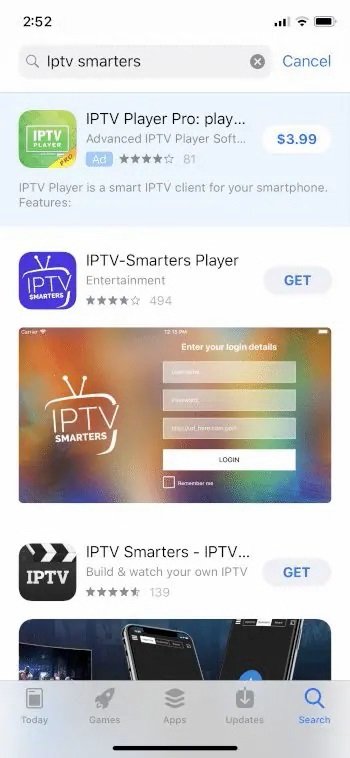
And thats it the app should be on your Homescreen.
How To Setup IPTV Smarters Pro on IOS Devices :
Once you have installed IPTV Smarters Pro on IOS, you need to configure it to connect to your IPTV service . You will need to enter the nom d'utilisateur, mot de passe, et URL provided by your IPTV service provider.(if you dont have the needed login info you can order your IPTV account ICI.)
1. After the app is done installing open it ,for the first time launching the app you the TERMS OF USE window will pop up click ACCEPT.
2. After that three options will show up choose ADD YOUR PLAYLIST (via XC API) ou Xtream Codes.

3. Now you will need the username, password, and URL provided by your IPTV service provider that you got in the email , you have four blank fields like shown in picture below on the First field put any name you want , on the Second field put the username from the email you got on the Third field put the password from the email , and on the Fourth field put the URL that you got on the email as well , then click on ADD USER.

4. Wait for the Channels , Movies.. to load.

5. Once you have entered your IPTV service details, you can start watching IPTV channels and content using IPTV Smarters Pro on your iOS device. Simply navigate to the “Live TV” section of the app and select the channel you want to watch. You can also access other features such as the Electronic Program Guide (EPG) and Video-On-Demand (VOD) sections.

6. After choosing the desired category all the streams will show up and all you need to do now is to choose which one you want to watch and start streaming !

Users can further customize their IPTV Smarters experience by configuring various settings such as video player options, EPG settings, parental controls, and interface preferences. These settings allow users to tailor the app to their specific preferences and requirements.
Tips and Tricks for Getting the Most from IPTV Smarters Pro on iOS
Build Your Favorites List Early
As soon as you’ve loaded your playlist, start adding your most-watched channels to Favorites. This saves you from browsing through your entire channel list every time you open the app. A well-organized Favorites list makes your daily viewing experience significantly faster and more enjoyable.
Use EPG Reminders for Must-Watch Programs
Open the EPG, navigate to any upcoming program, and set a reminder directly from the guide. IPTV Smarters Pro will notify you before the program starts — so you never miss a live match, premiere, or scheduled broadcast again.
Adjust Video Player Settings for Your Connection
If you experience buffering or playback issues, go into the app’s video player settings and lower the default stream quality. On slower connections, a reduced quality setting will deliver a smoother, buffer-free experience compared to forcing a high-bitrate stream.
Enable Subtitles for Multilingual Content
During playback, tap the subtitle icon to see available language options. For international channels or foreign-language VOD content, enabling subtitles significantly improves the viewing experience — especially on a smaller iPhone screen.
Keep Your App Updated
Unlike sideloaded apps on Firestick that require manual updates, IPTV Smarters Pro on iOS updates automatically through the App Store. Enable automatic app updates in your iPhone settings to ensure you’re always running the latest version with the newest features and fixes.
Troubleshooting Common IPTV Smarters Pro Issues on iPhone and iPad
Channels Not Loading After Login
- Double-check that your username, password, and server URL are entered exactly as provided — watch for extra spaces or missing characters
- Verify your IPTV subscription is active and hasn’t expired
- Check whether your IPTV provider’s server is experiencing downtime by contacting support
- Try deleting the profile and re-adding it from the welcome screen
Buffering During Playback
- Switch to a stronger Wi-Fi network or move closer to your router
- Lower the stream quality in the video player settings
- Close other apps running in the background on your iPhone to free up RAM
- Ask your IPTV provider if an alternative server or stream URL is available
EPG Not Showing Program Information
- Allow a few minutes after logging in for EPG data to fully load
- Go to Settings and manually refresh the EPG
- Confirm with your provider whether EPG data is included in your subscription
App Crashes or Freezes
- Force close the app and relaunch it
- Update IPTV Smarters Pro to the latest version via the App Store
- Restart your iPhone or iPad to clear temporary memory issues
- If crashes persist, delete and reinstall the app — your credentials can be re-entered quickly
Can’t Find IPTV Smarters Pro in the App Store
- Try searching for just “IPTV Smarters” without “Pro”
- Check your App Store region — the app may not be available in all countries
- Change your App Store region via Settings > [Your Name] > Media & Purchases > View Account > Country/Region
IPTV Smarters Pro on iOS vs Other Devices: What's Different?
IPTV Smarters Pro is available across multiple platforms, but the iOS experience has a few key differences compared to using it on Firestick or Android TV. The most significant difference is installation simplicity — on iPhone and iPad, you simply download from the App Store with no developer settings or sideloading required.
On Firestick, the process involves enabling unknown sources and using the Downloader app to sideload the APK — as covered in our complete IPTV Smarters Firestick guide. The feature set is broadly the same across platforms, but the touch-based iOS interface is naturally optimized for mobile use, while the Firestick version is built around remote navigation.
If you’re looking for other IPTV player options for non-iOS devices, our IPTV app guides library covers all major players including XCIPTV, IPTV Stream Player, MX Player, and TiviMate — each with full installation and setup instructions.
Foire aux questions (FAQ)
Yes — IPTV Smarters Pro is free to download from the App Store. The app itself has no cost. However, you need an active IPTV subscription from a service provider to access any live channels, VOD, or other content. The app is purely a player.
Yes. IPTV Smarters Pro is fully compatible with both iPhone and iPad running iOS 12 or later. The interface scales well across screen sizes, and the iPad version benefits from additional screen real estate for multi-screen viewing and the EPG guide.
IPTV Smarters Pro on iOS is compatible with any IPTV service that provides Xtream Codes API credentials or an M3U playlist URL — which covers the vast majority of providers. If you're looking for a reliable, high-quality Service IPTV to pair with IPTV Smarters Pro, explore our subscription options for stable, HD-quality streams.
Yes. Once downloaded from the App Store, IPTV Smarters Pro can be installed on multiple Apple devices linked to the same Apple ID at no extra cost. Whether you use multiple IPTV profiles or connections at the same time depends on your provider's subscription plan. For households needing multiple simultaneous streams, check out our Plans pour revendeurs IPTV pour des options de connexion multiples et flexibles.
Yes — since it's distributed through the Apple App Store, IPTV Smarters Pro on iOS has been reviewed and approved by Apple. Unlike sideloaded APK files on Android or Firestick, there is no risk of downloading a modified or malicious version as long as you download from the official App Store listing.
From the app's home screen, tap the profile or settings icon and choose Add New Playlist. You can add as many provider profiles as you like, each with their own Xtream Codes or M3U credentials. Switching between services is as simple as selecting a different profile from the menu.
Stream quality depends primarily on your internet connection speed and your IPTV provider's server capacity. For best results, use a 4G/5G mobile connection or a strong Wi-Fi signal. You can also manually select a lower stream quality within the video player settings if bandwidth is limited.
Réflexions finales
IPTV Smarters Pro on iOS brings the full power of Diffusion en continu de la TVIP to your iPhone and iPad in the most accessible way possible — a simple App Store download, a few configuration steps, and you’re streaming. With live TV, VOD, catch-up, EPG, multi-screen, recording, and parental controls all included, it’s one of the most complete IPTV players available for Apple devices.