
How to Install GSE Smart IPTV on Firestick & Android TV (2026)

What Is GSE Smart IPTV and Why Use It on Firestick?
GSE Smart IPTV is a versatile, feature-rich Lecteur IPTV that allows you to import and stream content from multiple IPTV services on a single platform. Available for Android, iOS, and Amazon Fire TV devices, it supports both M3U playlists and the API des codes Xtream, making it compatible with virtually every IPTV provider on the market.
Unlike dedicated players like IPTV Smarters Pro ou TiviMate which focus primarily on a single-service experience, GSE Smart IPTV is built for users who want to manage multiple playlists and IPTV subscriptions from one place. It also supports local media playback, FTP playlist importing, EPG program guides, and external players — making it one of the most flexible IPTV players available.
GSE Smart IPTV is available on the Apple App Store and Google Play Store, but it is non disponible sur l'Amazon App Store. To install it on Firestick, you need to sideload the APK — the same process used for apps like Lecteur XCIPTV et Lecteur de flux IPTV. This guide covers every step in detail.
Compatibility: GSE Smart IPTV works on all Amazon Firestick models including Firestick Lite, 2nd Gen, 3rd Gen, Firestick 4K, Firestick 4K Max, and Fire TV Cube. The setup process is identical across all models.
Ce dont vous avez besoin avant de commencer
- Amazon Firestick or Fire TV (any model)
- Application de téléchargement installé à partir de l'Amazon App Store
- Sources inconnues activées pour Downloader dans Developer Options
- Your IPTV credentials — M3U URL or Xtream Codes login from your Fournisseur de services IPTV
- Stable internet connection (Wi-Fi 5GHz or Ethernet adapter recommended)
Already set up sideloading? If you’ve previously installed another IPTV app via the Downloader app — for example when following our IPTV Smarters Pro Firestick guide — your device is already prepared. Skip directly to Part 2.
Partie 1 : Préparer votre Firestick pour le Sideloading
Step 1: Install the Downloader App
The Application de téléchargement is a free tool from the Amazon App Store that serves as your browser and download manager for fetching APK files directly to your Firestick.
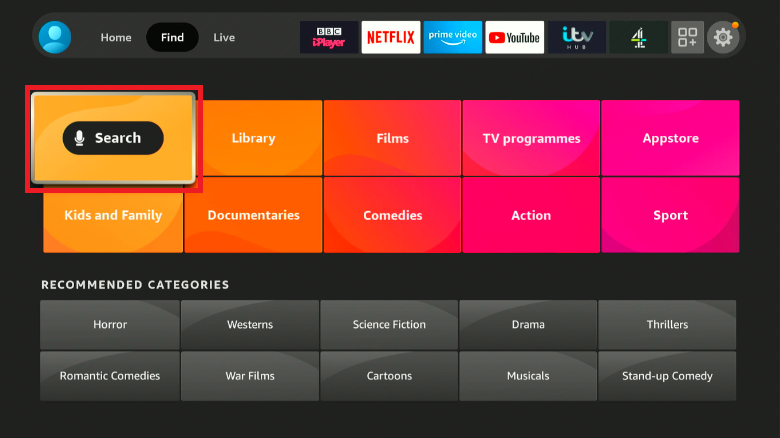
- From the Firestick home screen, select the Find tab and choose Recherche.
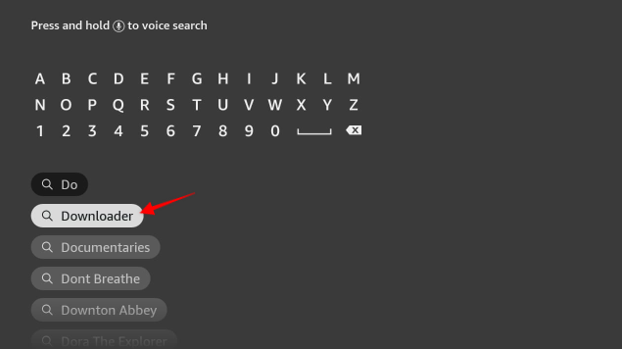
- Type “Downloader” and select it from the suggestions.
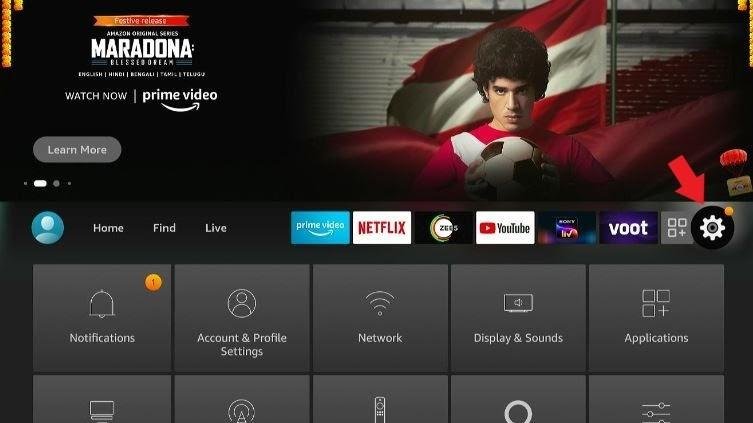
3. After installation of the downloader app, go to Paramètres on the home screen. It should be on the right side of the screen.
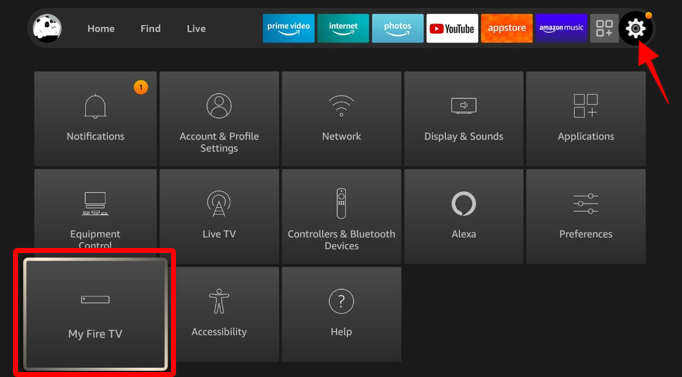
4: Under the Paramètres menu, you’ll find several choices. Browse to the Ma Fire TV icon.
5: On the next window, among the options listed, select the item Options pour les développeurs.
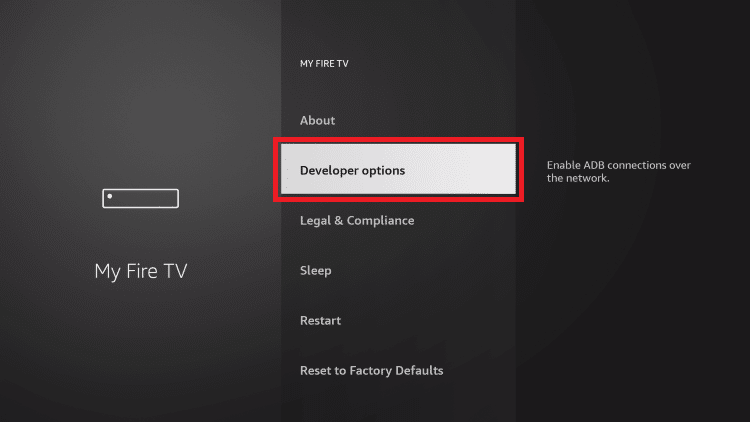
6: Choose Installer des applications inconnues.
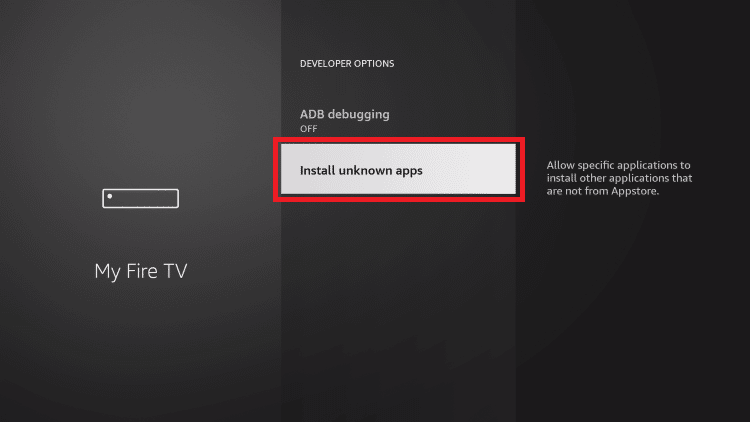
7: The window displays applications that you haven’t downloaded from official sources. Select the Downloader app and enable it.
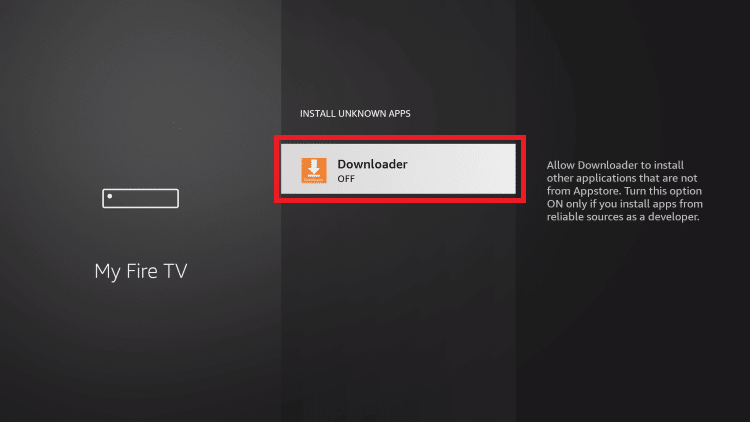
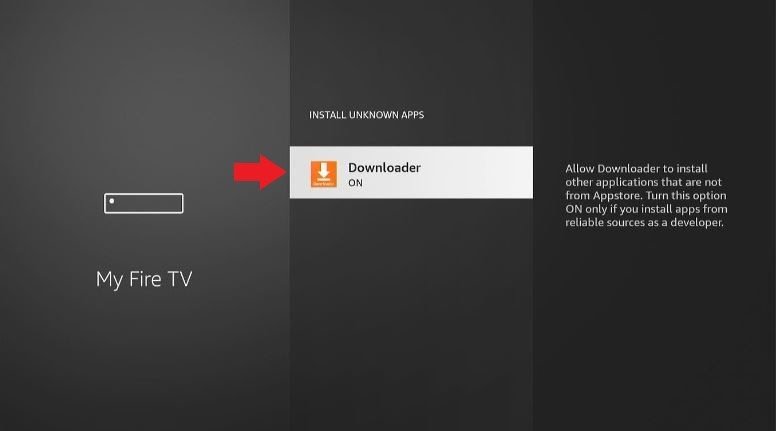
With that, your device is ready to install third-party applications. Now, we can install GSE Smart IPTV. And to begin with, you have to open the Téléchargeur app.
8: On the app home screen, you should see the URL textbox. Click on it, and using the on-screen keyboard, type the following:
Also, if you want to use a shortened version of the URL, enter “gsesmartiptv.com.”
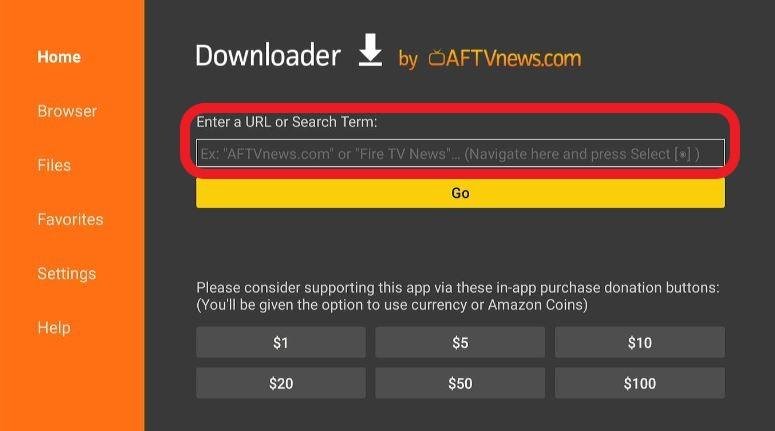
9: Once you’re done typing, hit GO.

The Téléchargeur app will then redirect you to a webpage via a browser window. Scroll down the page. After that, choose the tab Download for Amazon Devices. It connects the Downloader app to the file location and starts downloading GSE Smart APK on the device.

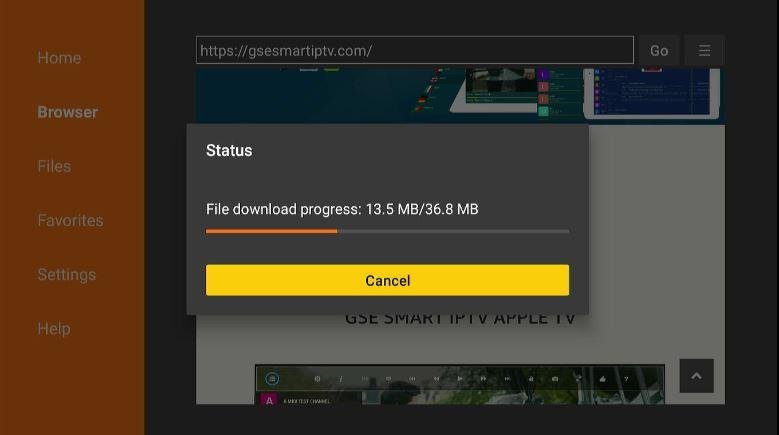
10: A window will pop up after downloading the APK. Click on INSTALL and allow a few minutes for the procedure to get done.
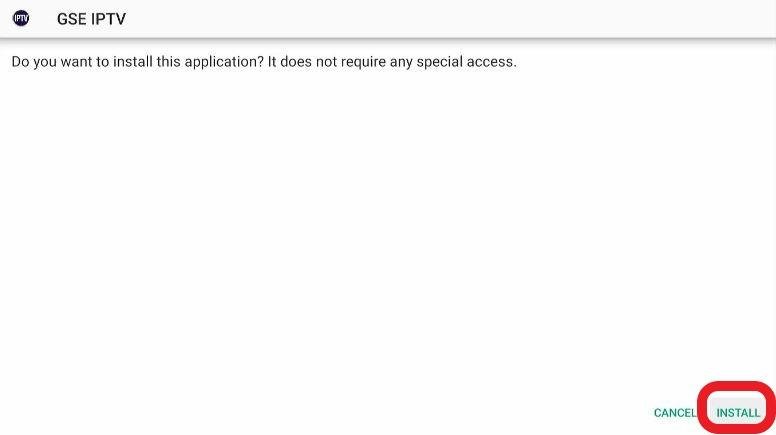
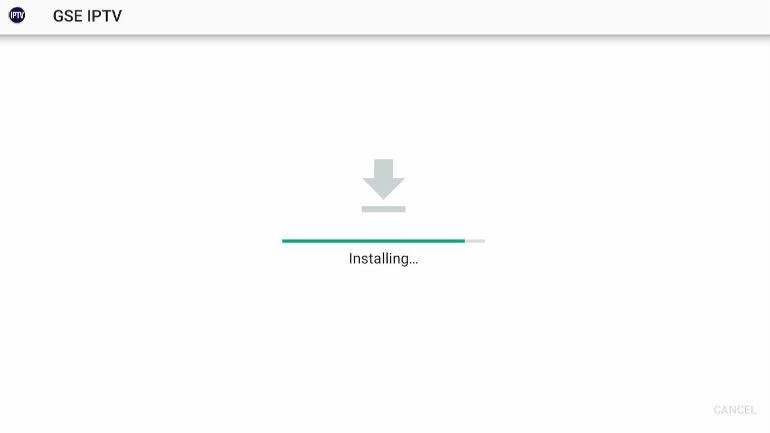
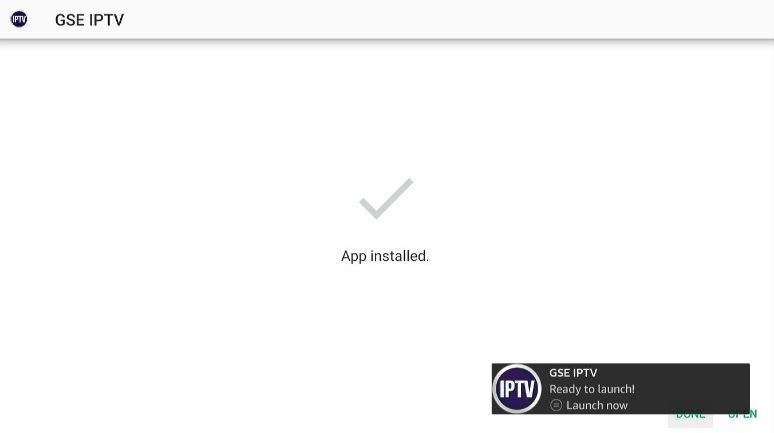
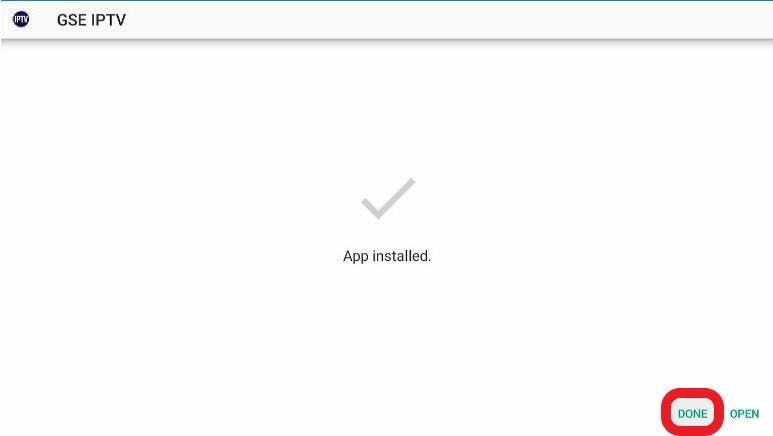
11: Once the installation is over, you will see another prompt telling the completion of the process. Hit DONE.
Accessing The App On Firestick
If you have more than 20 apps installed on your Firestick, you might not necessarily find the GSE Smart IPTV icon on the home screen. In case you’re worried about the ways to access the app, follow the steps below.
On the Firestick home screen, navigate to the Paramètres option. From there, go to Applications and then Manage Applications. From the list of apps, locate GSE Smart TV and launch the app.
OR
On the Firestick remote, press the Accueil button for about 5 seconds. When the prompt window is displayed, click on the Apps icon.
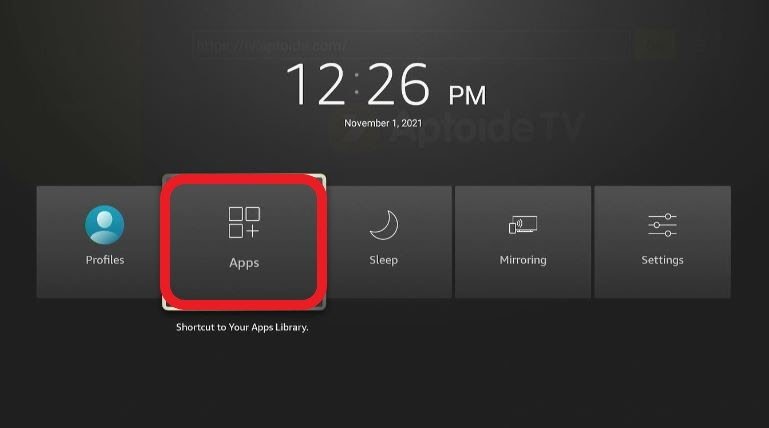
Scroll down to find the newly installed GSE Smart IPTV app and select it.
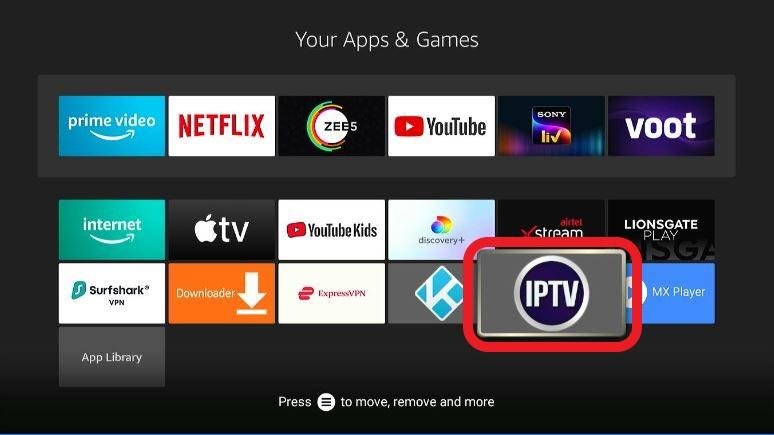
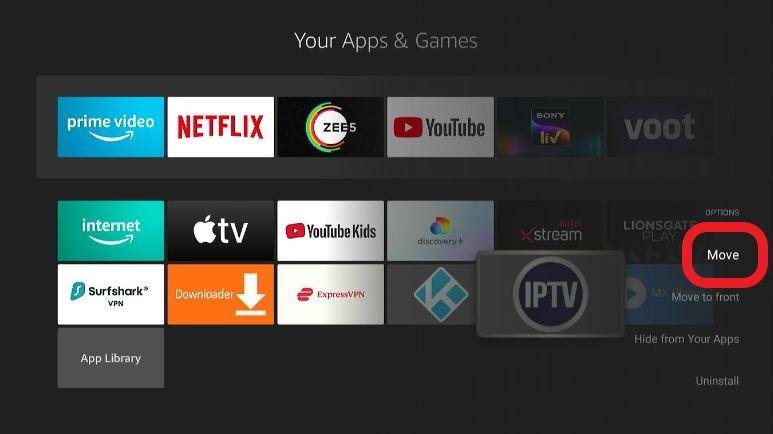
For quicker access, you can also move the app and add it to your home screen.
You will need to press the 3-line menu key on the remote, and on the prompt window, hit on Move. Now, drag the app icon from the bottom to the first row.
Set Up GSE Smart IPTV with Your IPTV Service
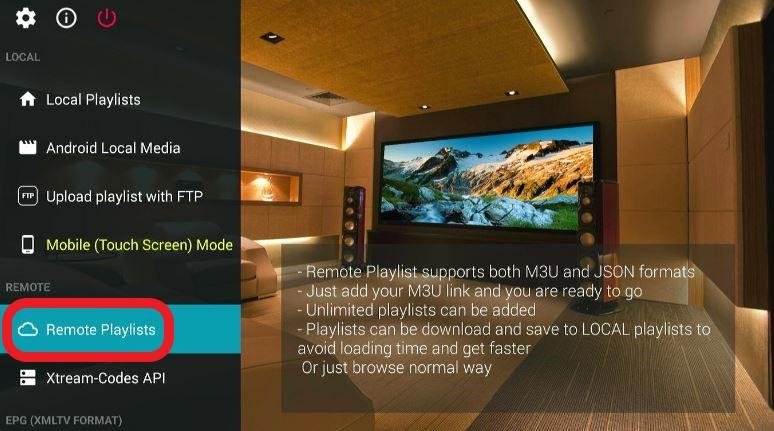
When you first open GSE Smart IPTV, it will ask for permissions — tap OK and then Allow on each prompt. Accept the EULA agreement by tapping Agree. You’ll then arrive at the GSE Smart IPTV home screen, which has a left-side menu divided into three sections: LOCAL, REMOTE, et EPG.
Add M3U Playlist URL (Remote Playlist)
Si votre Fournisseur IPTV gave you an M3U URL, use this method to load your full channel list:
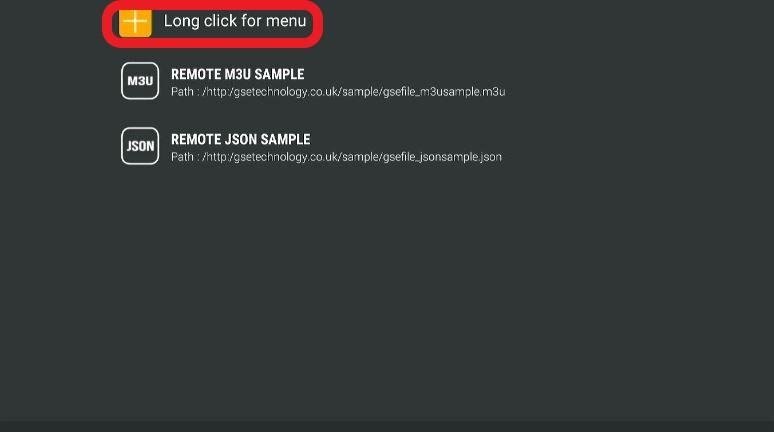
From the left menu, select Remote Playlists under the REMOTE section.
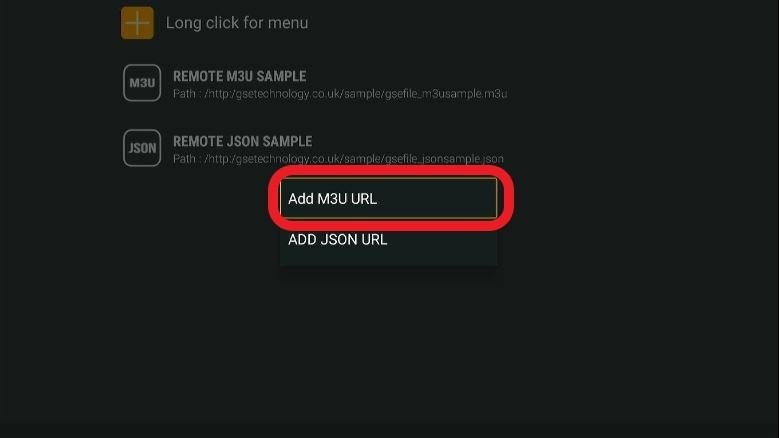
Tap the + icon at the top of the screen
Xtream-Codes API.
The API des codes Xtream is a more efficient login method — it loads content on demand rather than downloading the full playlist at once. Most premium IPTV services support this format. For full details on supported credential formats, see our Détails de la configuration IPTV.
From the left column of the screen, choose Xtreme-Codes API. Select the “+” icon at the top once again.
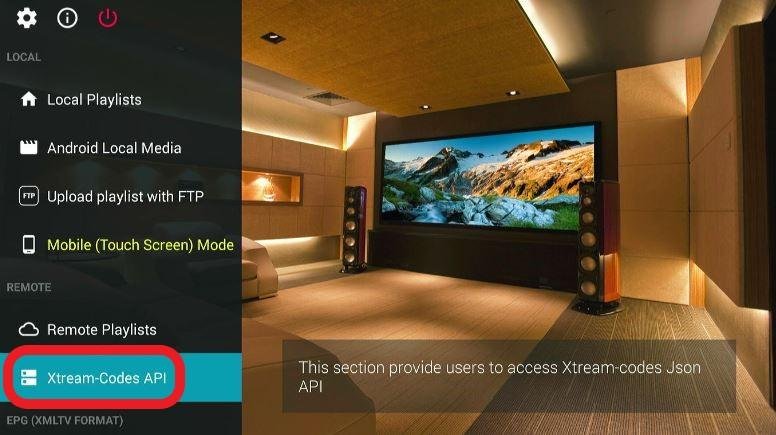
When the popup shows, enter the required details and continue by tapping Add.
EPG Guide.
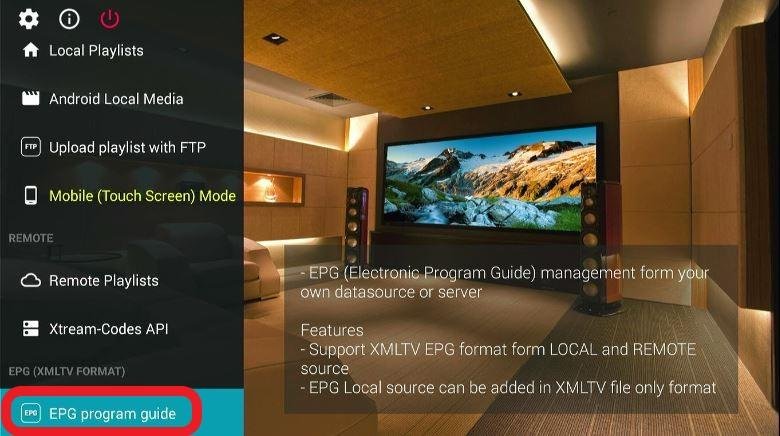
The third choice on the left menu is the EPG (XMLTV Format). Using this, you can import EPG from either a URL or the local storage.
In case you’re wondering if your IPTV service provider supports EPG, then you shouldn’t worry. Most providers that support playlist options also happen to support EPF links.
The procedure to go about this is simple and the same as the ones before. Select the EPG Program Guide and on the next screen, tap the “+” icon on top.
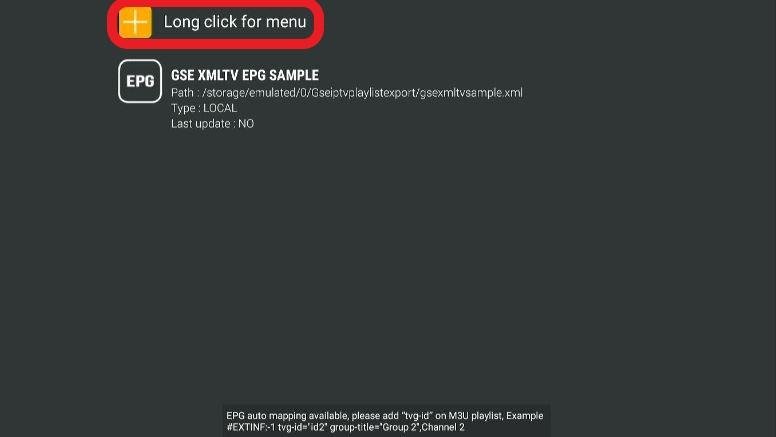
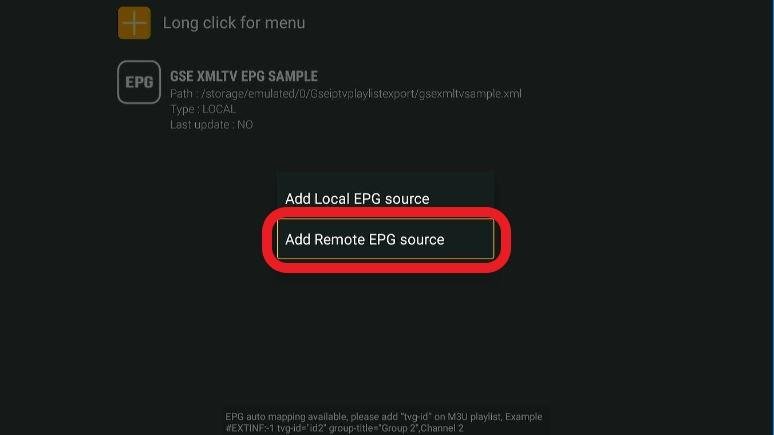
Depending on your preference, you can pick Add Local EPG Source/ Add Remote EPG source.
Local Playlist and Media Options
The LOCAL section of GSE Smart IPTV offers additional content options beyond IPTV streaming:
- Local Playlists: Import and play playlists stored directly on your Firestick’s internal storage
- Android Local Media: Browse and play video and music files stored locally — no playlist import needed
- Upload Playlist via FTP: Download and import playlists from an FTP server for advanced media management
- Mode: Toggle between Mobile and TV display mode — GSE Smart auto-detects device type, but you can switch manually if needed
External Player for GSE Smart IPTV.
Being a media-paying app in its purest form, GSE Smart IPTV has an in-built player that can play most content smoothly.
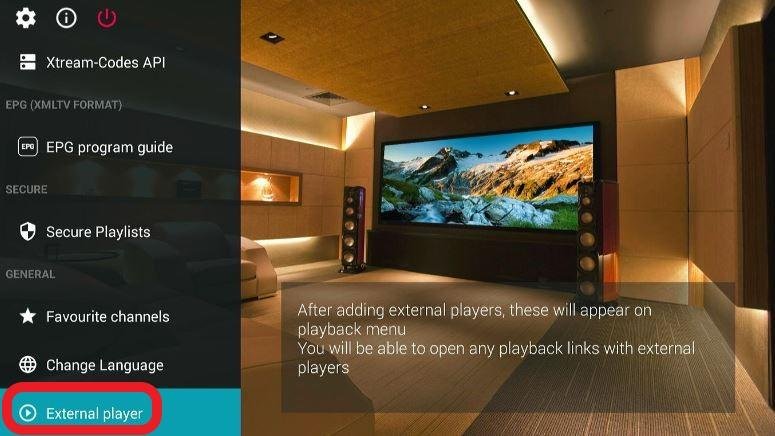
However, for better functionality and playback experience, users can also add external players like MX Player. To enable the option, check out the following steps.
Step 1: On the left menu, under the GENERAL section, locate the External Player tab.
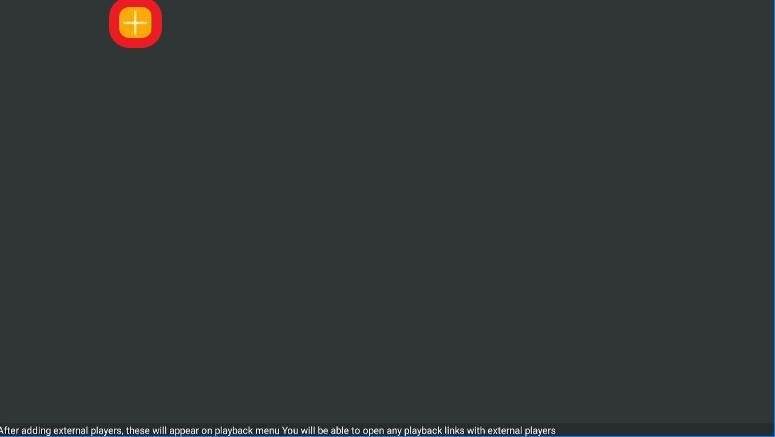
Step 2: Click on it, and you shall see a new window with nothing but a “+” icon at the top. Choose this icon.
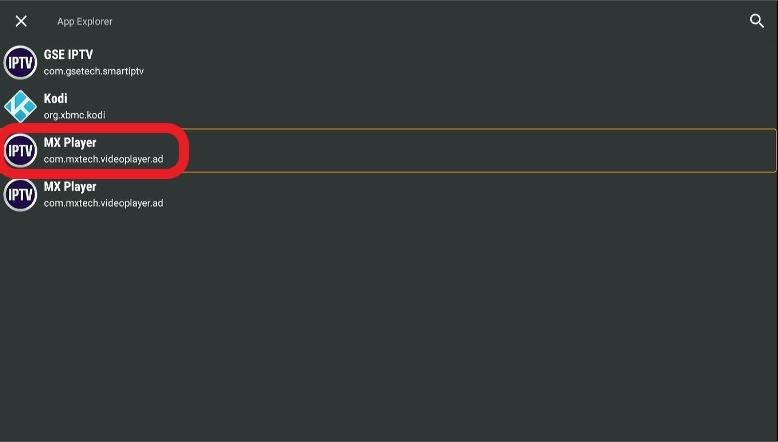
Step 3: On the popup, select the Find icon.

Step 4: You will now see a list of all installed media players on the device. Pick the one you wish to run and hit Add on the popup.
Why Must You Use A VPN?
After everything is said and done, you’re now ready to stream content via the app.
However, let me warn you that streaming content online is fraught with risks and security concerns.
Content streamed online is visible to ISPs and Government surveillance agencies. And while streaming content is not inherently illegal, streaming something that is illegal and infringes copyright claims may get streamers in trouble.
The incapability of media players and IPTVs to distinguish between what is legal and what is illegal aggravates this issue. So, even if users end up streaming something illegal, deliberately or otherwise, it can land them in legal trouble.
The best and perhaps the only foolproof solution to avoid this issue is to utilize a reliable VPN service. VPNs mask the original IP address of users and help circumnavigate surveillance and Government throttling.
We recommend using ExpressVPN for the best streaming experience. It is fast and safe and offers a 30-days trial period for new users.
Before streaming on your Firestick, here’s how to integrate ExpressVPN to keep your streaming history concealed.
Step 1: You need a subscription to make use of ExpressVPN services. You can ask for a refund in case you’re not satisfied with their services. This is only applicable for the first 30 days.
Step 2: Switch ON your Firestick, and from the home screen, navigate to Find>Search.
GSE Smart IPTV Features and Benefits Overview
GSE Smart IPTV stands out among IPTV players for its flexibility and multi-source support. Here’s a complete breakdown of its key features:
Multiple Playlist Format Support
GSE Smart IPTV supports a wider range of playlist formats than most players, including M3U, JSON, HLS, HTTP, MMS, RTSP, and more. This means it works with virtually any IPTV provider regardless of how they deliver their streams.
Xtream Codes API and EPG Integration
Full support for API des codes Xtream login and XMLTV EPG guides. The EPG integration provides live TV schedules across all your channels, and both remote (URL-based) and local EPG sources are supported.
Multi-Service and Multi-Playlist Management
One of GSE Smart IPTV’s strongest differentiators is the ability to import and manage playlists from multiple IPTV subscriptions simultaneously. Unlike IPTV Smarters Pro ou Lecteur XCIPTV which primarily manage one active service at a time, GSE Smart is built for users who maintain several provider subscriptions side by side.
External Player Support
Connect any installed media player — including Lecteur MX — as an external playback engine for streams that the built-in player struggles with.
Local Media Playback
GSE Smart can browse and play locally stored video and music files from your Firestick’s internal storage, functioning as a general-purpose media player beyond just IPTV streaming.
Multilingual Interface
The app supports 31 global languages, making it one of the most internationally accessible IPTV players available.
Cross-Platform Availability
GSE Smart IPTV is available on Amazon Firestick (sideload), Android TV, Android phones and tablets (Google Play Store), and iPhone/iPad (Apple App Store). The interface is consistent across all platforms, making it easy to switch devices without relearning the app. Compare it with other cross-platform options like IPTV Smarters Pro on iOS ou IPTV Smarters Pro on Samsung TV.
Free and Paid Versions
GSE Smart IPTV is free to download and use with full core functionality. A paid version is available that unlocks additional premium features, but the free version is comprehensive enough for most users — no forced upgrade or paywalled content access.
GSE Smart IPTV vs Other IPTV Players: How Does It Compare?
GSE Smart IPTV occupies a specific and valuable niche in the IPTV player market. Here’s how it compares to the other popular options:
- GSE Smart vs IPTV Smarters Pro: IPTV Smarters Pro is better for single-service users who want the simplest setup and cleanest interface. GSE Smart is the better choice for users managing multiple subscriptions or who need broader playlist format support.
- GSE Smart vs TiviMate: TiviMate has a superior EPG and recording system for power users on Firestick. GSE Smart offers more playlist flexibility and is available on iOS — TiviMate is not.
- GSE Smart vs XCIPTV: Lecteur XCIPTV is lighter and faster for single-service live TV streaming. GSE Smart is better for multi-service management and local media playback.
- GSE Smart vs STBEmu Pro: STBEmu Pro is specifically for MAG portal emulation — a completely different use case. If your provider uses portal URLs rather than M3U/Xtream Codes, STBEmu Pro is the right tool; otherwise, GSE Smart.
- GSE Smart vs VLC: VLC Media Player is simpler and available directly on the Amazon App Store. GSE Smart offers significantly more IPTV-specific features — EPG, Xtream Codes, multi-playlist — that VLC doesn’t provide.
- GSE Smart vs Smart IPTV (SIPTV): Smart IPTV is another strong player for Firestick. Both support M3U and EPG, but GSE Smart has broader format support and a more fully-featured interface for power users.
- GSE Smart vs IBO Pro Player: Joueur IBO Pro is a clean, reliable cross-platform player. GSE Smart wins on playlist format breadth and multi-service management capabilities.
Troubleshooting Common GSE Smart IPTV Issues on Firestick
APK Won't Download in Downloader
- Confirm the URL is exactly https://www.gsesmartiptv.com ou gsesmartiptv.com
- Check your internet connection is active and stable
- Close and reopen the Downloader app and try again
App Not Installing — Unknown Sources Error
- Confirm Install Unknown Apps is ON pour Downloader dans Developer Options
- Réactiver le mode développeur s'il a été réinitialisé par une mise à jour du micrologiciel ou une réinitialisation d'usine.
Channels Not Loading After Adding Playlist
- Double-check your M3U URL or Xtream Codes credentials — watch for typos or extra spaces
- Confirm your IPTV subscription is active with your provider
- Check whether your provider’s server is experiencing downtime
Buffering During Playback
- Switch to a 5GHz Wi-Fi band or use a wired Ethernet adapter for your Firestick
- Try switching to an external player such as Lecteur MX for the buffering stream
- Lower the stream quality in GSE Smart’s player settings
- Contact your IPTV provider and ask if an alternative server URL is available
EPG Not Showing Program Information
- Wait 2–3 minutes after adding the EPG URL for data to fully load
- Confirm with your provider that EPG is included in your subscription
- Try removing and re-adding the EPG source URL
App Not Appearing on Home Screen
- Press and hold the Home button for 5 seconds, select Apps, and scroll to find GSE Smart IPTV
- Alternatively, go to Settings > Applications > Manage Installed Applications and launch from there
- Move it to the first row of the home screen using the 3-line menu button for quick access
Frequently Asked Questions:
Yes — GSE Smart IPTV is free to download and use. The free version includes all core features including M3U playlists, Xtream Codes API, EPG support, and external player integration. A paid version exists with additional premium features, but the free version covers everything most users need.
GSE Smart IPTV is compatible with any Service IPTV that provides M3U playlist URLs or Xtream Codes API credentials — which covers the vast majority of providers on the market. It also supports JSON playlists, HLS, RTSP, and MMS formats for maximum provider compatibility.
Yes — GSE Smart IPTV is available on Firestick, Android TV, Android phones, and iPhone/iPad. Install it on as many devices as you like. Whether you can stream simultaneously on multiple devices depends on your IPTV provider's connection limit. For multi-device households, explore Plans pour revendeurs IPTV for flexible simultaneous connection options.
Both support Xtream Codes and M3U, but GSE Smart is the better choice for users managing multiple IPTV subscriptions or who need broader playlist format support. IPTV Smarters Pro has a cleaner interface and is easier to set up for single-service users. Both are free.
Since GSE Smart is sideloaded, updates won't happen automatically. To update, repeat the download process — open Downloader, navigate to gsesmartiptv.com, download the latest APK, and install it over the existing app. Your playlists and settings will be preserved.
Any installed media player can be added as an external player in GSE Smart IPTV. The most popular choices are Lecteur MX — known for hardware acceleration and multi-core decoding — and VLC Media Player, which handles a wide range of stream formats and is available directly on the Amazon App Store.
GSE Smart IPTV is an officially published app available on the Apple App Store and Google Play Store. Downloading it from the official website at gsesmartiptv.com is safe. As with all IPTV players, the safety of your streaming depends on your IPTV provider — always use a legitimate, licensed service.
Réflexions finales
GSE Smart IPTV is a genuinely impressive Lecteur IPTV pour Firestick — especially for users who want to manage multiple IPTV subscriptions, need support for a wide range of playlist formats, or want a single app that handles both live streaming and local media playback. Its broad format support, EPG integration, Xtream Codes login, and external player connectivity make it one of the most flexible players in the market.
If you’re new to IPTV streaming, IPTV Smarters Pro remains the easier entry point. But if you’re managing multiple services or need maximum format compatibility, GSE Smart IPTV is well worth adding to your setup.
For more IPTV player installation guides, setup tutorials, and streaming tips, browse our bibliothèque complète de guides IPTV. And when you’re ready to find a reliable IPTV subscription to pair with GSE Smart, our Plans IPTV cover options for every device, household size, and budget.