Blogs

How to Install STBEmu Pro on Firestick
Blogs, Detalles de configuración

Cómo instalar STBEmu Pro en Firestick Guía del mejor emulador MAG (2026)

How to Install STBEmu Pro on Firestick Best MAG Emulator Guide (2026) What Is STBEmu Pro and Why Use It on Firestick? STBEmu Pro — short for STB Emulator Pro — is a unique and powerful IPTV application that works differently from most conventional IPTV players. Rather than connecting via M3U playlists or Xtream Codes like apps such as IPTV Smarters Pro or XCIPTV Player, STBEmu Pro works by emulating a MAG Box — a dedicated IPTV set-top box — directly on your Firestick. A MAG Box is a type of set-top box (STB) that streams IPTV and OTT content over the internet. STBEmu Pro replicates the MAG Box environment on your Firestick, allowing IPTV providers that use MAG/portal-based infrastructure to deliver content to your device — without you needing to own a physical MAG Box. STBEmu Pro supports emulation of MAG 250, MAG 270, and MAG 322 models. It is particularly suited for users whose IPTV providers supply a portal URL rather than standard M3U or Xtream Codes credentials. If you’re unsure which format your provider uses, check our IPTV setup details for a full breakdown of supported formats. STBEmu vs STBEmu Pro: What’s the Difference? There are two versions of the STB Emulator app:       STBEmu (Free): Fully functional but displays ads during use       STBEmu Pro ($5.49): One-time paid version — completely ad-free with the same core feature set For regular use, STBEmu Pro is the recommended choice. The ad-free experience makes it significantly more enjoyable for daily streaming, and the one-time cost is minimal compared to ongoing subscription fees for other apps. Important: STBEmu Pro does not support M3U playlists. It connects to IPTV services exclusively via portal URLs (MAG portal / Stalker Middleware). If your IPTV provider only supplies M3U or Xtream Codes credentials, consider using IPTV Smarters Pro or IPTV Stream Player instead. Is STBEmu Pro Safe and Legal to Use? STBEmu Pro is available on both the Google Play Store and Apple App Store — confirming it is a legitimate, officially published application. However, it is not available on the Amazon App Store, which means it must be sideloaded onto your Firestick. The STBEmu Pro APK has been scanned on VirusTotal. Out of 66 security vendors, only one flagged the URL — a result that is generally considered within acceptable limits for a legitimate app. The app itself is an emulator only and does not host, distribute, or supply any content or channels. Legal Note: STBEmu Pro is a legal application. However, the legality of its use depends entirely on the IPTV service you connect it to. Always ensure your IPTV provider holds the proper licences to distribute the content you’re accessing. Using STBEmu Pro with unlicensed or pirated streams may be illegal in your country. What You Need Before You Start Before beginning the installation, make sure you have the following ready:       Amazon Firestick, Fire TV, or Fire TV Stick 4K Max       Downloader app installed from the Amazon App Store       Unknown Sources enabled for Downloader in Developer Options       STBEmu Pro APK URL from the official source       Portal URL from your IPTV provider — STBEmu Pro uses portal-based login, not M3U or Xtream Codes Part 1: Prepare Your Firestick for Sideloading Since STBEmu Pro is not on the Amazon App Store, it needs to be sideloaded using the Downloader app. This is the same preparation process used for all sideloaded IPTV apps. If you’ve already done this for another app — such as when following our guide on how to install IPTV Smarters on Firestick — skip directly to Part 2. 1. Install the Downloader app. You can use the Find > Search option on the home screen to get Downloader from the Amazon Store. 2. Navigate to Settings>My Fire TV>Developer Settings You will see one of the following two options depending on your FireStick device version: Option 1 (new devices) – Install Unknown Apps: Click it and proceed to the next step to enable Downloader. Option 2 (old devices) – Apps from Unknown Sources: Click this option and then click Turn On on the following prompt. Skip the next step. Note: If you do not see Developer Options, go to Settings > My Fire TV > About.Now, select Fire TV Stick and click it 7 times to enable Developer Options. 3. Enable Downloader. Part 2: Install STBEmu Pro on Your FireStick With your Firestick prepared, use the Downloader app to fetch and install the STBEmu Pro APK. This is the same sideloading method used to install apps like XCIPTV Player and IPTV Stream Player on Firestick. 1. On your FireStick home screen, click My Apps. 2. Navigate to the Downloader app and click on it. 3. Click the URL box. 4. Enter the download URL. Then, wait a few moments for the APK file to download. 5. Click Install. 6. Click Done. 7. Click Delete to remove the APK file from your FireStick. 8. Click Delete again to confirm the previous action. STBEmu Pro is now installed on your Firestick. Continue to the next section to configure it with your IPTV portal. How to Set Up and Use STBEmu Pro on Firestick STBEmu Pro has a unique setup process compared to standard IPTV players. Because it emulates a MAG Box, configuration is done through profiles and portal URLs rather than simple username/password login fields. First Launch and Main Menu Open STBEmu Pro from your Firestick’s 15. On the launch screen, you’ll see three options at the bottom:  Configure Application: Opens the full settings and profile configuration menu  Restore Settings: Restore a previously saved configuration backup  Close: Exit the app 16. Select Configure Application to begin setup. Configure Application Menu After selecting Configure Application, a menu with four sections appears:       Common Settings: Customize app language, UI visibility duration, screen orientation, navigation bar, and overlay buttons       Configure Keymaps: Map remote control buttons to specific app functions       Profiles: Add and manage your IPTV portal connections — this is where you enter your portal URL       About: View app
IBO Pro Player Instalación Completa
Detalles de configuración, Blogs

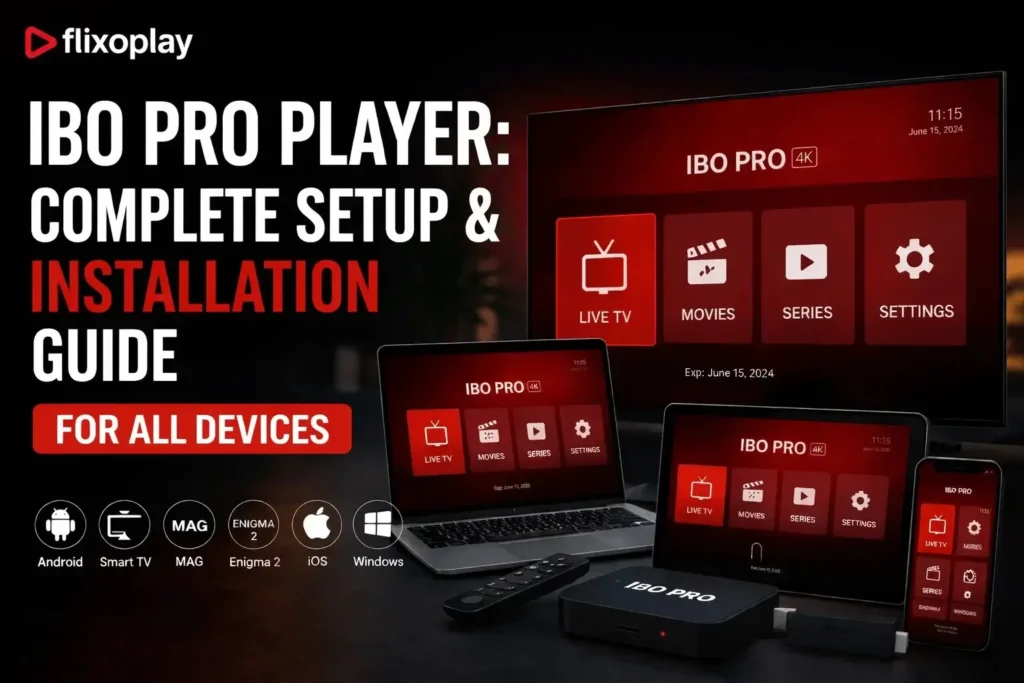
IBO Pro Player: Guía completa de configuración e instalación para todos los dispositivos

IBO Pro Player: Complete Setup & Installation Guide for All Devices Whether you just downloaded IBO Pro Player or are setting it up for the first time, this guide covers everything — from installing the app on your smart TV or device, to adding your IPTV playlist and getting your channels live. Follow each step carefully and you will be streaming in minutes. What Is IBO Pro Player? IBO Pro Player (also known as IBO Player Pro or IBOPlayer) is a powerful IPTV media player that supports a wide range of audio and video codecs. It is designed to give users a seamless IPTV playback experience across multiple devices including smart TVs, Android TV boxes, Amazon Firestick, Windows PCs, iPhones, LG Smart TVs, and Roku. Its intuitive interface, playlist management, subtitle support, and Xtream Codes compatibility make it one of the most popular IPTV players available today. How to Install IBO Pro Player on Any Device Installation steps vary slightly depending on your device. Follow the section that matches yours below. How to Set Up IBO Pro Player on Smart TV (Complete Walkthrough) This is the most popular setup method. If you are using a Samsung, LG, or Android-based smart TV, here is exactly how to get IBO Player Pro installed and your playlist loaded. Step 1: Install IBO Pro Player from Your Smart TV App Store Turn on your smart TV and open the app store (Samsung Smart Hub, LG Content Store, or Google Play Store on Android TV). Search for IBO Pro Player and click Install. Once the download completes, open the app. Step 2: Note Your MAC Address and Device ID When you open IBO Pro Player for the first time, the home screen will display your unique MAC address and device ID. These are tied to your device and are required when activating or linking your IPTV subscription. Write them down or take a photo. Step 3: Go to the IBO Pro Player Website and Open Manage Playlist On your phone or computer, visit the IBO Pro Player website. Log in to your account and navigate to the Manage Playlist section. This is where you will link your IPTV subscription to the app on your TV. Step 4: Add Your Playlist Click Add Playlist. You will see two options to connect your IPTV service: Option A — M3U Link If your IPTV provider gave you an M3U URL, select the M3U option and paste the link into the field provided. This URL contains your entire channel list and is ready to stream once saved. Option B — Xtream Codes If your provider uses Xtream Codes, select that option and enter your server URL, username, and password as provided. Xtream Codes is the most stable connection method for IPTV and is recommended where available. If you do not have an IPTV subscription yet, you can get one from FlixoPlay.com — they provide both M3U links and Xtream Codes login details that are fully compatible with IBO Pro Player. Step 5: Open IBO Pro Player on Your TV — Your Playlist Is Live Head back to your smart TV and open IBO Pro Player. Your playlist will load automatically and your channels will appear. You are now ready to watch live TV, VOD, and more through your IPTV service. IBO Pro Player Installation on Windows There are two ways to install IBO Player Pro on a Windows PC:       Via the Microsoft Store: Open the Microsoft Store, search for IBO Pro Player, and click Get or Install. Follow the on-screen instructions. •        Using a .exe installer: If you have the .exe file from a trusted source, double-click it and follow the setup wizard. Always verify the file source before running it. IBO Pro Player Installation on Android TV IBO Player may not always appear directly in the Google Play Store on Android TV. If that is the case, use the Downloader app method: Install the Downloader app from the Google Play Store on your Android TV. Go to Settings > Security & Restrictions and enable Install Unknown Apps for Downloader. Open Downloader and enter the IBO Pro Player APK URL provided by your distributor.  Download and install the APK, then open IBO Pro Player and follow the setup steps above. IBO Pro Player Installation on iPhone Installing IBO Player on iPhone is straightforward through the Apple App Store: Open the App Store on your iPhone. Search for IBO Pro Player.  Tap Get to download and install. Authenticate with Face ID, Touch ID, or your Apple ID if prompted. IBO Pro Player on Amazon Firestick Installing IBO Player on Firestick requires sideloading via the Downloader app: Go to Settings > My Fire TV > Developer Options and turn on Apps from Unknown Sources. Search for and install the Downloader app on your Firestick. Open Downloader and enter the IBO Pro Player APK URL for Firestick. 11. Download the APK and follow the installation prompts. IBO Pro Player on LG Smart TV Open the LG Content Store, search for IBO Pro Player, and install it if available. If the app does not appear in the LG Content Store for your region, you can use screen mirroring from your phone or connect an Android TV stick to your TV’s HDMI port as an alternative. IBO Pro Player on Roku TV Open the Roku Channel Store from your home screen, go to Search Channels, and look for IBO Pro Player. If it appears as a channel, add it. If it is not available in your region’s Roku store, screen mirroring or an external streaming device is the best alternative. Frequently Asked Questions About IBO Pro Player Is IBO Pro Player free to use? The IBO Pro Player app itself is free to download. However, to watch IPTV content you need an active IPTV subscription that provides you with either an M3U link or Xtream Codes credentials. Is it safe to enable Unknown Sources on Android TV

How to Install IPTV Smarters Pro on Samsung Smart TV
Detalles de configuración, Blogs

Cómo instalar IPTV Smarters Pro en Samsung Smart TV (2026)

How to Install IPTV Smarters Pro on Samsung Smart TV (2026) Can You Install IPTV Smarters Pro on a Samsung Smart TV? IPTV Smarters Pro is one of the most versatile IPTV players available — and yes, it can be installed on Samsung Smart TVs. However, unlike on iOS where it’s a straightforward App Store download, or on Firestick where the Downloader app handles everything, Samsung Smart TV requires a slightly different approach: sideloading the APK via a USB drive after enabling Developer Mode on your television. Samsung’s Tizen OS — the operating system powering most Samsung Smart TVs — does not allow third-party app installations by default. To install IPTV Smarters Pro, you need to unlock this capability by activating Developer Mode, which is a built-in Samsung feature designed for app testing. Once enabled, sideloading becomes straightforward. This guide walks you through every step in detail — from enabling Developer Mode to configuring your IPTV subscription within the app. The full process typically takes less than 15 minutes. Compatibility Note: Samsung Smart TVs running Tizen OS (2016 and later models) support sideloading. Older Samsung TVs running different operating systems may not be compatible with this method. Check your TV model’s specifications before proceeding. What You Need Before You Start Before beginning the installation, make sure you have the following ready:       A Samsung Smart TV (2016 or later, running Tizen OS)       A USB drive formatted as FAT32 — used to transfer the APK file to your TV       A Windows or Mac computer to download the APK file and copy it to the USB drive       The IPTV Smarters Pro APK file downloaded from the official source       A file manager app installed on your Samsung TV (available in the Samsung App Store)       Your IPTV credentials — username, password, and server URL from your IPTV service provider Tip: Always download the IPTV Smarters Pro APK from the official website at iptvsmarters.com. Avoid unverified third-party sources as these may contain modified or unsafe versions of the app. Step 1: Enable Developer Mode on Your Samsung Smart TV Before starting, make sure your TV is compatible with third-party apps. You’ll need: Press Home on your Samsung remote and go to Apps. Scroll down and select the Settings (gear) icon. Enter 12345 using your remote or the on-screen keypad. In the pop-up window, turn Developer Mode ON. Step 2: Prepare the Apps You’ll Need Search the Samsung App Store for StreamSmarters Pro. If it’s not there: Download a file manager app. Find a trusted source for the StreamSmarters Pro APK. Get a USB drive to transfer the APK to your TV. Step 3: Sideload StreamSmarters Pro on Your TV With the APK on your USB drive and a file manager installed on your TV, you’re ready to sideload IPTV Smarters Pro. This is the same fundamental process used to install any third-party IPTV app on Samsung TV — similar in principle to how XCIPTV Player and IPTV Stream Player are sideloaded on Firestick. Step 4: Set Up IPTV Smarters Pro on Samsung Smart TV With the app installed, launch IPTV Smarters Pro from your Apps section and connect it to your IPTV service. The configuration process is identical to other platforms — you’ll use either Xtream Codes API or an M3U playlist URL. Full credential setup details are available on our IPTV setup page. Adjust video settings to reduce buffering. Enable <a href="/es/”https://en.wikipedia.org/wiki/Electronic_program_guide”/" target="”_blank”">EPG</a> (TV guide) for easier channel browsing. Customize the interface. Step 5: Optimize IPTV Smarters Pro Settings on Samsung TV Once connected, take a few minutes to configure the app settings for the best possible streaming experience on your Samsung TV:       EPG (Electronic Program Guide): Enable EPG in settings to get a full TV guide showing current and upcoming programs across all channels       Video Player Settings: If you experience buffering, lower the default stream quality or switch the video decoder mode       Parental Controls: Set a PIN to restrict access to specific channels or content categories       Favorites: Add your most-watched channels to Favorites for instant access from the home screen       Interface Theme: Customize the app’s layout and color scheme from Settings > Interface to suit your preference       Keep App Updated: Periodically re-download the latest APK and reinstall to keep the app updated with new features and fixes Troubleshooting Common Issues on Samsung Smart TV Developer Mode Not Showing After Entering 12345       Make sure you’re in the Apps > Settings (gear icon) screen — the code only works from this specific location       Try entering the code slowly using the remote — some Samsung remotes register rapid input incorrectly       Confirm your Samsung TV model supports Developer Mode — models older than 2016 may not have this feature APK Not Showing on USB Drive in File Manager       Confirm the USB drive is formatted as FAT32 — NTFS and exFAT may not be readable       Make sure the APK is in the root folder of the USB drive, not inside a subfolder       Try a different USB drive or a different USB port on the TV Installation Fails or App Won’t Open       Verify Developer Mode is still enabled — it resets after a factory reset or some firmware updates       Re-download the APK from the official source in case the file was corrupted during transfer       Restart your Samsung TV and try the installation again Buffering or Poor Stream Quality       Connect your Samsung TV to your router via Ethernet cable instead of Wi-Fi for the most stable connection       Lower the stream quality in IPTV Smarters Pro video settings       Contact your IPTV provider to check if an alternative server is available with better performance Channels Not Loading After Login       Double-check your username, password, and

Cómo instalar IPTV Smarters en Firestick
Detalles de configuración, Blogs

Cómo instalar IPTV Smarters en Firestick: La guía definitiva paso a paso (2026)

Cómo instalar IPTV Smarters en Firestick: La guía definitiva paso a paso (2026) Introducción: Por qué IPTV Smarters es el mejor reproductor IPTV para Firestick Si quieres sacar el máximo partido a tu Amazon Firestick, IPTV Smarters Pro es una de las aplicaciones de streaming IPTV más potentes y fáciles de usar disponibles en la actualidad. Transforma tu Firestick en un completo centro de entretenimiento, dándote acceso a miles de canales de TV en directo, películas a la carta, series de TV y contenidos de catch-up de todo el mundo. A diferencia de los reproductores multimedia básicos, IPTV Smarters admite tanto la API de códigos Xtream como las URL de listas de reproducción M3U, por lo que es compatible con prácticamente cualquier proveedor de servicios de IPTV. Tanto si te gusta cortar el cable como si simplemente quieres más opciones de contenido, esta guía te guía a través de todo el proceso de instalación y configuración, desde la preparación del dispositivo hasta la resolución de los problemas más comunes. Empecemos. Paso 1: Prepara tu Amazon Firestick para la carga lateral Antes de que puedas instalar IPTV Smarters en Firestick, necesitas configurar tu dispositivo para permitir la instalación de aplicaciones de terceros. Dado que IPTV Smarters no aparece en la Amazon App Store, tendrás que cargarla desde el dispositivo, lo que requiere habilitar primero una configuración específica del desarrollador. Cómo habilitar aplicaciones de orígenes desconocidos en Firestick Sigue estos pasos para desbloquear la carga lateral en tu Firestick: Desde la pantalla de inicio de tu Firestick, navega hasta el menú superior y selecciona Ajustes. Desplázate a la derecha y selecciona Mi Fire TV (en modelos antiguos, puede aparecer como Dispositivo). Selecciona Opciones de desarrollador en la lista. Activa la opción Aplicaciones de origen desconocido. Nota:- Confirme la advertencia seleccionando “Activar “Este cambio de configuración crítico permite a su Firestick instalar aplicaciones de fuentes más allá del ecosistema de Amazon, incluyendo la aplicación IPTV Smarters. Importante: Este ajuste es necesario para cargar cualquier archivo APK en su Firestick, incluyendo IPTV Smarters Pro. Sin ella, la instalación se bloqueará. Antes de instalar la aplicación, tómese unos minutos para optimizar el rendimiento de su dispositivo. Estos pasos ayudan a reducir el buffering y asegurar una reproducción estable: Borra la caché y los datos de las apps que ya no utilices Desinstala las aplicaciones innecesarias para liberar almacenamiento interno Actualiza el firmware de tu Firestick a la última versión (Ajustes > Mi Fire TV > Acerca de > Buscar actualizaciones) Utiliza una señal Wi-Fi potente -idealmente de 5GHz- o conéctate a través de un adaptador Ethernet para conseguir un streaming consistente y de baja latencia Paso 2: Instala la app Downloader para la carga lateral La app Downloader es una herramienta gratuita disponible en la Amazon App Store que te permite descargar archivos APK directamente a tu Firestick. Es la forma más fácil de cargar aplicaciones de terceros como IPTV Smarters Pro. En la pantalla de inicio del Firestick, haz clic en el icono de búsqueda (lupa) de la barra de navegación superior. Escribe “Downloader” con el teclado en pantalla y selecciónalo en los resultados. Haz clic en Descargar y espera a que se complete la instalación. Abre la aplicación Downloader y concede todos los permisos solicitados cuando se te pida. Una vez instalada, la aplicación Downloader actúa como navegador y gestor de descargas para obtener archivos APK de la web - es una herramienta esencial para cualquiera que quiera instalar aplicaciones IPTV en Firestick. Paso 3: Descargar e instalar IPTV Smarters Pro APK en Firestick Con la aplicación Downloader lista, ya puedes descargar el APK oficial de IPTV Smarters Pro directamente desde la página web del desarrollador. Abre la aplicación Downloader en tu Firestick. Selecciona el campo de entrada de URL para que aparezca el teclado y escribe uno de los siguientes enlaces de descarga oficiales: URL principal: https://www.iptvsmarters.com/iptv-smarters-5.0.apk Código para Downloader App: 6468112 Pulsa Ir para navegar a la página de descarga. Espera a que el archivo APK se descargue por completo. Una vez descargado, aparecerá un mensaje - seleccione Instalar para comenzar la instalación. Cuando termine la instalación, seleccione Hecho (no pulse Abrir todavía - lo configurará en el siguiente paso). Cuando se le pregunte por el archivo APK, seleccione Eliminar para eliminarlo y liberar espacio de almacenamiento. Has completado con éxito la instalación del APK de IPTV Smarters en tu Firestick. Ahora es el momento de configurarlo con su servicio IPTV. Paso 4: Configurar IPTV Smarters Pro con su servicio de IPTV Después de la instalación, inicie IPTV Smarters Pro desde la biblioteca de aplicaciones de su Firestick. Aparecerá una pantalla de bienvenida que le ofrece dos métodos de inicio de sesión en función del que le haya proporcionado su proveedor de servicios de IPTV. Método 1: Iniciar sesión con Xtream Codes API (Recomendado) La mayoría de los servicios IPTV premium - incluyendo aquellos que ofrecen planes de revendedor IPTV - utilizan el formato Xtream Codes API. Si su proveedor le dio un nombre de usuario, contraseña y URL del servidor, utilice este método. 17. En la pantalla de bienvenida, seleccione “Iniciar sesión con Xtream Codes API”. Introduzca sus credenciales en los siguientes campos: Nombre: Una etiqueta para este perfil (opcional, pero útil para varias cuentas) Nombre de usuario: Proporcionado por su servicio de IPTV Contraseña: Proporcionada por su servicio de IPTV URL del host/servidor: La dirección del servidor (debe incluir http:// o https://) Seleccione Iniciar sesión para conectarse. Sus canales y contenidos VOD comenzarán a cargarse. Método 2: Cargar URL de lista de reproducción M3U Si tu proveedor te ha proporcionado una URL M3U, sigue estos pasos: En la pantalla de bienvenida, seleccione “Cargar su lista de reproducción o archivo/URL”. Introduce la URL de tu lista de reproducción M3U en el campo de entrada. Selecciona Añadir Usuario para conectarte y cargar tu lista de reproducción. IPTV Smarters Pro admite múltiples perfiles de proveedor, por lo que puedes añadir más de un servicio de IPTV desde la misma aplicación - ideal para hogares con diferentes necesidades de suscripción. Para más detalles sobre la configuración y los formatos soportados, consulta nuestra guía de configuración. Paso 5: Navegar por la interfaz de IPTV Smarters en Firestick Una vez que hayas iniciado sesión, tendrás acceso a la interfaz limpia y fácil de usar de IPTV Smarters. Aquí tienes un rápido desglose de cada sección: TV en directo: Navega por todos los canales en directo disponibles, organizados en grupos de categorías para facilitar la navegación VOD (Vídeo a la carta): Vea películas y programas a la carta de la biblioteca de su proveedor Series: Accede a las series de TV clasificadas por temporada y episodio Captura

Scroll al inicio