
How to Install Smart IPTV (SIPTV) on Firestick & Android TV (2026)
Smart IPTV — commonly referred to as SIPTV — is one of the most popular Reproductores de IPTV available for Firestick, Fire TV, and Android TV. It works with virtually any Servicio IPTV that provides an M3U URL, delivers a clean and stable live TV experience, and costs just a one-time fee of around $6 for lifetime access — making it one of the best value IPTV players on the market.
This guide covers everything: setting up your Firestick or Android TV device for sideloading, installing Smart IPTV via the Downloader app, configuring your M3U playlist, and a full breakdown of features, pros, cons, and alternatives. Follow every step and you will be watching live TV within minutes.
NOTE To register with Smart IPTV, you must submit your device’s Dirección MAC. A MAC address is a unique device identifier that can potentially reveal your location. If anonymity is a priority, consider alternatives like TiviMate o IPTV Smarters which do not require MAC address registration.
CONSEJO Using a VPN while streaming IPTV keeps your activity private from your ISP. A VPN is strongly recommended alongside any Abono IPTV.
What Is Smart IPTV (SIPTV)?
Smart IPTV is a dedicated Reproductor multimedia IPTV that works with nearly all IPTV services compatible with M3U URLs or playlist links. Unlike free players such as Reproductor multimedia VLC, Smart IPTV is a paid app — but its one-time lifetime licence of approximately $6 makes it an extremely cost-effective option for long-term IPTV use.
It is available on Firestick, Fire TV Cube, Fire TV 4K, Android TV, Google TV, and LG Smart TV, making it one of the most versatile cross-platform IPTV players available.
Smart IPTV Features
Característica | Detalles |
Pricing | ~$6 one-time payment — lifetime access, no recurring fees |
Soporte para listas de reproducción | M3U URL and M3U playlist file |
Multi-Playlist | Supports multiple playlists in a single app |
Compatibilidad de dispositivos | Firestick, Fire TV, Android TV, Google TV, LG Smart TV |
Setup Method | Web-based dashboard at my.siptv.app using device MAC address |
Soporte EPG | Yes — electronic programme guide for live TV scheduling |
VOD / Catch-Up | Yes — depending on your IPTV provider |
Updates | Regular app updates included with lifetime licence |
What You Need Before Installing Smart IPTV
- Un dispositivo Amazon Firestick, Fire TV o Android TV / Google TV
- Un activo Abono IPTV that provides an M3U URL
- La aplicación Downloader installed on your Firestick (covered in Step 1 below)
- A browser on your phone or PC to access my.siptv.app for playlist setup
CONSEJO Do not yet have an IPTV service? Visit FlixoPlay.com to get a subscription with M3U URL included — fully compatible with Smart IPTV.
How to Install Smart IPTV on Firestick — Step by Step
The guide below uses a Fire TV Stick 4K Max but the same steps apply to all Firestick and Fire TV models including the Firestick 4K, Fire TV Cube, and Fire TV Stick Lite. Android TV and Google TV users (NVIDIA SHIELD, MECOOL, etc.) can also follow these instructions.
STEP 1 Set Up Your Firestick for Sideloading
Smart IPTV is not available in the Amazon App Store, so it must be sideloaded using the Aplicación de descarga. First you need to install Downloader and enable Unknown Sources on your device.
Install the Downloader App
- From your Firestick home screen, locate the Search bar and select it.
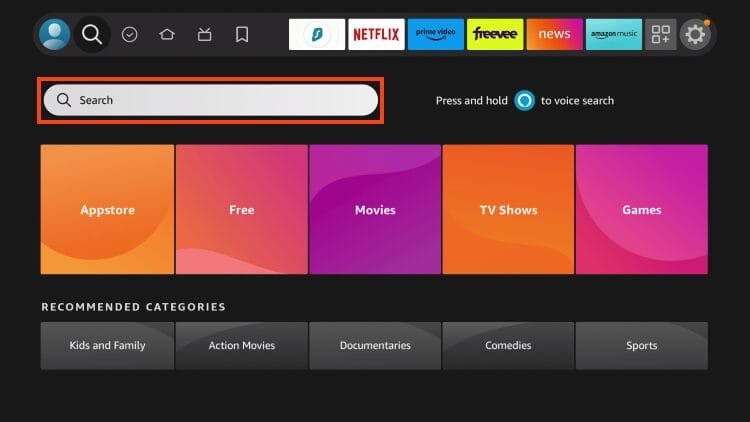
2. Tipo Descargador into the search field.
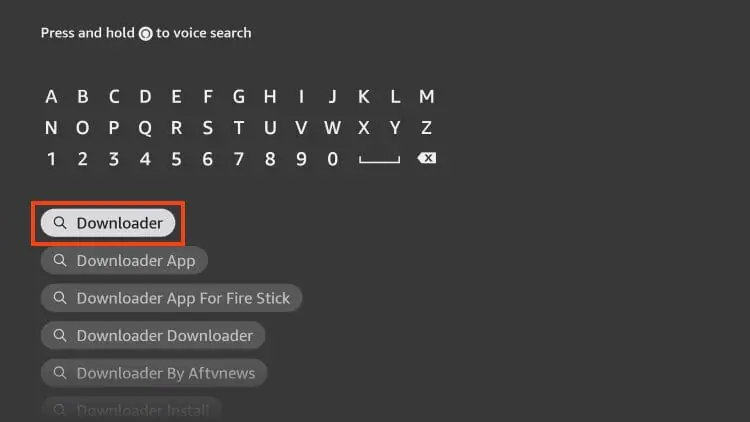
- Seleccione Downloader by AFTVnews app from the search results.
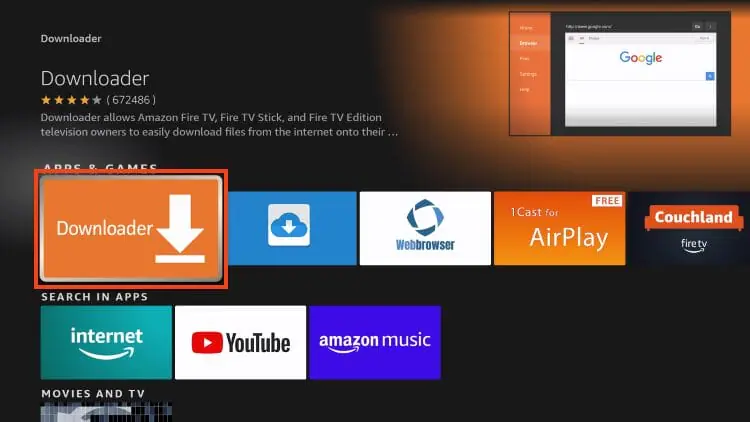
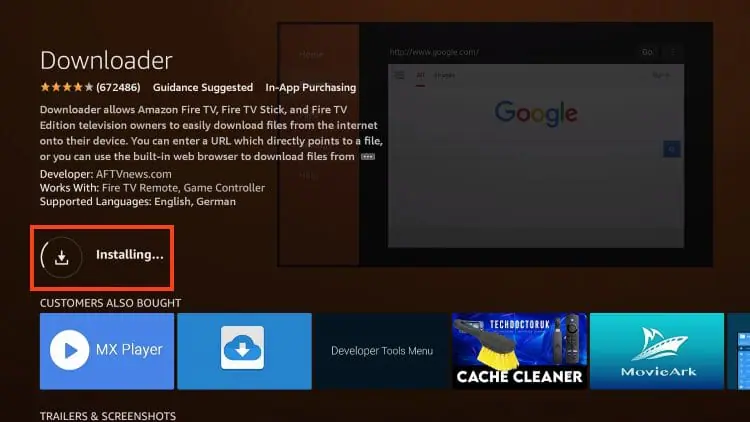
- Haga clic en Descargar o Visite and wait for the installation to complete.
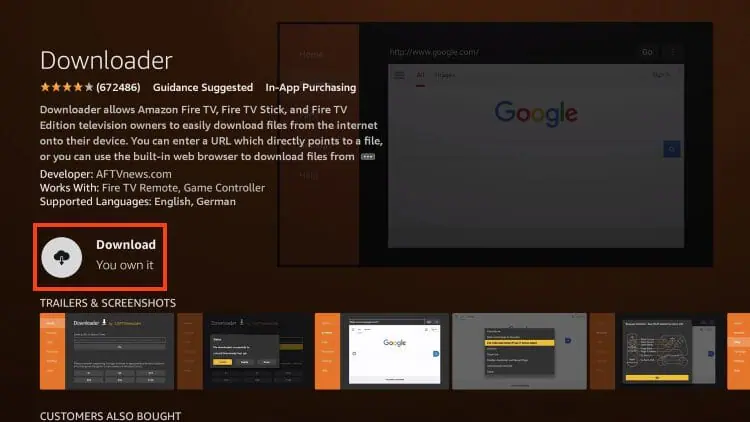
- Once installed, you will see a Downloader ready to launch confirmation message.
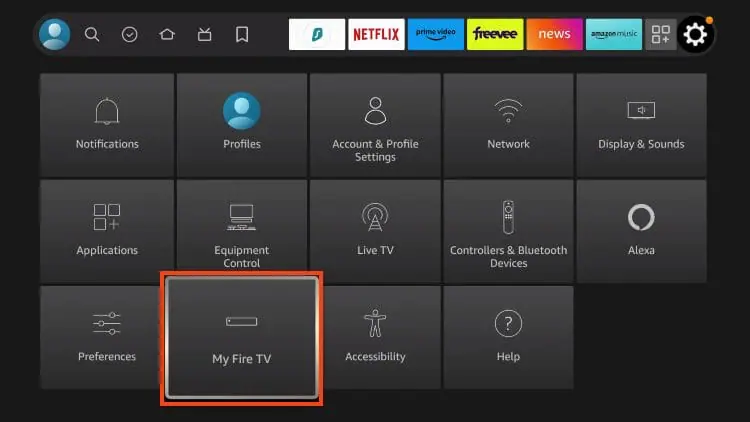
6. Return to the home screen to hover over Settings and click My Fire TV.
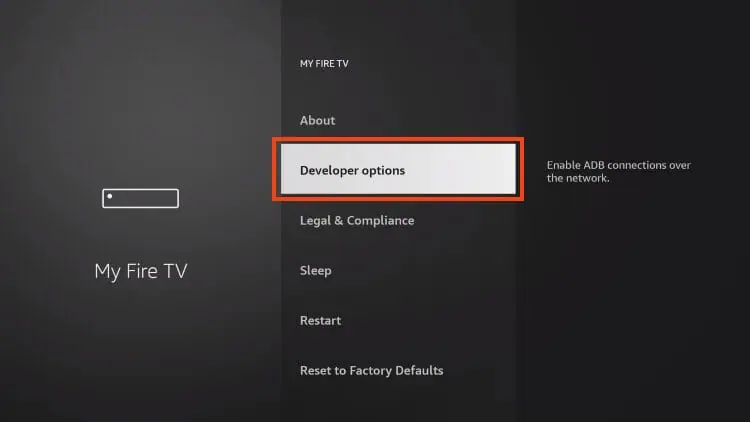
7. Seleccione Opciones de desarrollador.
IMPORTANT: Please see the notes below if you don’t see Developer Options on your screen.
8. Haga clic en Instalar aplicaciones desconocidas.
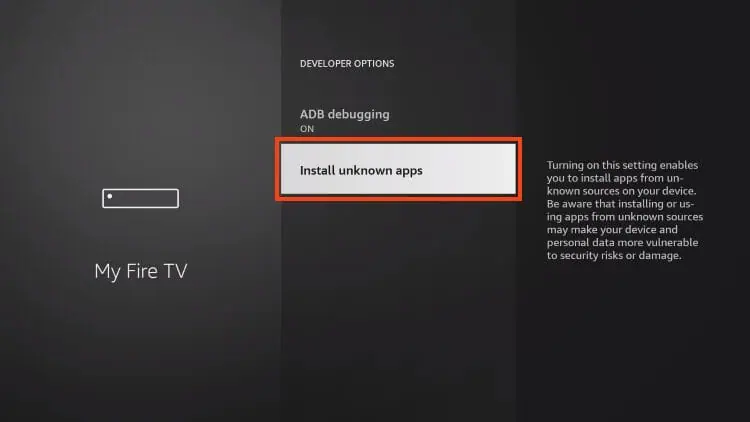
9. Find the Downloader app and choose it.
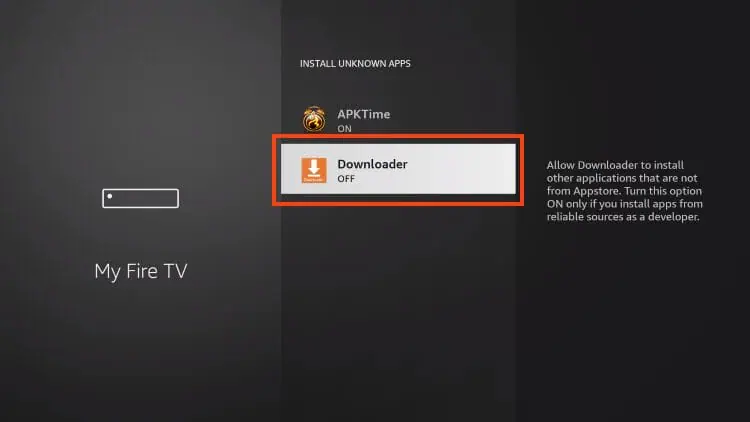
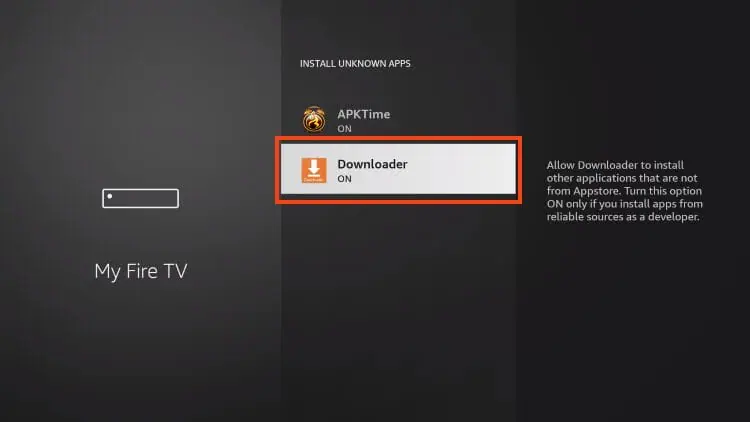
10. This will turn Unknown Sources to On for the Downloader app and allow you to install apps of your choice including SIPTV.
Opciones de desarrollo no disponibles
IMPORTANT If you do not see Developer Options in My Fire TV, go to Settings > My Fire TV > About. Then hover over Fire TV Stick and press the OK button on your remote 7 times. This unlocks Developer Options. Press back and Developer Options will now appear.
STEP 2 Install Smart IPTV via Downloader
- Abra el Aplicación de descarga on your Firestick.
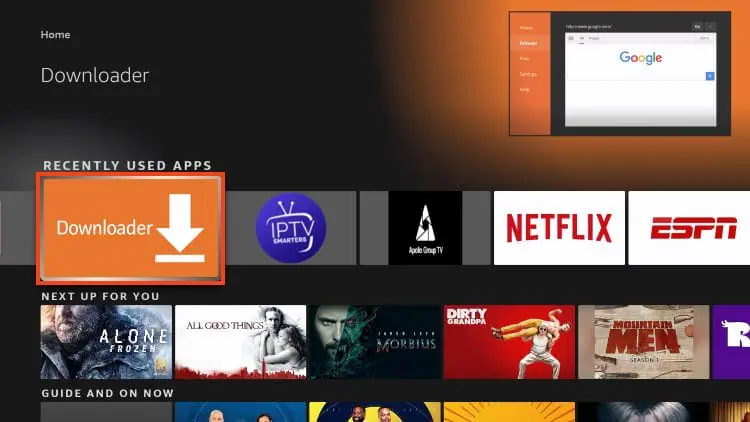
2. Hover over the URL bar and click the select button on your remote to open the Keyboard.
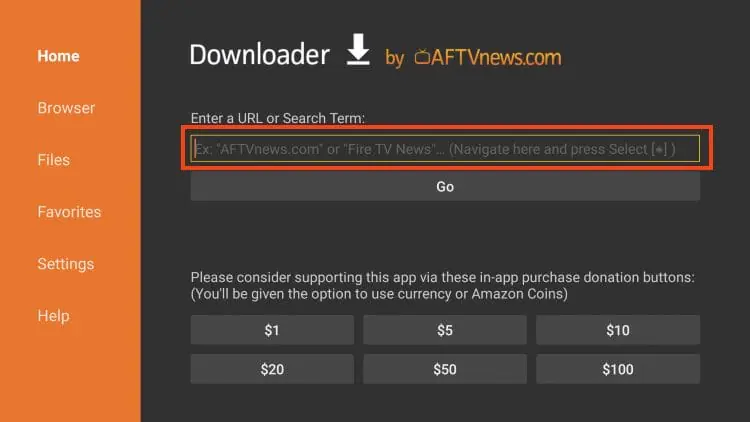
3. Type the Downloader Code for Smart IPTV which is 26604 .
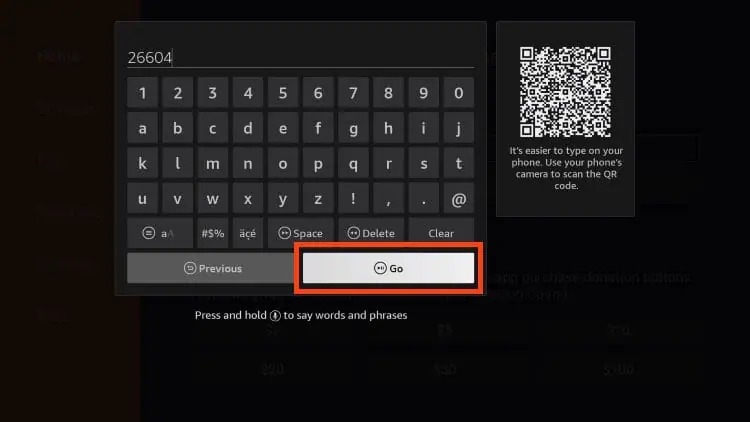
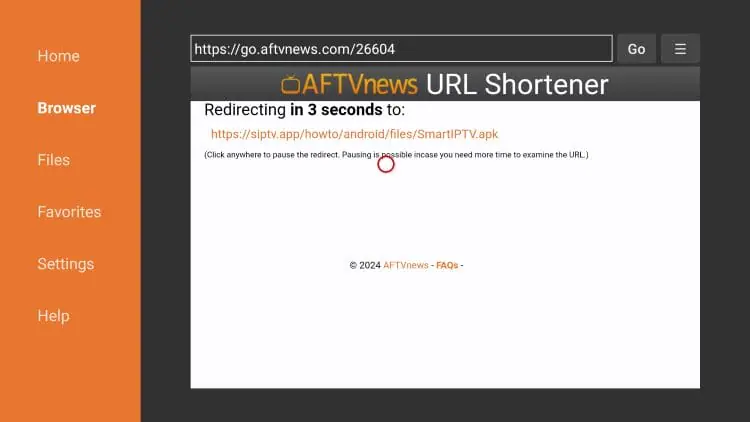
4. You will now see a redirect page.
5. Click Install.
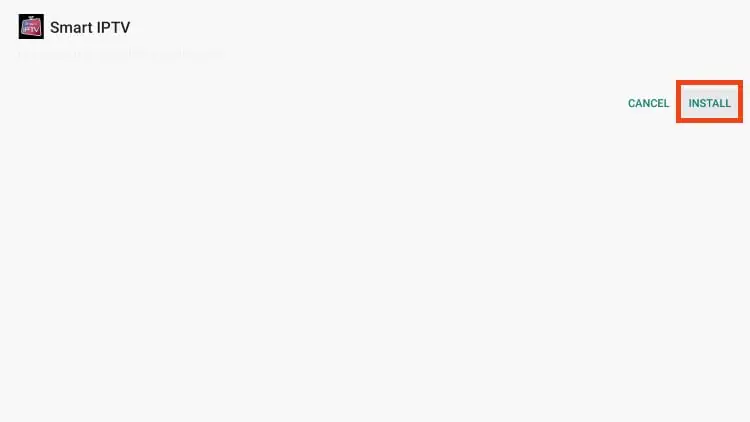
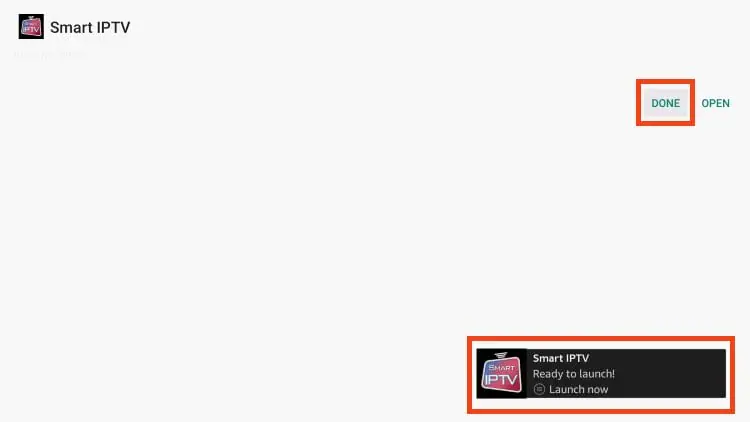
6. You will then see Smart IPTV installation message. Click Done.
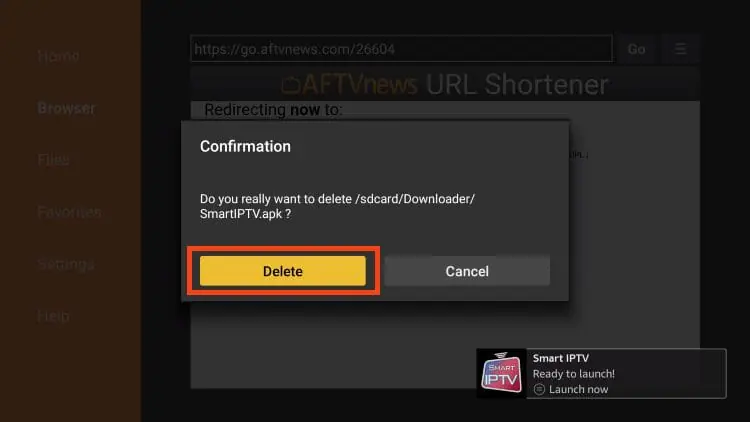
7. When prompted, click Delete.
Installation of Smart IPTV is now complete.
Continue reading to learn how to set up Smart on your preferred device.
How to Set Up Smart IPTV
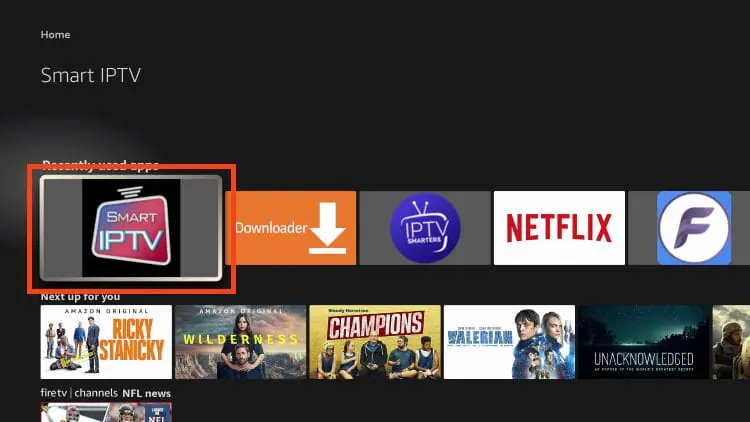
After installing Smart IPTV, you can launch the app to continue the setup process.
1. Launch Smart IPTV.
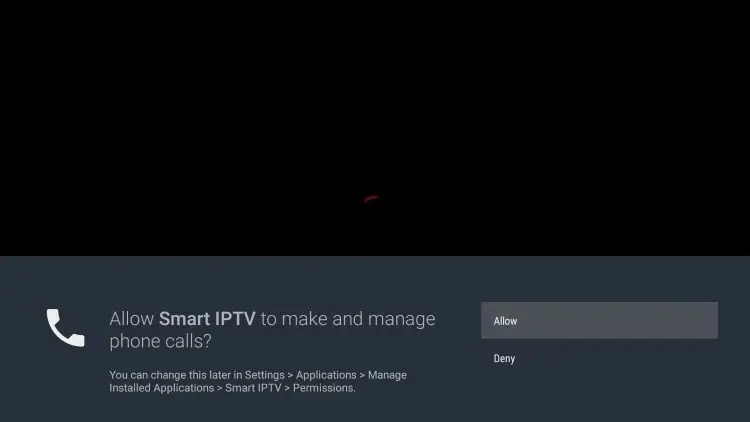
2. If you see the following message, click Allow.
3. You will then encounter the following screen:
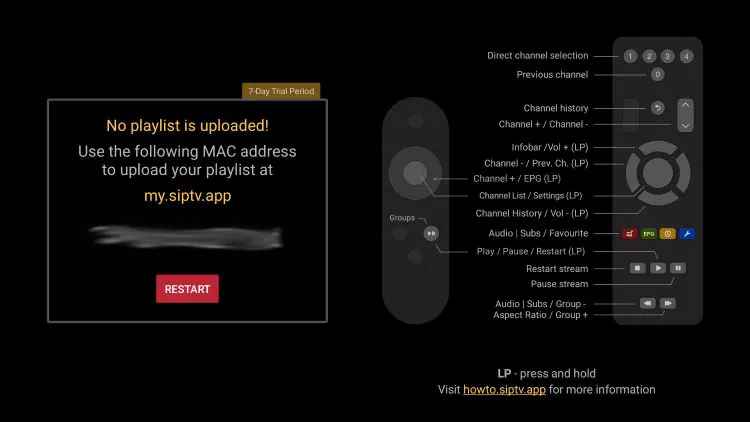
On your phone or computer, open a browser and go to my.siptv.app. Enter your device MAC address and paste your URL M3U from your IPTV provider into the playlist field. Click Enviar
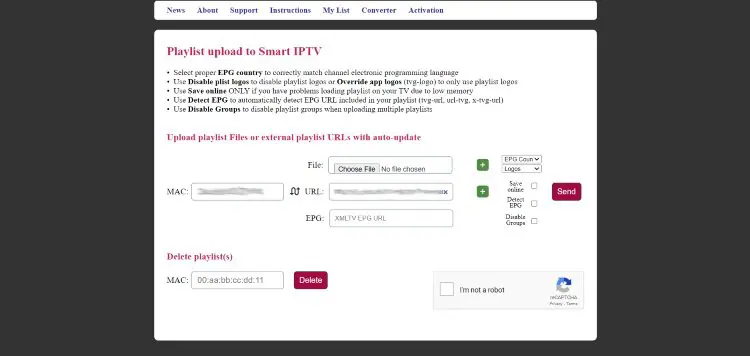
31. Haga clic en Save y Return to the Smart IPTV app on your Firestick and click Restart. Your playlist will load and all your channels will appear.

SUCCESS Setup is complete. Your IPTV channels are now live in Smart IPTV. You can start watching immediately.
How to Add Multiple Playlists in Smart IPTV
One of Smart IPTV’s most useful features is the ability to combine multiple M3U playlists in a single app. This means you can bring different IPTV services together into one organised channel list.
- Ir a my.siptv.app in your browser.
- Enter your MAC address and add a second M3U URL in the additional playlist field.
- Haga clic en Enviar, then restart Smart IPTV on your device. All playlists will merge into one unified channel list.
Smart IPTV vs Other IPTV Players: Full Comparison
Característica | IPTV inteligente | IPTV Smarters | TiviMate | XCIPTV | VLC |
Precio | $6 de por vida | Gratis | Freemium | Gratis | Gratis |
Soporte M3U | ✓ Sí | ✓ Sí | ✓ Sí | ✓ Sí | ✓ Sí |
Códigos Xtream | ✗ No | ✓ Sí | ✓ Sí | ✓ Sí | ✗ No |
EPG Guide | ✓ Sí | ✓ Sí | ✓ Sí | ✓ Sí | ✗ No |
Multi-Playlist | ✓ Sí | ✓ Sí | Premium | ✓ Sí | ✗ No |
MAC Required | ✓ Sí | ✗ No | ✗ No | ✗ No | ✗ No |
Aplicación Firestick | Carga lateral | Carga lateral | Carga lateral | Carga lateral | Limited |
LG Smart TV | ✓ Sí | ✗ No | ✗ No | ✗ No | ✓ Sí |
If you want Xtream Codes support without a MAC address requirement, IPTV Smarters en Firestick y Reproductor IPTV TiviMate are the strongest alternatives. For a lightweight Firestick player, Reproductor XCIPTV y Reproductor de secuencias IPTV are also worth considering. For all player setup guides in one place, visit the FlixoPlay blogs page.
Is Smart IPTV Legal?
Yes — Smart IPTV as an application is entirely legal. It is simply a media player that reads playlist files, in the same way that VLC o Jugador MX do. The legality of the content you stream depends on your Proveedor de servicios IPTV. Always use a legitimate, licensed IPTV service.
Troubleshooting Smart IPTV: Common Issues and Fixes
Playlist Not Loading After Restart
- Double-check that the MAC address entered on my.siptv.app matches exactly what is shown in the app.
- Confirm your M3U URL is valid and has not expired. Contact your Proveedor de IPTV for a refreshed link if needed.
- Try clearing the Smart IPTV app cache on your Firestick: Settings > Applications > Manage Installed Applications > Smart IPTV > Clear Cache.
No Channels Showing After Setup
- Ensure your Abono IPTV is active and not expired.
• Re-enter your M3U URL on my.siptv.app, click Send again, and restart the app.
App Freezing or Buffering
- Check your internet connection speed — IPTV requires at least 10 Mbps for HD and 25 Mbps for 4K streams.
- Restart your router and Firestick.
- If using Wi-Fi, move closer to the router or switch to a wired connection where possible.
Preguntas más frecuentes:
Smart IPTV is a paid IPTV media player compatible with M3U playlists and most IPTV services. It is available on Firestick, Android TV, and LG Smart TV and costs a one-time fee of approximately $6 for lifetime access.
No. Smart IPTV costs around $6 as a one-time lifetime purchase. There are no recurring subscription fees after that payment.
Smart IPTV works on Amazon Firestick, Fire TV Cube, Fire TV 4K, Android TV boxes (NVIDIA SHIELD, MECOOL, and others), Google TV devices, and LG Smart TVs.
No, Smart IPTV only supports M3U URLs and playlist files. If your Proveedor de IPTV uses Xtream Codes, ask them to generate an M3U link for your account. Alternatively, IPTV Smarters natively supports Xtream Codes login.
Smart IPTV uses your device MAC address to link your playlist to your specific device via the my.siptv.app web dashboard. This is how the app identifies and loads your channels when you restart it.
Each device requires its own Smart IPTV licence because the app is tied to each device's unique MAC address. You will need to complete the $6 payment for each additional device.
Any Servicio IPTV that provides an M3U URL is compatible with Smart IPTV. For setup details and compatible services, visit FlixoPlay.com.
Reflexiones finales
Smart IPTV is a solid, reliable IPTV player that delivers excellent value for its one-time price. The web-based setup via my.siptv.app is simple, multi-playlist support is a genuine advantage, and it performs well across Firestick, Android TV, and LG devices. The only real limitation is the absence of Xtream Codes support and the MAC address requirement, which reduces anonymity compared to players like TiviMate o IPTV Smarters Pro.
If you are ready to start streaming, make sure you have a compatible Abono IPTV with an M3U URL. Once that is in place, Smart IPTV takes under five minutes to install and configure. For more IPTV player guides and setup help, browse the Blog de FlixoPlay.