
How to Install XCIPTV Player on Firestick & Android TV (2026)
What Is XCIPTV Player and Why Should You Use It?
If you’re searching for a lightweight, feature-rich, and completely free IPTV player, XCIPTV Player is one of the best options available for Firestick, Fire TV, Android TV, and Google TV devices. Unlike many competitors that lock advanced features behind a paywall, XCIPTV is 100% free — and it doesn’t compromise on quality.
The app doesn’t provide channels on its own. Instead, it works as a dedicated video player that connects to your IPTV service provider using either Xtream Codes credentials or an M3U playlist URL. Once connected, you get access to live TV channels, VOD content, series, catch-up TV, and more — all within a clean, user-friendly interface.
Since XCIPTV is not listed on the Amazon App Store or Google Play Store, you’ll need to sideload the APK onto your device. Don’t worry — the process is simple, and this guide covers every step in detail. If you’ve previously followed our guide on how to install IPTV Smarters on Firestick, you’ll find this process very familiar.
Step 1: Prepare Your Firestick — Enable Unknown Sources & Install Downloader
Before you can sideload XCIPTV Player, you need to enable third-party app installations on your Firestick and install the Downloader app. If you’ve already done this for another IPTV app, you can skip ahead to Step 2.
Enable Apps from Unknown Sources
1. From the Firestick home screen, go to Settings in the top navigation menu.

- Select My Fire TV (or Device on older Firestick models).

- Select Developer Options from the list.

- Toggle Apps from Unknown Sources to ON.

5. Select Turn On on the confirmation prompt.
6. From the Firestick home screen, click the search icon (magnifying glass).
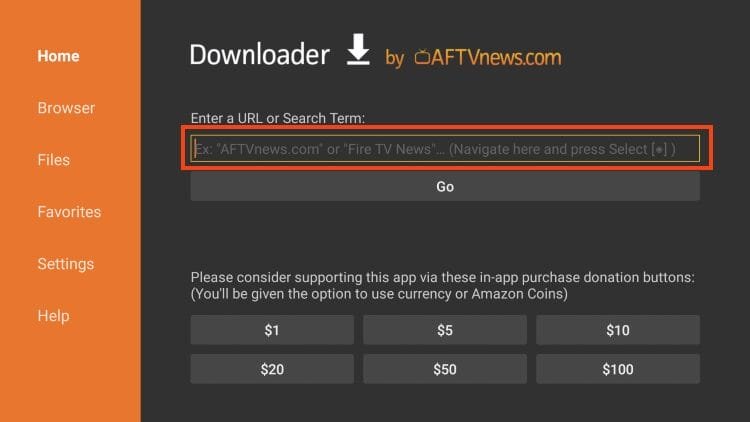
- Search for “Downloader” and select it from the results.
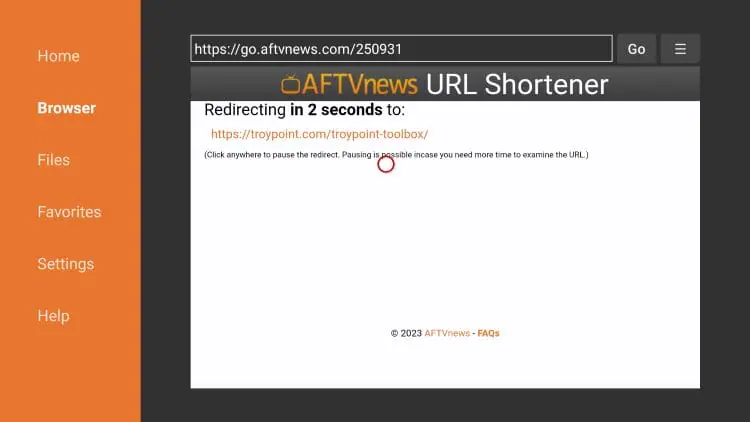
- Click Download, wait for it to install, then open the app and grant all requested permissions.

9. Click Install.

10. Click Done.

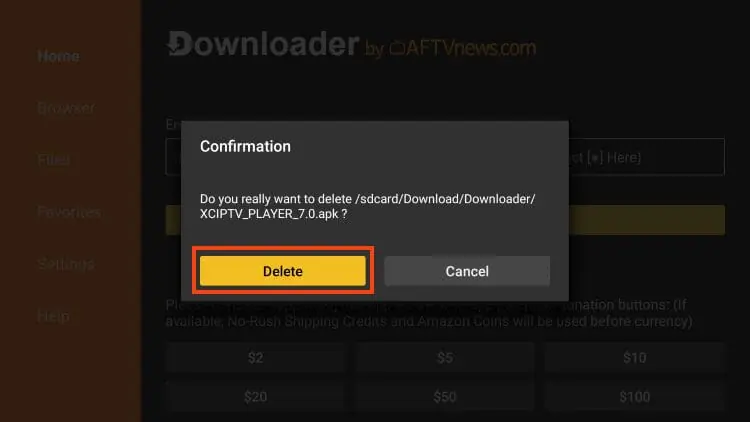
11. Delete the installation file for XCIPTV and your download is complete!
How to Set Up XCIPTV on Firestick
Now that XCIPTV is installed, it’s time to connect it to your IPTV subscription. The app supports several login methods including Xtream Codes, M3U URL, and Fastocloud.
This is the most common and recommended method for connecting to a premium IPTV service. If your provider gave you a username, password, and server URL, use this option.
After you have finished installing the app, you can launch it for set up and integrate your preferred live TV service. This is a simple process which we outline below.
1. Open XCIPTV and use the sign in option to add your IPTV Service. This can be done via M3U URL, Xtream Code, Fastocloud, and other options.
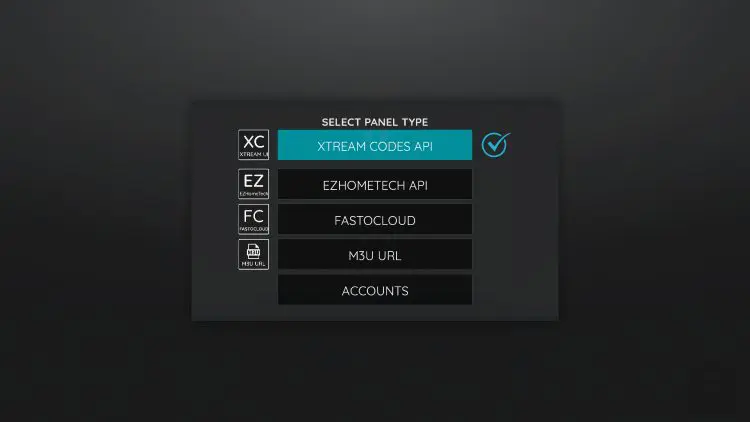
2. Make sure to enter your credentials properly and don’t miss any letters, numbers, symbols so your service integrates properly.

3. If prompted, click Allow.

4. Wait a minute or two for the media contents to load.

5. You have successfully set up XCIPTV with your preferred live TV service.

XCIPTV Settings & Features
XCIPTV Player stands out among free IPTV players for Firestick because of its impressive feature set. Here’s what you get:
XCIPTV is one of the most popular applications among those using Firestick/Fire TV, Android TV/Google TV, and other streaming devices.
This player offers some great features for being 100% free to use! These features include a favorites manager, external video player integration, picture settings, multi-screen, recording, and more.

Users can browse channels easily by category and with the built-in EPG.

One of the best features available is the built-in EPG (Electronic Program Guide) for browsing all channels and shows.

Users can also generate a Password for Parental Controls to lock preferred content.

Those who have multiple connections with their service can use the Multi-screen for watching numerous channels at once.

XCIPTV sorts the content into categories for easy browsing of your IPTV Provider.
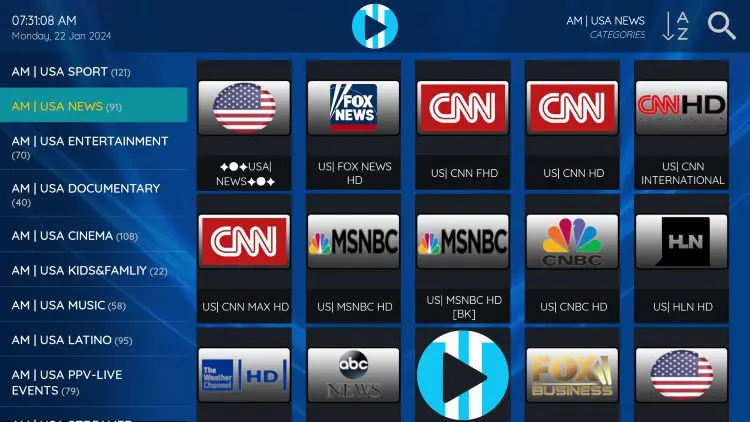
Those interested can find subtitles in the bottom right hand corner of a channel offering.

Favorites Manager
The ability to add channels to favorites is one of the best features within XCIPTV. Follow the short guide below on how to add channels to favorites.
1. Locate any channel your IPTV service offers and hold down the OK button on your remote.
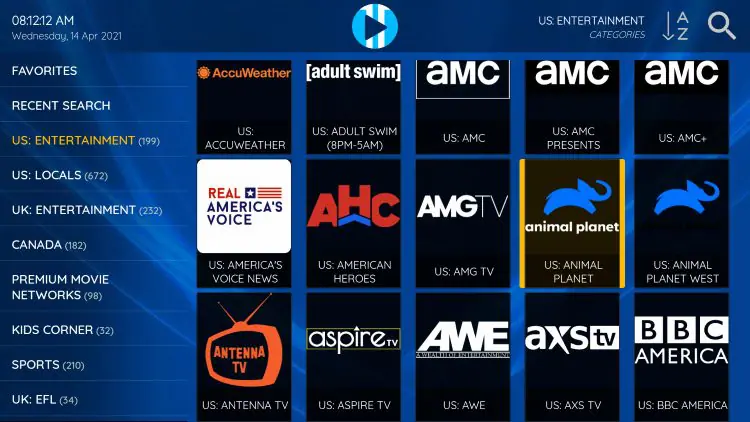
2. You should notice a star icon appear over the selected channel.

3. Return back to the channel category list and click Favorites.

4. Notice your selected channel is now located within your Favorites. To remove a channel hold down the OK button on your remote and the star icon will disappear.

5. You can now add/remove channels from Favorites within this IPTV player.

External Video Players
Another excellent feature of this live TV player is the ability to add external video players.
Currently, the only options available are the built-in Exo Player and VLC Player which is one of the most popular media players available today. You can easily adjust these
1. From the home screen, click Settings on the bottom right.

2. Choose Player.

3. You can now select your preferred player option for each category including Live TV, VOD, Series, & Catchup.
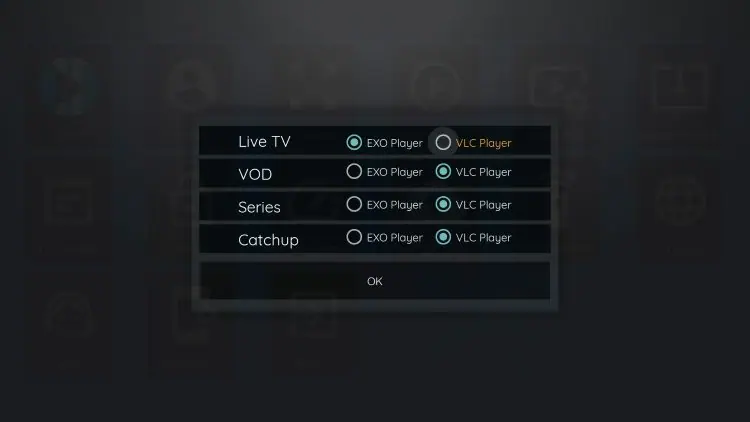
4. Once you have your player settings adjusted to your preference, click OK.

For a full breakdown of supported login formats and compatible services, visit our IPTV setup details page.
Fraud Websites
Always source your IPTV subscription from a trusted provider. If you’re looking for a reliable IPTV service with stable streams and genuine support, make sure you’re choosing a legitimate option — not a scam site hiding behind a popular app name.
One thing that we always make sure to point out to our followers are the various imposters who use the ‘XCIPTV’ name to try and sell unverified IPTV services.
These are scams and you should make sure to avoid these at all costs. Pictured below is an example of a fraud website.

XCIPTV does not host or distribute any channels whatsoever and only functions as a video player so anyone claiming to provide channels for a monthly fee is not the official app. Stay far away from these frauds!
Is XCIPTV Safe?
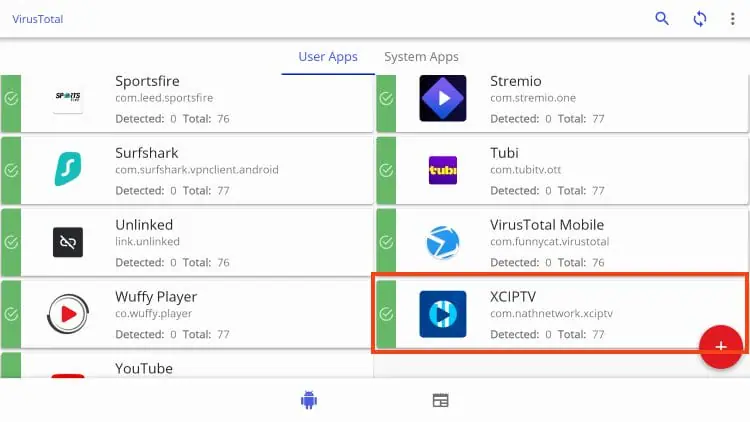
The best way to determine the safety of 3rd party apps is by scanning them with a virus checker such as VirusTotal.
We have VirusTotal installed on our streaming device and scanned apps including XCIPTV to check for malware/spyware.
Frequently Asked Questions (FAQs)
Yes, XCIPTV Player is completely free to download and use. There are no premium tiers or paid upgrades. However, you will need an active subscription from an IPTV provider to access any content, as the app itself does not include channels.
XCIPTV is compatible with any IPTV service that provides Xtream Codes API credentials or an M3U playlist URL. This covers the majority of providers on the market. For a quality, stable IPTV experience, explore FlixoPlay's IPTV plans.
Yes. XCIPTV Player supports Firestick, Fire TV, Android TV, and Google TV boxes. The sideloading process is slightly different on Android TV/Google TV but the core steps — enabling unknown sources and using the Downloader app or a file manager — remain the same.
Both are free IPTV players that support Xtream Codes and M3U playlists, but they differ in interface and features. XCIPTV is known for its lightweight design and multi-screen capability, while IPTV Smarters Pro offers a more polished interface with extensive multi-user profile support. Both are excellent choices depending on your preference.
Since XCIPTV isn't on the Amazon App Store, updates won't happen automatically. To update, simply repeat the sideloading process — download the latest version through the TROYPOINT Toolbox shortcode and install it over the existing app. Your settings and login credentials should be preserved.
Buffering in XCIPTV is usually related to your internet connection or server load. Try these fixes: lower the video quality in playback settings, close background apps on your Firestick, restart your router, or switch to a wired Ethernet connection for more stable streaming.
Final Thoughts
Installing IPTV Smarters on Firestick is a straightforward process once you know the steps. By enabling unknown sources, sideloading the APK via the Downloader app, and configuring it with your Xtream Codes or M3U credentials, you’ll have a fully functional IPTV streaming setup running in under 15 minutes.
If you’re still searching for a quality IPTV provider to pair with IPTV Smarters, FlixoPlay offers high-performance streams with thousands of channels, HD/4K quality, and reliable uptime. You can also browse our other setup guides to get the most out of your streaming experience.
Final Thoughts
XCIPTV Player is a genuinely impressive free IPTV player — one that punches well above its weight with features like multi-screen viewing, EPG support, external player integration, favorites management, and parental controls. For anyone running a live TV streaming setup on Firestick or Android TV, it’s well worth adding to your toolkit.
Ready to get more out of your IPTV setup? Browse our full collection of IPTV guides for more tutorials, app comparisons, and streaming tips. And if you’re looking to upgrade your IPTV plan — whether for personal use or as an IPTV reseller — we’ve got options designed to fit every need.